The Team Page and the Settings Hub
Who is in the workspace, and the six sections where the workspace itself is configured.
Two entries in the sidebar's Manage group cover the workspace: Team is the people, Settings is everything else. They used to be one page with tabs; old ?tab= links still land on the right section.
Team — the members

Three cards, top to bottom:
- Team Members — who is in the workspace, with their avatar, email and role. The role is one column: a dropdown (Admin / Manager / Member, each with a one-line description) for people who can change it, a plain label otherwise; the owner's row reads Owner · Admin. The ▼ at the end of a row offers Suspend / Reactivate and Delete, and a suspended member carries a Suspended badge. Its header is where your seat usage lives (
3 / 5 members) — suspended members still count, deleted ones don't — with (Member limit reached — upgrade your plan to add more) appended once you are full. - Pending invitations — everyone invited who has not joined yet, each with its role, its expiry (or an Expired badge) and Copy link / Resend / Withdraw. The card is hidden when nothing is outstanding.
- Invite Member — the email + role form, for admins and managers. At the seat limit the form is replaced by Member limit reached and a prompt to upgrade.
See Invite team members and Roles and permissions.
Settings — the workspace
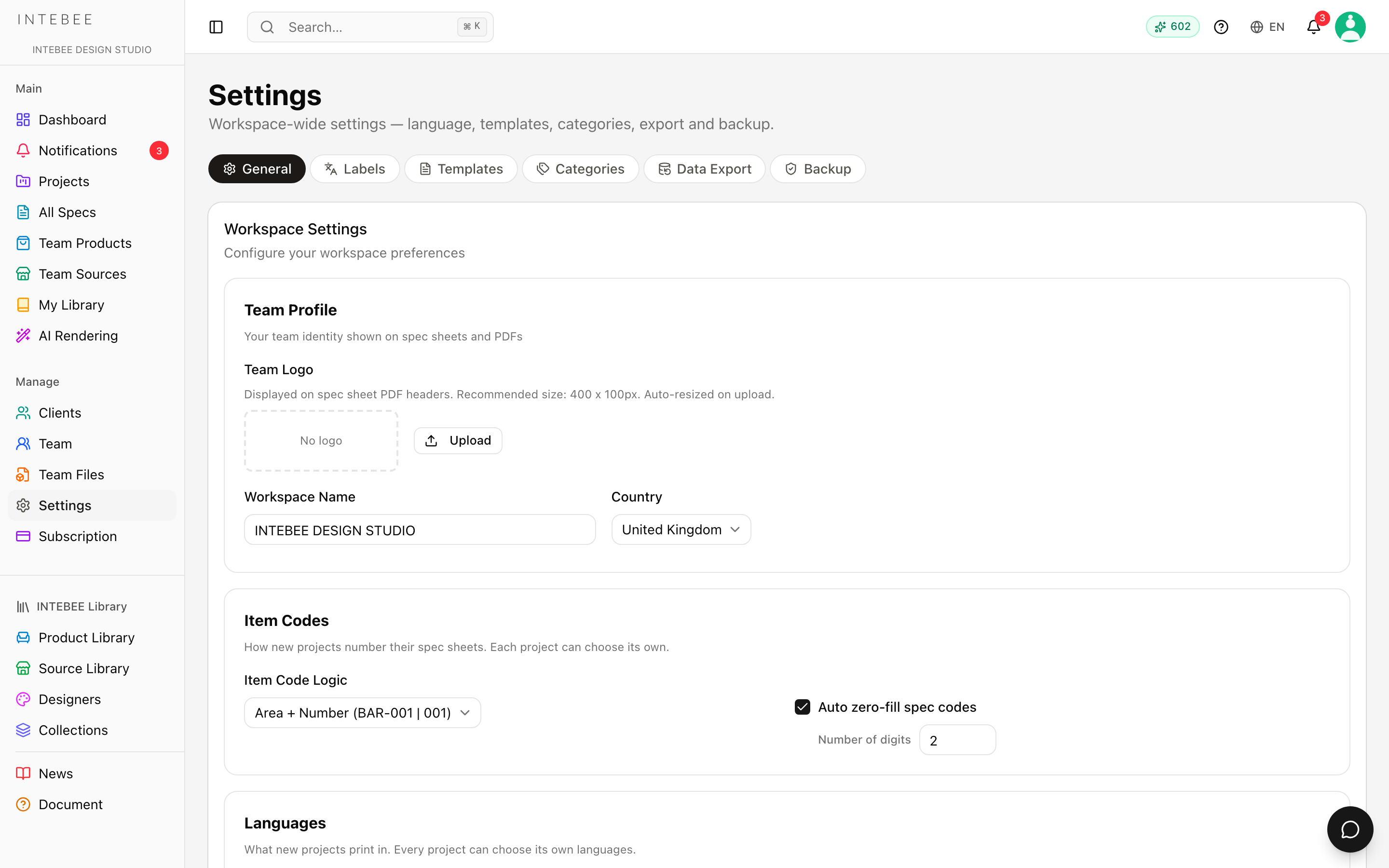
Settings opens a hub with six sections across the top. Each is its own page, so you can link a colleague straight to one.
Only admins and managers can change anything here; everyone else sees the page with a note, "Only admins and managers can change workspace settings."
General
The workspace's own settings, in six cards plus the requirement tags:
- Team Profile — Workspace Name, Country and the Team Logo. The logo is printed on spec sheet PDF headers, is auto-resized on upload and must be under 2 MB.
- Item Codes — Item Code Logic, Auto zero-fill spec codes and its Number of digits, for new projects. Each project can still choose its own.
- Spec Sheet List — Default spec sheet sort: the order projects open their spec sheet list in. A project can set its own Default Sort, and a sort someone picks in a project's Sort menu still wins for them in that project. See Spec sheet basics.
- Languages — Default Spec Sheet Language, Enable dual language by default and the Default second language.
- Spec Sheet Defaults — Show location of hidden area items by default.
- Project Configuration — the Project Status List and Project Category List that projects pick from.
- Requirement Tags — the workspace-wide list of submittals and their translated names. See Requirement tags.
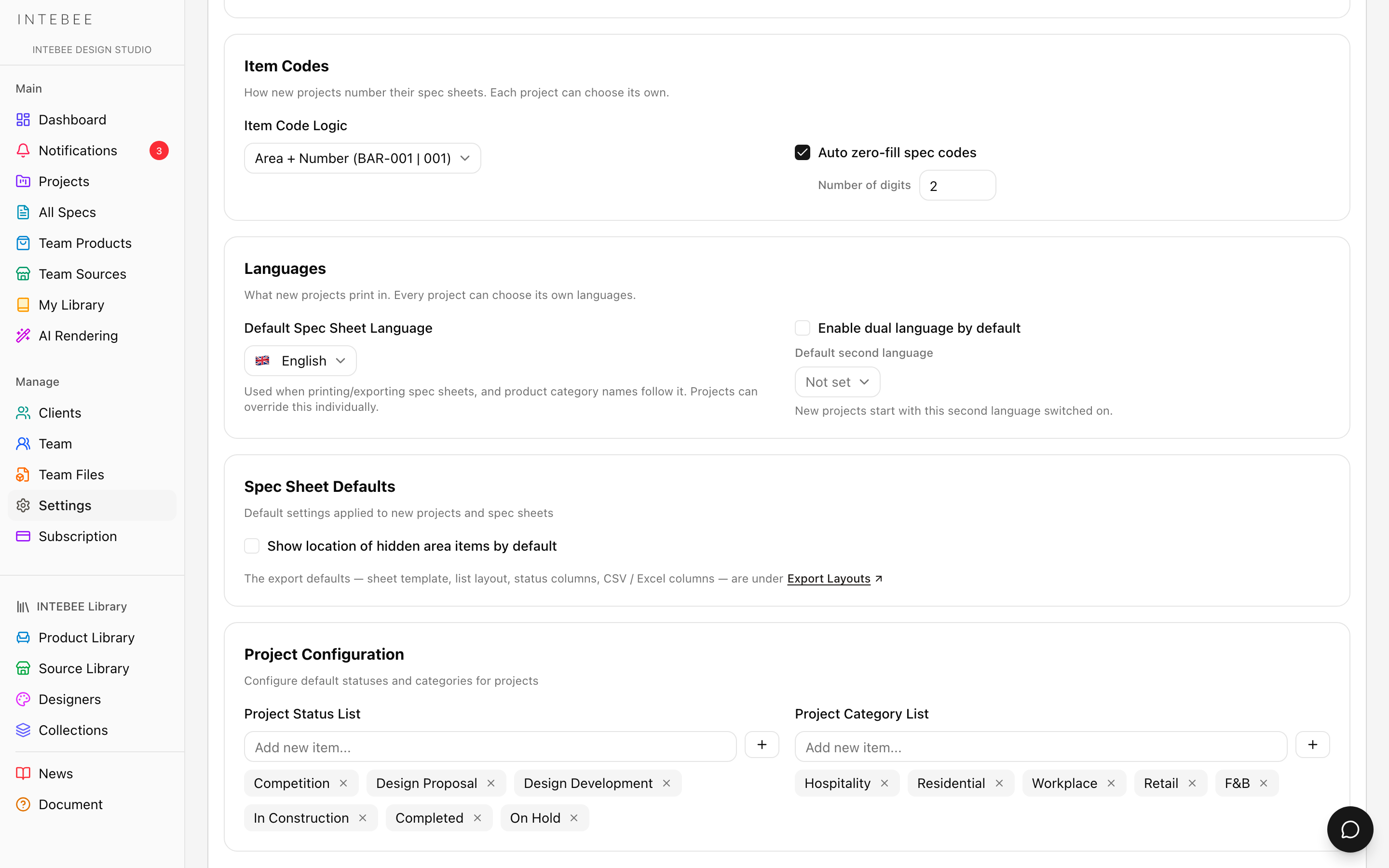
What saves when. Three things save the moment you act on them: the Team Logo (upload and remove), the Requirement Tags list and its translations. Everything else on this page needs the Save Settings button at the bottom. Leaving without pressing it loses your changes.
Labels
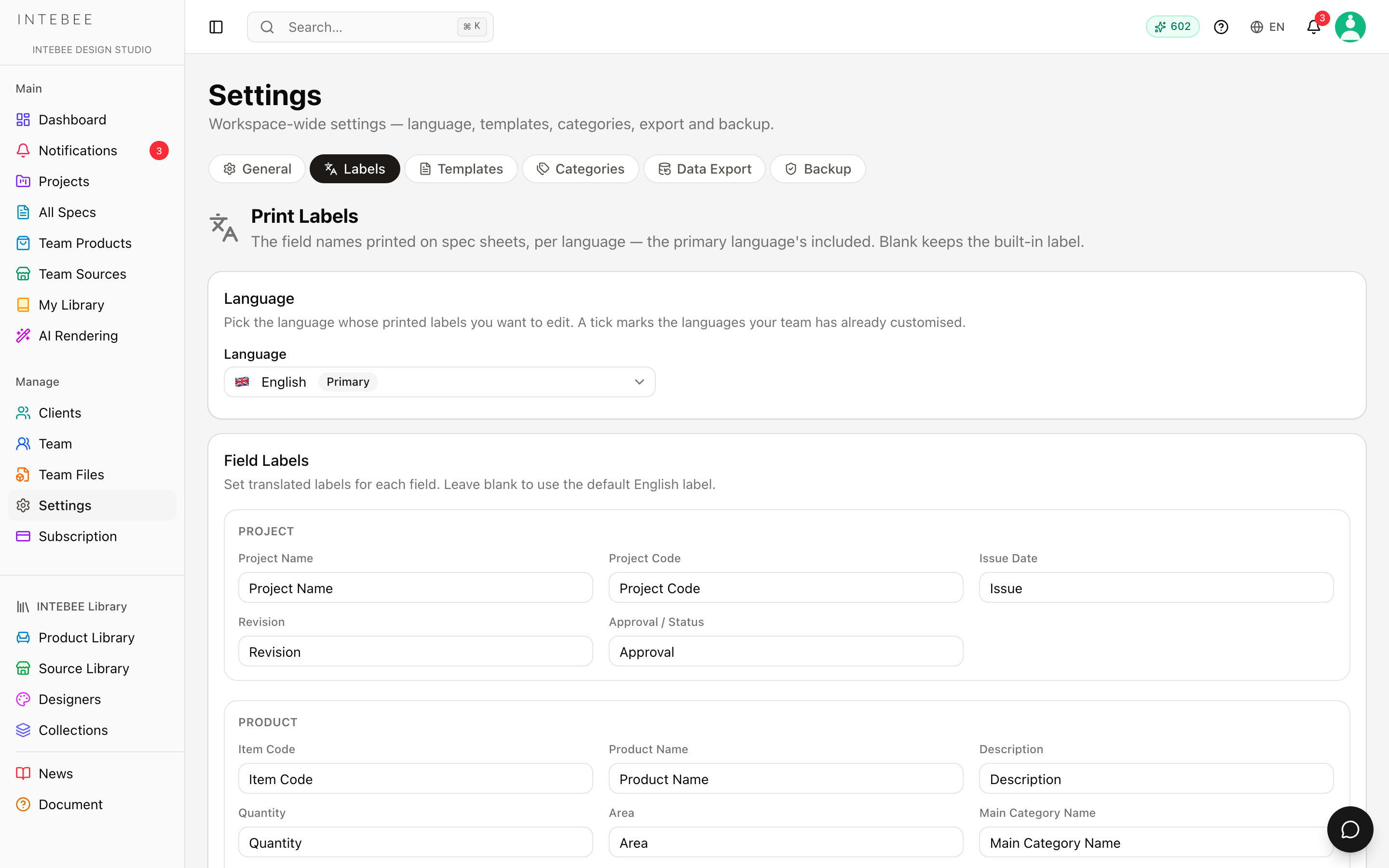
Print Labels — the 46 field names printed on a spec sheet, per language, including your primary one. Pick a language at the top and edit the Field Labels below; Save Language Settings stores them. Full detail in Language settings.
Templates
Instruction Templates, Remarks Templates and Export Layouts — reusable text for spec sheets, and the team's default export layout. See Instruction templates and Print templates and PDF export.
Categories
Preset and Custom categories: their codes, badge colours, per-language names and the defaults each one gives a new spec sheet. See Managing categories.
Data Export
The only screen that exports the whole workspace: Export Workspace Data (JSON) and a per-project Export Specs (CSV). Admins and managers only. See Backup and export.
Backup
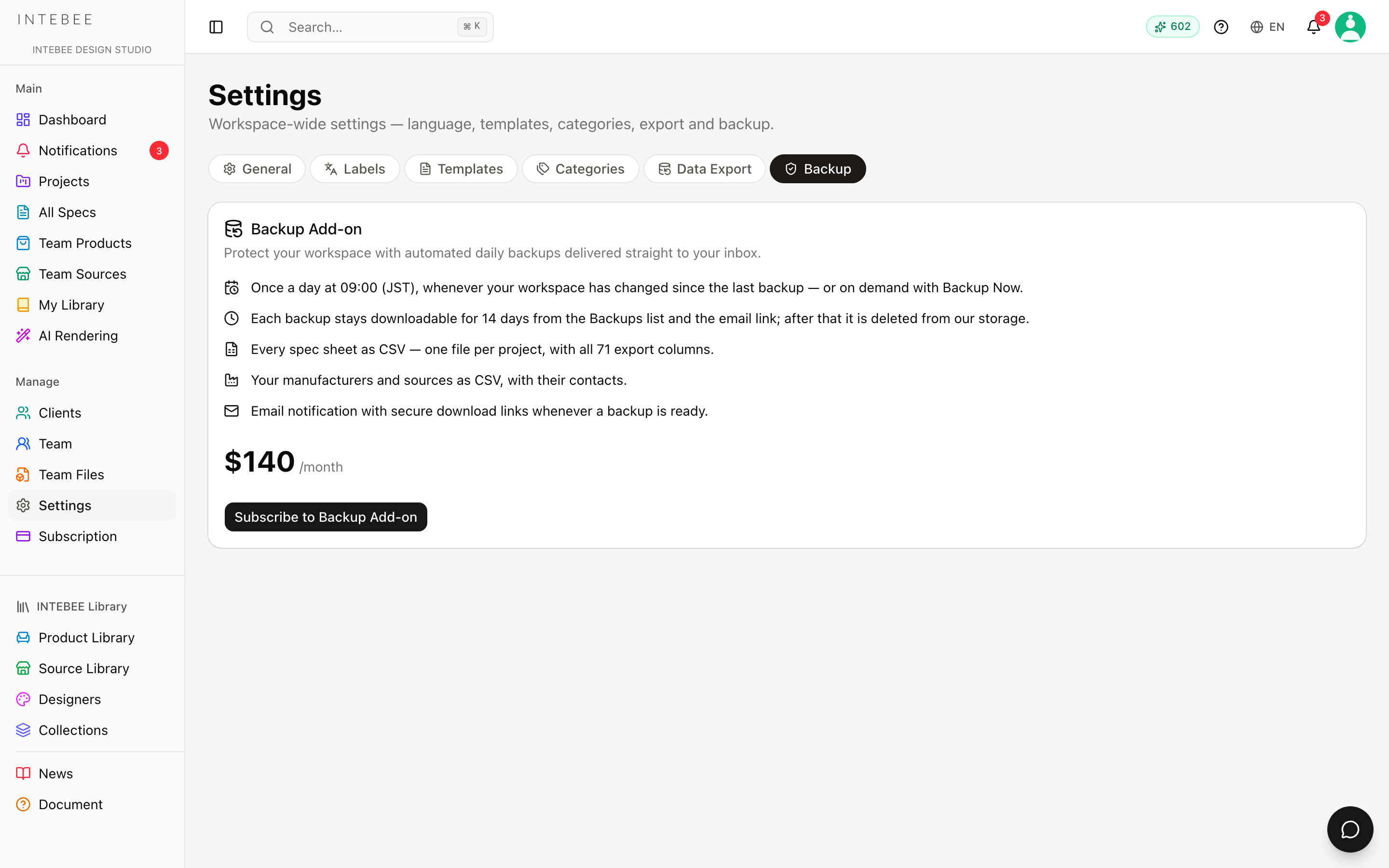
The Backup Add-on, the history of automated backups, and Backup Now. See Backup and export.