
Instruction Templates
Standard requirements you attach to sheets instead of retyping them.
Most projects repeat the same instructions over and over — installation notes, care and maintenance text, compliance requirements, delivery terms. Instruction templates let you write them once and reuse them anywhere.
Creating templates
- Open Settings (sidebar → Manage) and choose the Templates section. It opens on Instruction Templates.
- Click Add Instruction and write the standard text — formatting is preserved on the printed document.
- Give it a clear name ("Upholstery care", "Site delivery — tower projects") so teammates can find it.
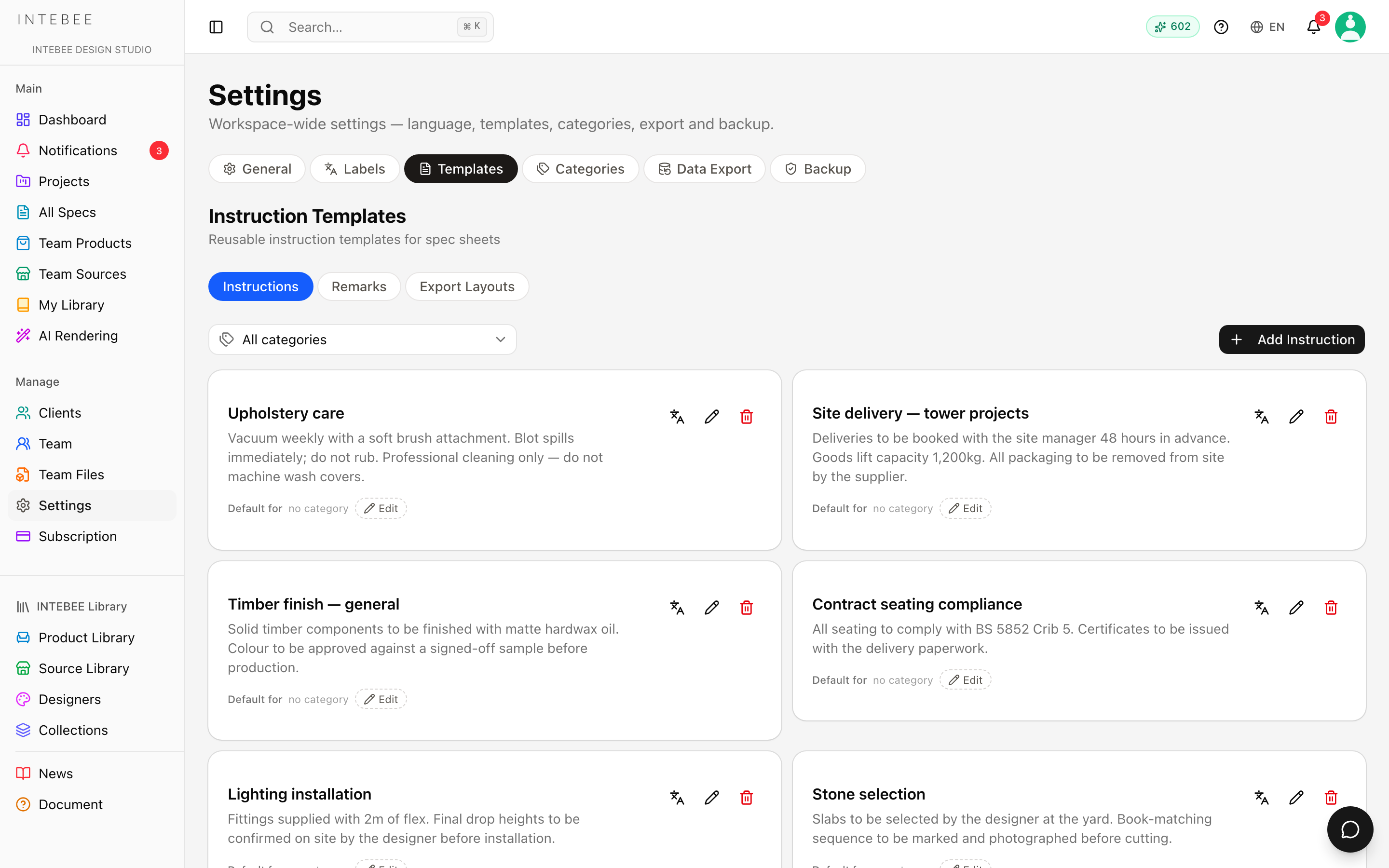
Old /instructions links still work — they land on the same page.
Using templates
On a spec sheet, the Instructions / Technical Method field sits in the right-hand column. Above it are two small buttons:
- Import Template opens the list of your team's instruction templates — search it, pick one, and its text is written into the field. The list marks the template that is the current category's default.
- The bookmark button does the reverse: Save as team template turns whatever you have just written into a new template for the team.
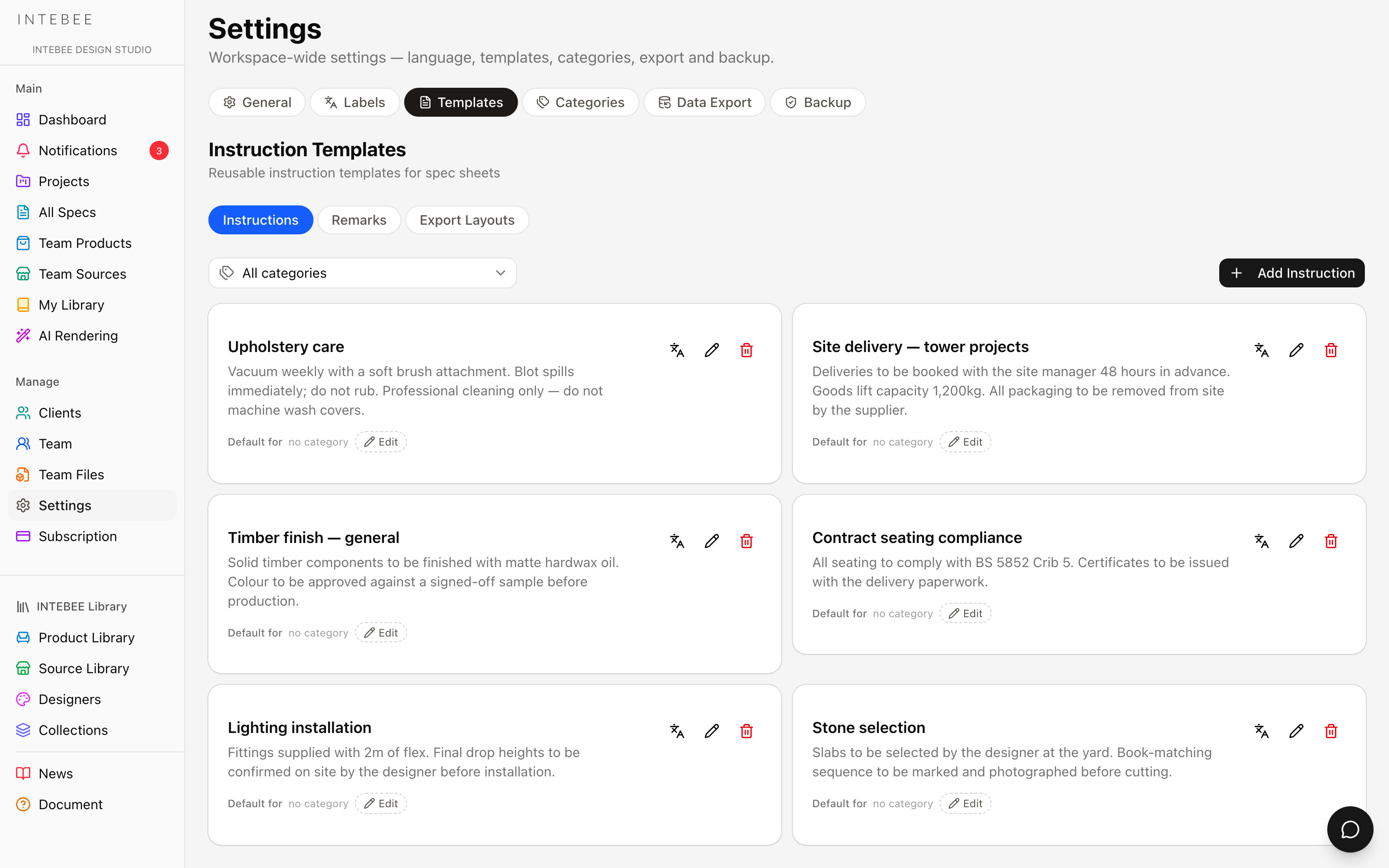
A sheet stores a copy of the text, not a link to the template. Editing a template later changes what future imports bring in; sheets that already used it keep the wording they were issued with. That is deliberate — an issued document should not change under the contractor's feet — but it does mean a correction has to be re-imported onto the sheets that need it.
Category defaults
Defaults are set per category, not per project: Settings → Categories, expand a category, and choose its Pre-filled Instruction. Every new sheet in that category starts with that text, and a small reset button beside the field on the sheet puts the category default back if you have edited it.
Remarks templates
Remarks work exactly the same way and live on the same page — switch to the Remarks tab in Settings → Templates, and use Add Remarks. The spec sheet's Remarks field has its own Import Template and save-as-template buttons, and categories carry a Pre-filled Remarks default too. The details are in Remarks templates.
The third tab, Export Layouts, is not about text at all — it holds the team's default export layout. See Print templates and PDF export.
Multilingual instructions
Like other spec content, instructions and remarks participate in the second-language workflow — fill in the paired translation and every dual-language document renders both.
Tips
- Keep templates atomic (one topic per template) and combine them per sheet, rather than one giant "general notes" wall of text.
- Review templates quarterly — outdated compliance text on an issued document is worse than none.