Backup and Export
Get your data out — the workspace backup file, per-project CSV, and the automated Backup add-on.
Your data belongs to you. INTEBEE gives every plan a way to take it out, and Studio workspaces can add automated backups on top.
Settings → Data Export
Settings → Data Export (sidebar → Manage → Settings) is the only screen in INTEBEE that exports the whole workspace. It holds two exports, and both are limited to admins and managers — a member sees "Only admins and managers can export workspace data."
Full Workspace Backup — click Export Workspace Data (JSON) and INTEBEE builds one JSON file containing your projects, spec sheets, products, sources, designers and clients. This is the file to keep when you want a complete off-platform copy of the structured data.
Project Spec Sheet Export — pick a project, click Export Specs (CSV), and you get that project's spec sheets as a CSV, ready for Excel or Google Sheets.

Exports available on every plan
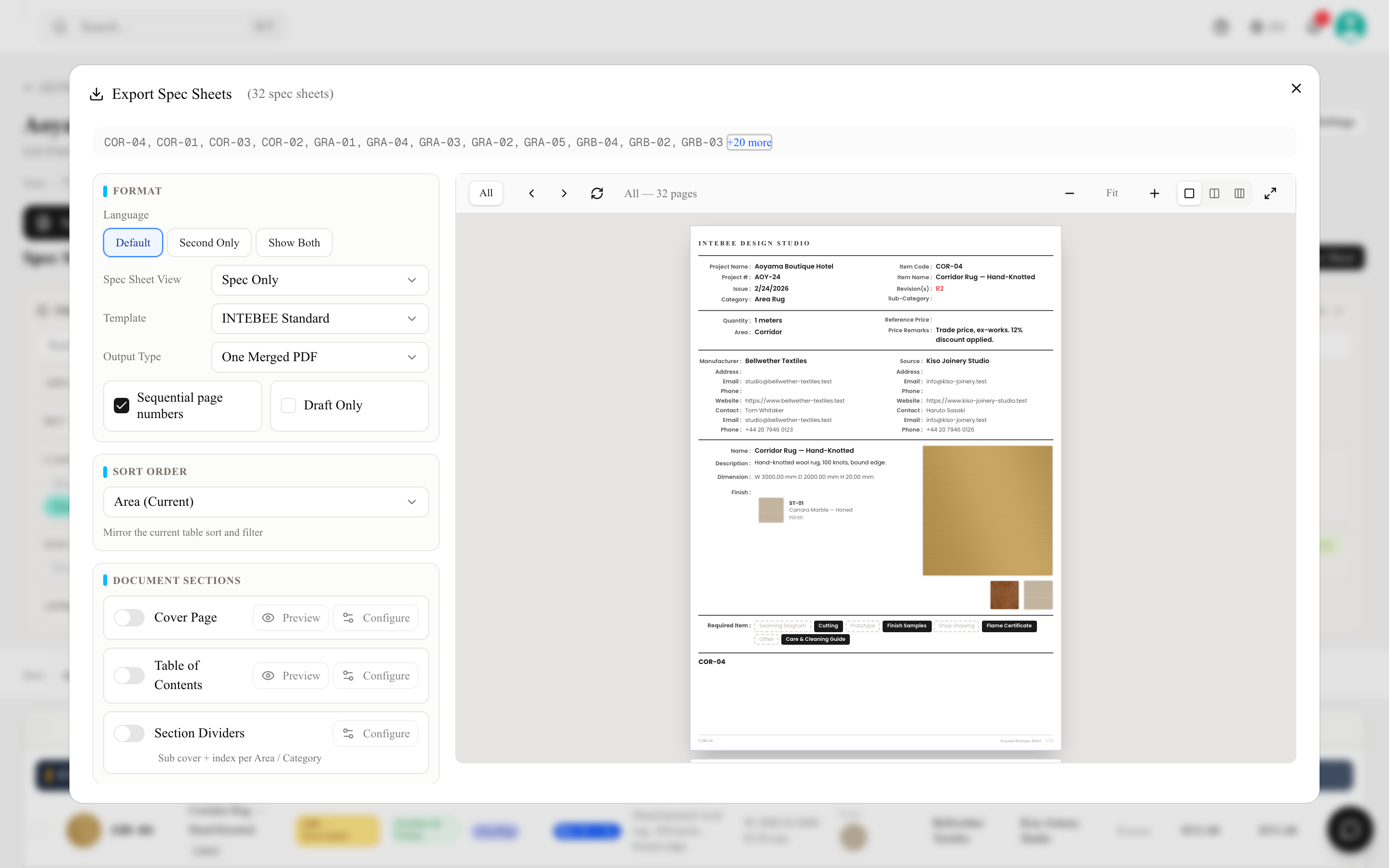
- PDF export — the spec book, with cover, table of contents and section dividers (details).
- Word, Excel and CSV Export — from the same Export dialog.
- Floor plans — Export PDF and Export PNG from the plan editor.
- Settings → Data Export — the workspace JSON and per-project CSV above.
- Files you uploaded can always be re-downloaded from their file lists.
Note that generated PDFs and their export history are kept for 48 hours. Download and archive anything you issue.
The Backup add-on
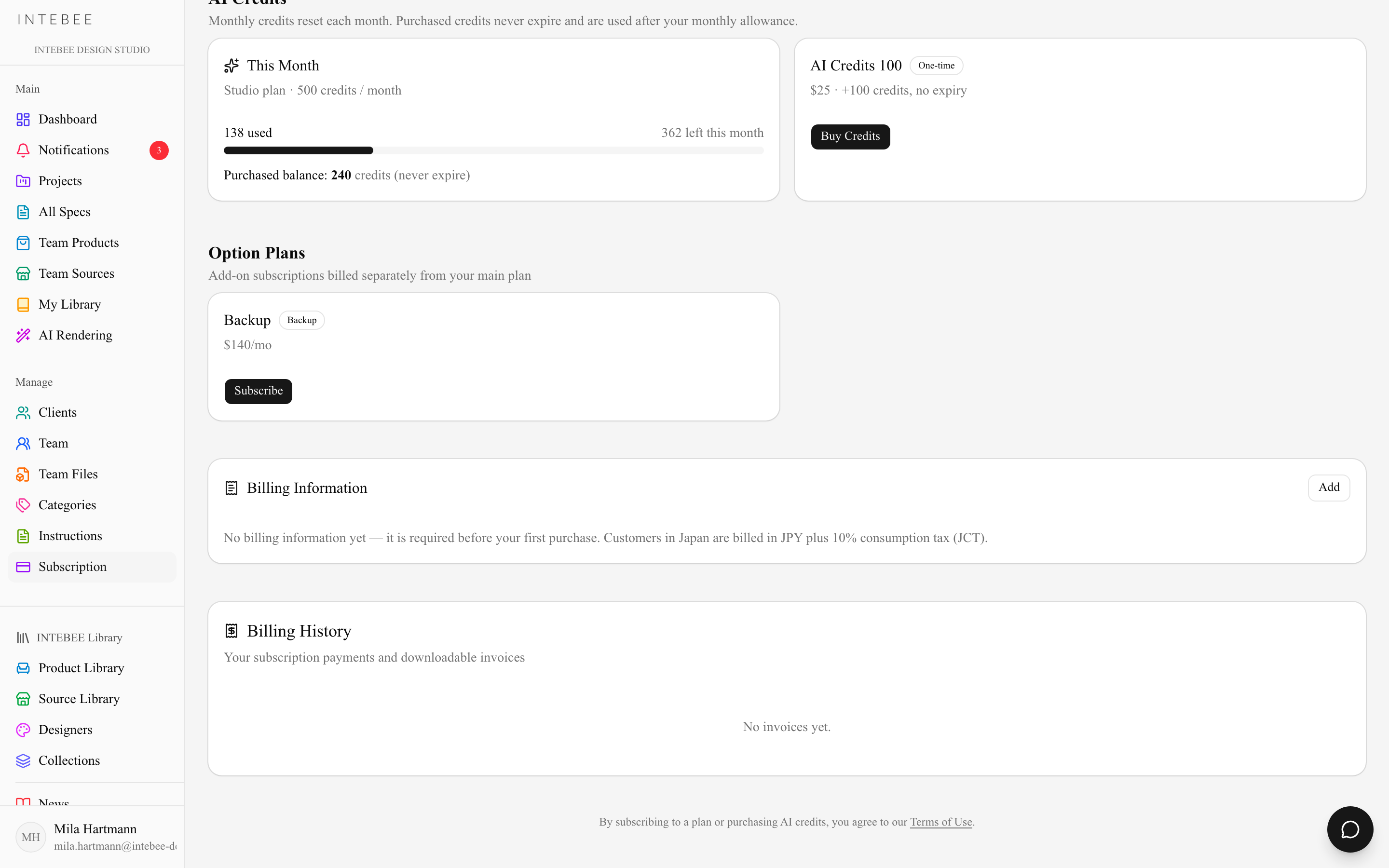
The Backup Add-on automates complete, workspace-level backups — every table of your workspace plus the images and documents your records use. It is available on Studio. Its current price is shown in two places — on the Backup Add-on card under Settings → Backup, and in the Option Plans section of the Subscription page (scroll down; the Subscription page is one long page, not a set of tabs). Customers billed in Japan pay 10% JCT on top. Only an admin can subscribe to the add-on; managers see Admins only on the card.

When backups run
- Every night at 03:00 (JST) INTEBEE backs up each enrolled workspace whose data has changed since its last backup.
- Backup Now runs one by hand. Only admins and managers can use it, and it does nothing when nothing has changed since the last backup.
- A backup covers every change to the data it contains — records, comments, supplier links, floor-plan items and so on. If a server restart interrupts the nightly run, the workspaces it had not finished are backed up as soon as the server is back. Only one backup of a workspace runs at a time; Backup Now tells you when one is already in progress.
What each backup contains
Every backup produces two downloads:
- Excel workbook (.xlsx) — every table of the workspace: the workspace and its members and invitations, users, clients, projects, project areas, project members and files, revisions, requirement tags, product categories, sources with their contacts, spec sheets with their finish and fabric lists, your team products with their comments, designers and collections, instruction templates, team files, floor plans, AI Rendering records, comments, notifications and the project activity log — 46 sheets in the current app, every column of each table. A
_Filessheet lists every image and document with its URL and its path inside the files ZIP, and a_Metadatasheet describes the backup. Deleted records are included, marked with a deleted flag. A large workspace is split into several numbered .xlsx parts (each under about 40 MB); a sheet that does not fit continues in the next part with the same headers, and each part's_Metadatasays Part n of N. Downloadable for 14 days. - Files ZIP — the images, PDFs and documents your records reference: the workspace logo, project and area images, spec sheet images and attached documents, your team products' images and documents, AI Rendering images, team files, project files, and floor plans as PDF. Large workspaces are split into several numbered parts (each up to about 2 GB) — download every part. A single file larger than a part is listed in
_Filesas too large instead of being packaged. Because it is much bigger, the files ZIP is kept for 4 days.
After the date shown, the files are deleted from INTEBEE storage automatically, so download and archive anything you want to keep. If nothing changed since the last backup, the nightly run keeps the previous backup instead of making a new one and extends its dates by the same windows again — an unchanged workspace always has a backup to download.
Only what changed is transferred. On INTEBEE's backup storage, each workspace's files are kept in a mirror that is updated on every run: a file is fetched from the app again only when it is new or has changed, and a file no longer referenced by any record leaves the mirror after the same 4 days. Your download is unaffected — every backup is still a complete set of files ZIP parts.
Email and download access
- Every morning at 08:00 (JST) the team's admins and managers receive an email,
Your backup for <team> is ready, with a Download button for each file and the date each one is available until. A manual Backup Now sends the email straight away. The files are listed in a compact table, Excel parts first, then the files ZIP parts; every part has its own Download button, so the whole backup can be fetched from the email. INTEBEE support is notified separately of every run's success or failure; a failed run is not emailed to the team — the next run simply tries again. - Download links are protected and work only for the admins and managers of that team. If you are not signed in, you are sent to the login page with a notice, and the download continues automatically once you sign in with an admin or manager account. If you are signed in as a member, or with an account from another team (for example, from a forwarded email), INTEBEE explains that an admin account is required and offers Sign out and sign in as an admin, which brings you back to the download afterwards.
- Under Settings → Backup, admins and managers see the list of recent backups — date, size, record count and status — with Excel and ZIP buttons until each file expires (backups made before the CSV archive was retired still show their CSV (ZIP) button until it expires). When the files ZIP has many parts, they are gathered under one ZIP · N parts button that opens a numbered grid, one number per part. Each part is a separate file — download all of them to get the full set of files. Members see the section too, but only with a note that backups are managed by the team's admins and managers.
- The dashboard also shows a Latest backup card to admins and managers, linking to that page.
What the add-on still does not include: instruction templates, the change history, and comments.
Practical backup policy
- Export and archive the final PDF spec book at every major issue — that's your record of what was issued, and the app itself only keeps the file for 48 hours.
- Take a Full Workspace Backup JSON at project milestones, and before any bulk change such as Regenerate All Item Codes.
- The Backup add-on is an automated safety net on top of that discipline, not a replacement for it.