
Invite Team Members
Bring your colleagues into the workspace, within your plan's seats.
Your workspace is built for teamwork — members share the projects, catalog and files.
Inviting
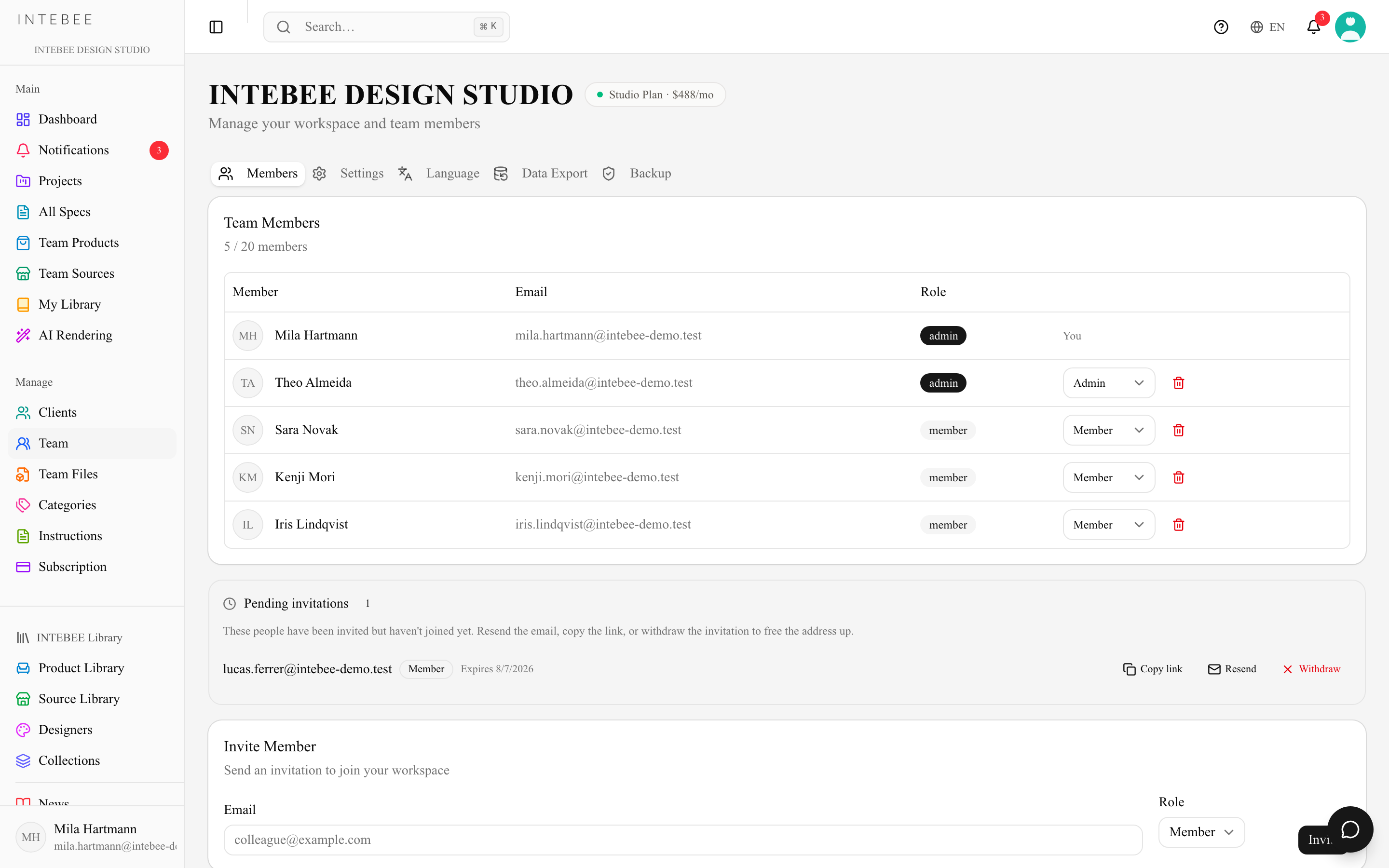
- Open Team in the sidebar and scroll to the Invite Member card. The Team page is the member list — there are no tabs on it; workspace settings moved to Settings.
- Enter the colleague's Email and pick a Role — Member, Manager or Admin (see Roles and permissions). A manager can invite Members and Managers; only an admin can invite an Admin.
- Click Invite.
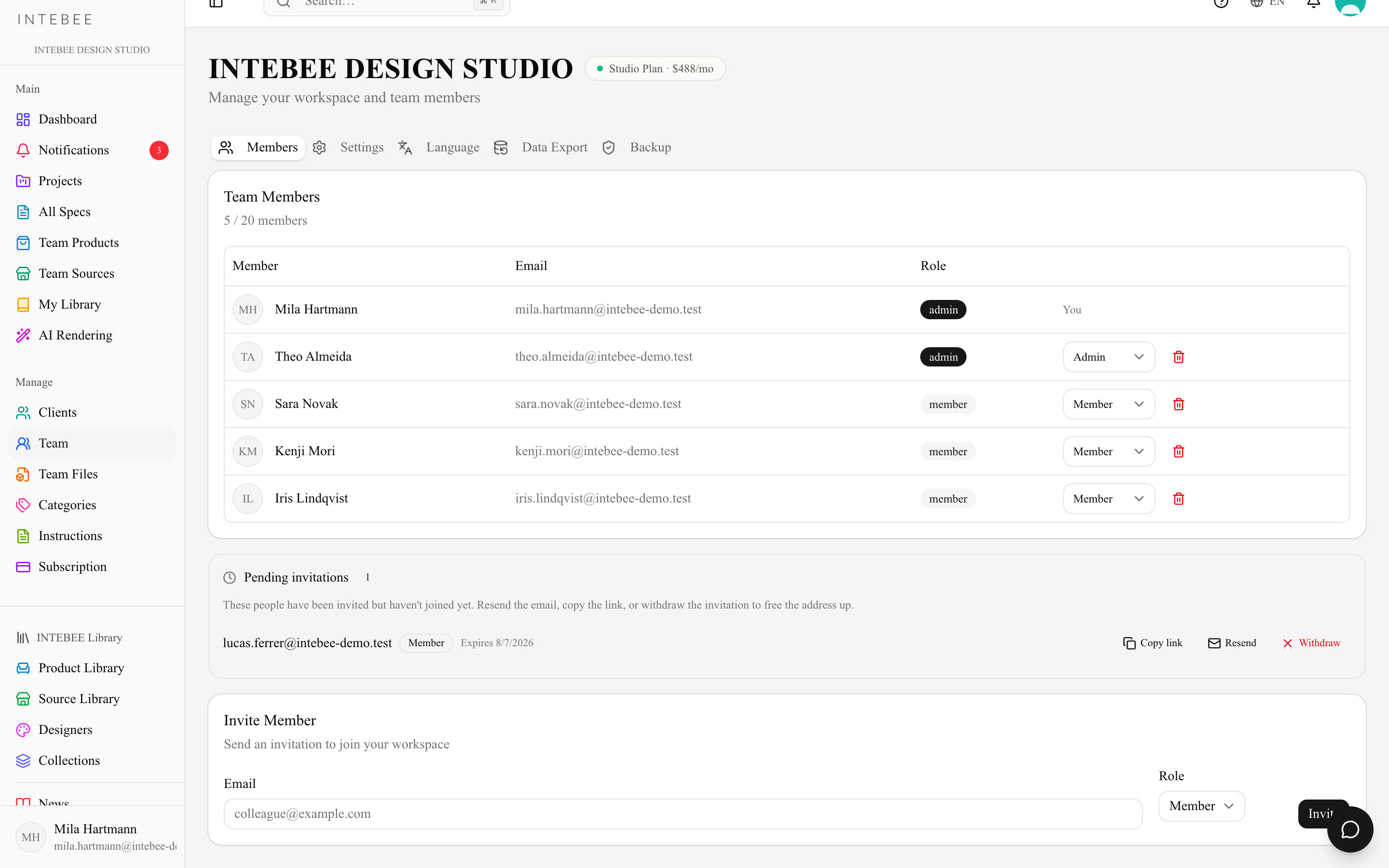
Two things happen at once. INTEBEE emails the invitation, and it copies the invite link to your clipboard — so if the mail is slow or gets filtered, you can paste the link into a chat message yourself. Opening the link lets them join your workspace — see Accepting an invitation below. The invitation then appears in the Pending invitations card, where you can get the link back at any time.
Pending invitations
Between the Members table and the Invite Member card sits the Pending invitations card — everyone you have invited who has not joined yet, with a count beside the heading. The card only appears while something is outstanding; when the last invitation is accepted or withdrawn it disappears.
Each row shows the address, its role (Admin, Manager or Member), and how long the link has left. Admins and managers get three buttons on the right (a manager does not get them on an Admin invitation):
- Copy link — puts that invitation's link back on your clipboard. Use it when the mail was filtered, or when you would rather send the link over chat.
- Resend — sends the invitation mail again and pushes the expiry back out to seven days, so a resend never delivers a link that is already dead. Confirmed with "Invitation sent again."
- Withdraw — deletes the invitation: "Invitation withdrawn." This is how you free an address up after a typo, or cancel an invitation you sent by mistake. It asks first in a dialog ("Withdraw the invitation to {email}?"); once you confirm, the link in the invitation email stops working right away.
Plain members can see what is pending but get no buttons.
Expiry
An invitation is valid for 7 days from the moment it is created. After that the row is tagged Expired, and opening the link lands on "This invitation has expired — Invitations are valid for a limited time. Please ask the person who invited you to send a new one." Press Resend and the seven days start again, so an expired invitation is always recoverable without re-typing the address.
While an invitation is still live the row shows when it runs out instead — Expires, followed by the date in your browser's own format.
Refusals you may hit
- Re-inviting the same address is refused with "An invitation has already been sent to this email." — the pending invitation is still holding that address. Withdraw it first, or just Resend the one you already have.
- Addresses are not case-sensitive:
Ana@Studio.comandana@studio.comare the same person, so the second is refused as a re-invite, and a member typed with capitals is still recognised as a member. - Inviting someone who is already in the workspace is refused with "This user is already a member of your workspace."
- Demo workspaces cannot invite at all: "Demo workspaces cannot invite members. Sign up for a free account to invite your team."
Accepting an invitation
The link opens the Workspace Invitation page with the workspace, who invited them, the role and the Invited email.
- Signed in — the page also shows Signed in as. Accept Invitation joins the workspace and makes it their active workspace. Signed in with a different address, they are told so and can Sign in with a different account.
- Signed out — Sign in to accept opens the sign-in page and brings them back to the invitation afterwards. Under New to INTEBEE?, Create an account starts a sign-up with the invited address; after confirming the email they open the invitation link again. While new sign-ups are closed, only an existing INTEBEE account can accept, and the page says so.
Working in more than one workspace
One person can belong to several workspaces. Accepting an invitation makes the new workspace active. To go back, open the account menu (your avatar, top right) → Switch workspace: it lists every workspace you belong to with your role there, and the active one is ticked. Choosing one opens its Dashboard. The active workspace is saved on your account (not per browser). The list only appears when you belong to more than one workspace.
Every browser tab shows the workspace that was active when its page was loaded. If you switch workspace in one tab, a page still open in another tab keeps showing the old workspace: creating something there (a project, client, product, source or invitation — or, under Settings, a category, an instruction or remarks template, category names and descriptions, or the printed labels) is refused with "Your active workspace was changed in another tab. Reload this page, then try again.", and saving an edit there says "Nothing was saved: this item is not in your active workspace…". Reload the page to continue in the active workspace.
Seats
Each plan includes a number of member seats, counting the owner — a 2-member plan is you plus one colleague:
| Plan | Members included |
|---|---|
| Free | 2 |
| Personal | 2 |
| Atelier | 4 |
| Studio | 20 |
The Members card shows your usage as 3 / 5 members. At the limit the invite form is replaced by Member limit reached and a prompt to upgrade.
Changing roles, suspending and deleting members
Admins and managers change a member's role from the Team page — a manager up to Manager, and never an Admin's row. The ▼ at the end of a member's row offers Suspend (or Reactivate) and Delete:
| Who | May suspend / delete |
|---|---|
| The workspace owner | everyone except themselves |
| Admin | Managers and Members |
| Manager | Members only |
Nobody can suspend or delete the owner or their own row — it simply reads You. The database enforces these rules, not only the page.
Suspend ("Suspend {name}?") — the member is signed out at once and can't use this workspace until someone presses Reactivate. Their row shows a Suspended badge, and their seat stays in use (3 / 5 members still counts them). They disappear from project member lists and @mention pickers, but their spec sheets, comments and history stay and keep their name. While suspended they receive only important INTEBEE notices. If this was their only workspace they can't sign in at all ("Your account has been suspended by your team's admin."); if they belong to other workspaces they keep using those. Reactivate brings everything back, with the same role and projects.
Delete ("Delete {name}?") — removes the member from this workspace and from its projects, and frees the seat. The dialog tells you which of two things happens:
- They belong to other workspaces (or own one, or collaborate on another team's project): they are only removed from this workspace and keep their account.
- This was their only workspace: their INTEBEE account is deleted as well — they are signed out, can't sign in again and receive no more email from INTEBEE. This can't be undone.
Either way their spec sheets, comments, files and history stay with the workspace under their name.