
Roles and Permissions
Admin, Manager and Member — the three roles, and what each one can do.
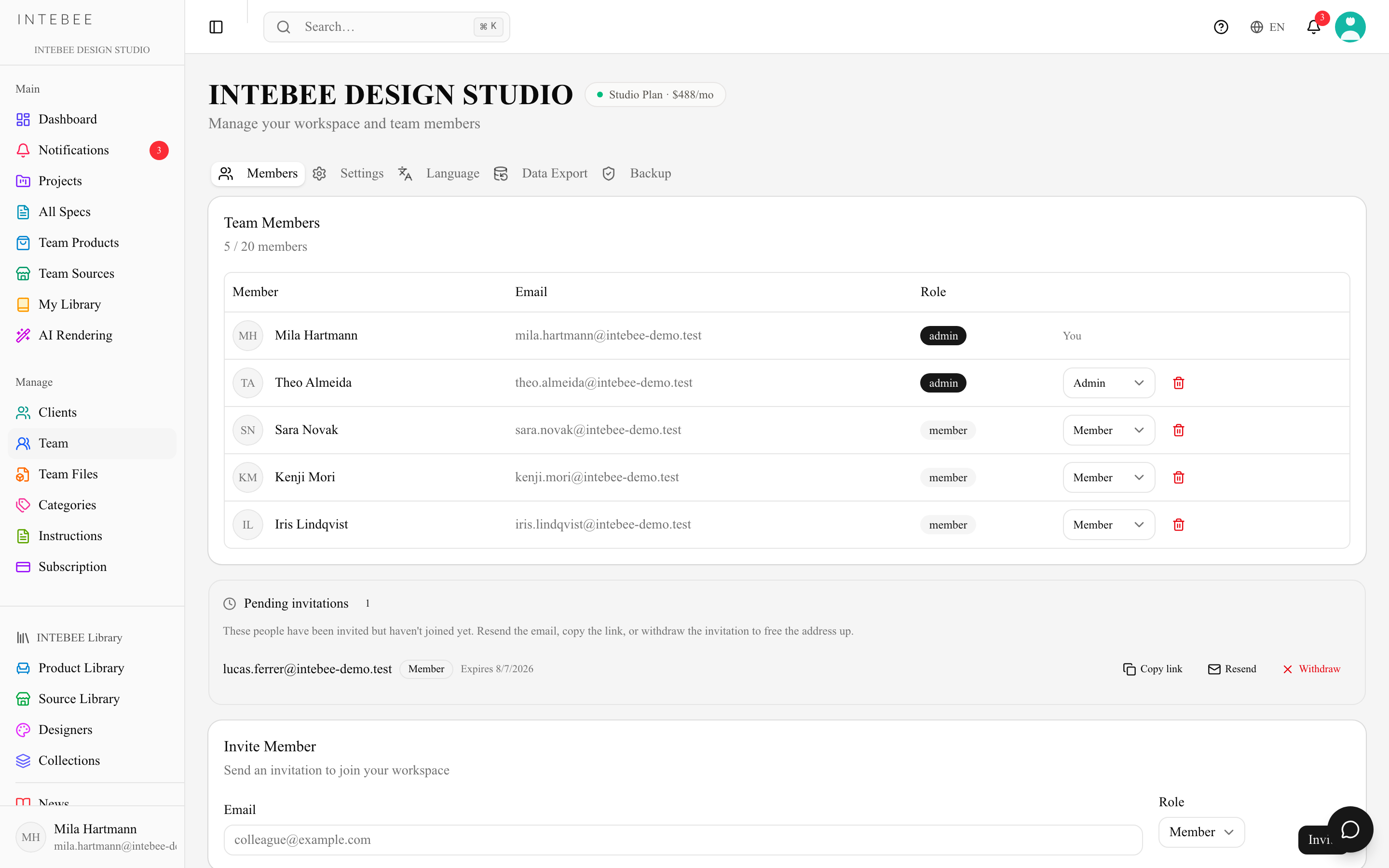
A workspace has three roles: Admin, Manager and Member. The invite form and the role dropdown on the Team page offer these three, each with a one-line description.
Roles
| Admin | Manager | Member | |
|---|---|---|---|
| Work on projects, spec sheets, floor plans | ✓ | ✓ | ✓ |
| Use the team catalog and team files | ✓ | ✓ | ✓ |
| Invite people and change roles | ✓ | ✓ (up to Manager) | — |
| Remove people | ✓ | ✓ (not admins) | — |
| Change workspace settings — General, Labels, Templates, Categories, the team logo and Requirement Tags | ✓ | ✓ | — |
| Export workspace data (Settings → Data Export) | ✓ | ✓ | — |
| Backups — history, downloads and Backup Now | ✓ | ✓ | — |
| Manage the subscription, options and billing | ✓ | — | — |
| Buy the Backup add-on and AI credit packs | ✓ | — | — |
- Admin — everything, including the subscription and billing. A workspace always has at least one, and can have several.
- Manager — runs the workspace day to day: the team, settings, templates, categories, data export and backups — but not the subscription or billing. A manager can make people Managers or Members, but cannot make anyone an Admin and cannot change or remove an Admin. A workspace can have any number of managers, or none.
- Member — everyone doing project work. Members can still add a Requirement Tag from the spec sheet editor while they work.
On the Team page the role is one column: people who can change a role see a dropdown, everyone else sees the role as a label. Subscription appears in the sidebar for admins only; a manager or member who opens the page by its address sees Admin Access Only. The Settings sections open for everyone, but only admins and managers can save — a member sees "Only admins and managers can change workspace settings." and "Only admins and managers can export workspace data."
About the "owner"
The person who created the workspace is recorded as its owner and is always an admin. Their row on the Team page reads Owner · Admin, and nobody else can change or remove it. "Owner" is not a role you can hand to someone else, and it is not a fourth permission level — the owner has exactly the admin permissions above.
Guards worth knowing
- You cannot demote or remove the last admin. Both actions are refused with "A workspace needs at least one admin. Make someone else an admin first."
- Only an admin can grant Admin. A manager sees Admin greyed out in the dropdown and in the invite form; an admin's row is a plain label for them.
- You cannot change your own row. Your line in the Members table just reads You. Ask an admin (or a manager, if you are a member or a manager).
External collaborators
People outside your team — clients, contractors, consultants — shouldn't be members. Invite them as external users on a specific project instead. Externals see the latest shared documents of that project only, never your catalog, other projects, or settings.
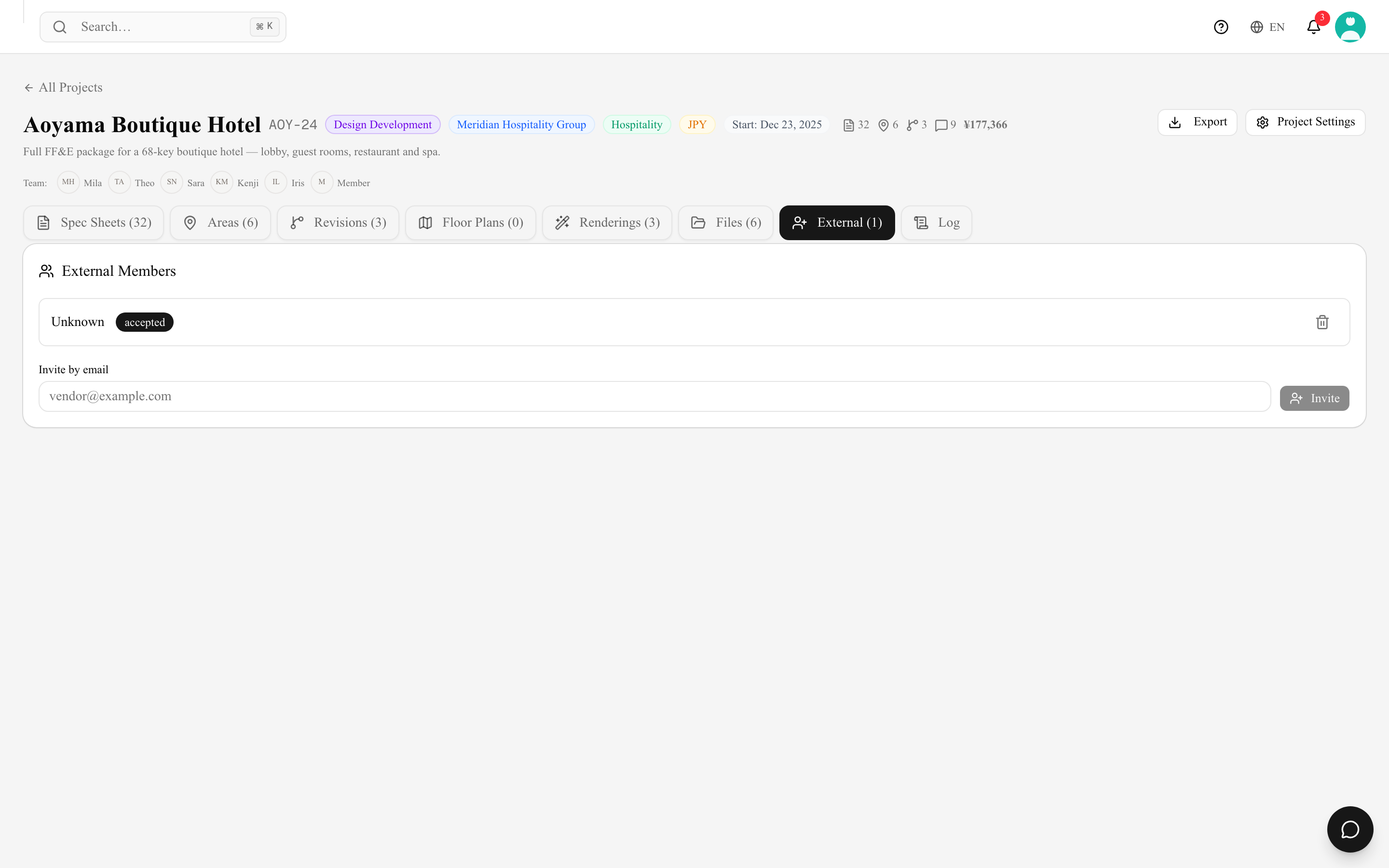
External users are counted per project: Atelier allows 1, Studio 5. Free and Personal don't include external users. See External collaborators.
Practical guidance
- Keep at least two admins. One is a single point of failure — and the guard above means the last one can't be removed even when they've left the firm.
- Make the people who look after settings, templates and the team Managers — they get everything they need without access to billing.
- Everyone else should be a member. Admin and Manager are about running the workspace, not about seniority on a project.
- Review the Team page when someone leaves; removal takes effect immediately.