
Quick Start: Your First Spec Sheet
From an empty workspace to an exported PDF in about ten minutes.
This walkthrough takes you from an empty workspace to a finished, exported spec sheet.
1. Create a project
- Open Projects in the sidebar and click New Project.
- Give it a name (e.g. "Hotel Aoyama Renovation"), an optional project code, and a client if you have one.
- Click Create Project — you land on the project page.

Plan limits apply to creating projects: the Free plan allows 1 project in total, Personal allows 3 new projects per month; Atelier and Studio are unlimited. See Subscription plans.
2. Add areas
Areas are the locations inside your project (Lobby, Guest Room, Corridor…). Open the project's Areas tab and add the ones you need — each spec sheet belongs to an area, and area codes feed into the automatic item codes.

3. Create a spec sheet
In the project's Spec Sheets tab, click Add Spec Sheet. There is no form to fill in first — INTEBEE creates a blank sheet and opens the editor on it straight away. Pick the area inside the editor and the next Item Code is proposed automatically (e.g. LB-01). Close the editor without typing anything and the blank sheet is discarded, so a stray click leaves nothing behind.
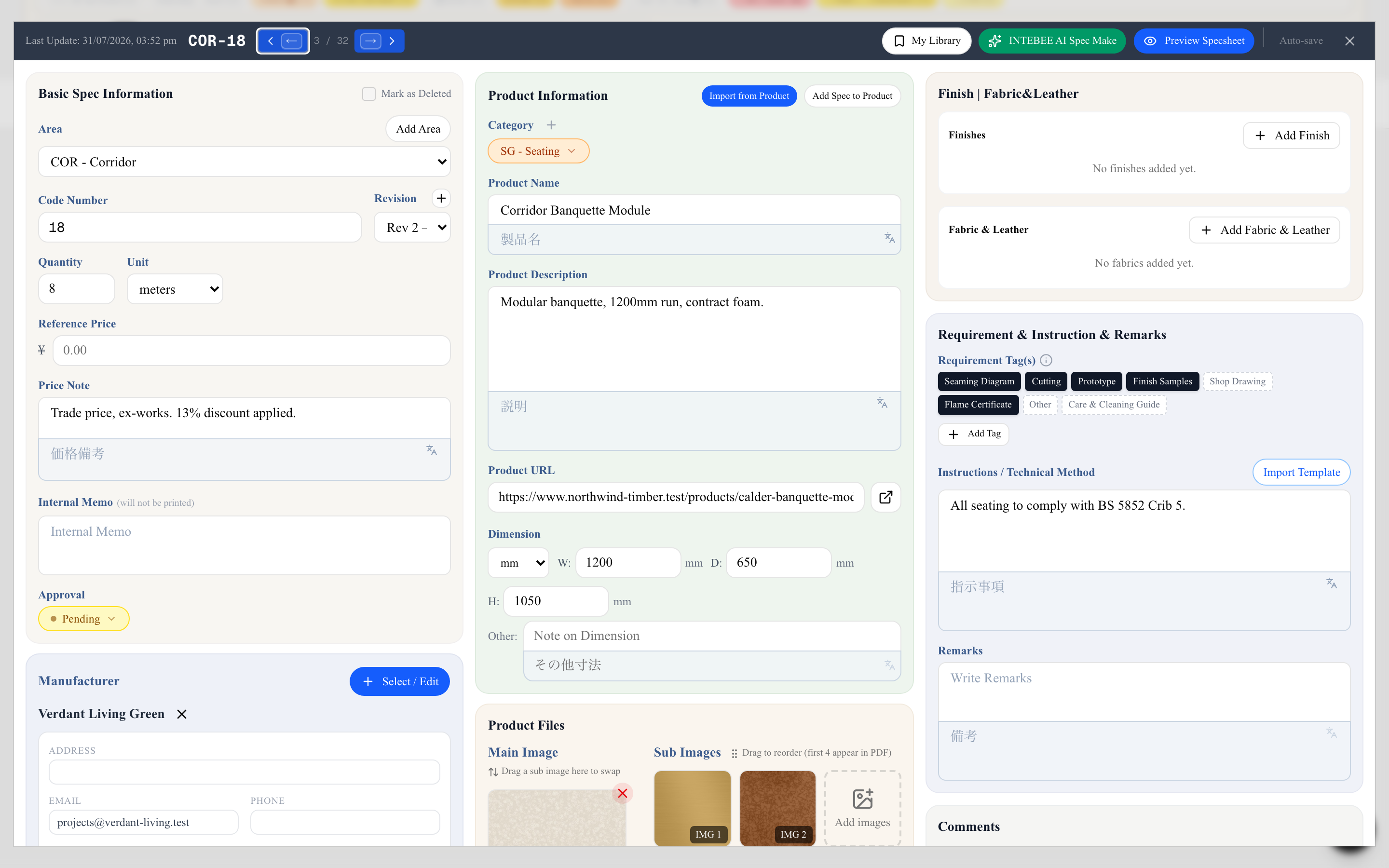
Then fill the sheet in. Typing directly into the fields is the normal way to build a spec sheet — name, description, dimensions (W/D/H), quantity, price, and images (a main image plus sub images for details). Everything saves as you go.
Two shortcuts can do the typing for you:
- INTEBEE AI Spec Make — type a product name or paste a product page URL, and AI researches the item and fills the fields, proposing images. 1 AI credit per search. See AI Spec Make.
- Import from Product — if the item is already in your catalog, pull its fields in rather than retyping them (below).
4. Add the manufacturer, source, and materials
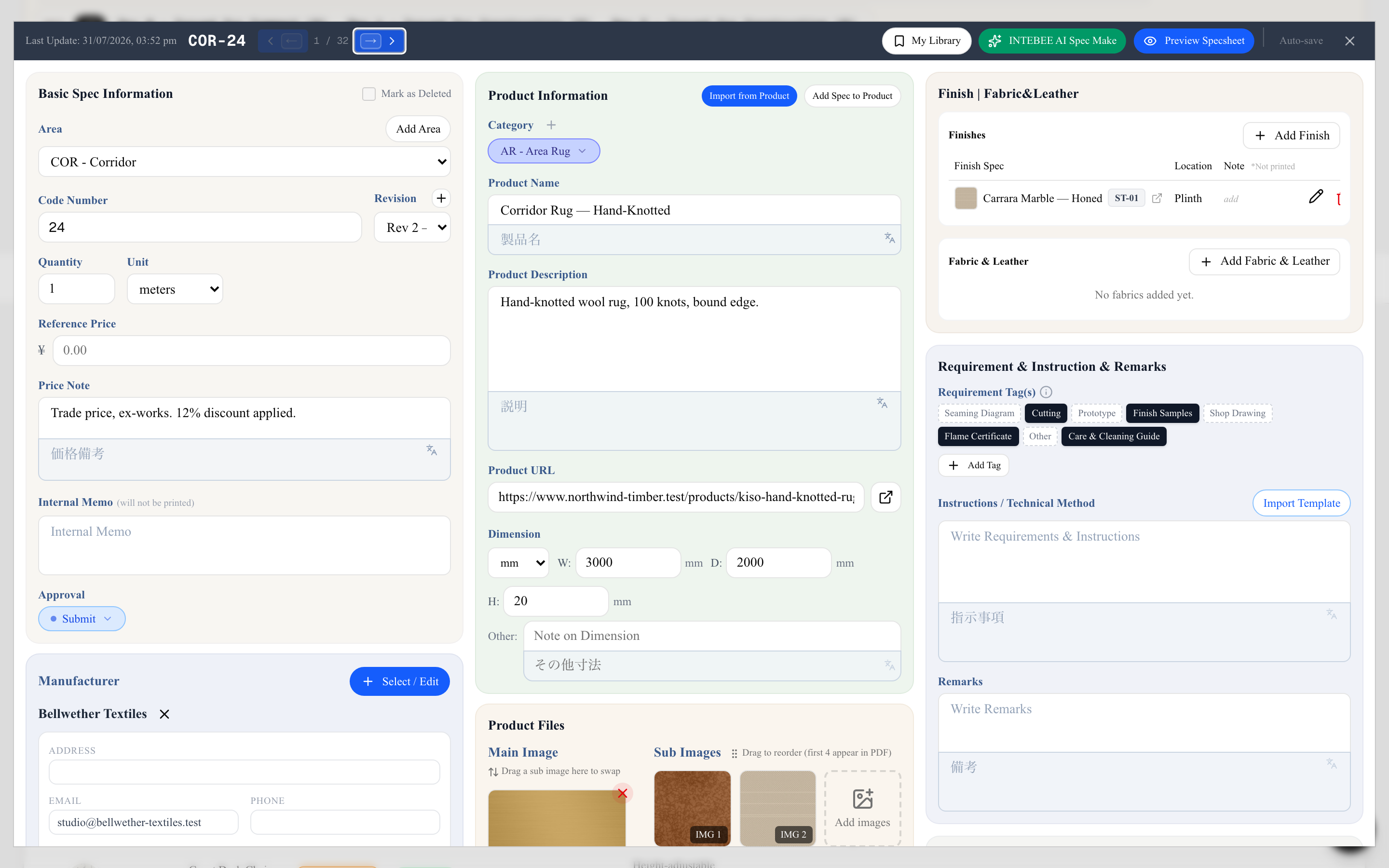
- In the Manufacturer and Source blocks, click Select / Edit to attach a company from Team Sources.
- In Product Information, Import from Product copies the fields of an existing Team Products or My Library item into this sheet. Add Spec to Product does the reverse — it registers the sheet you just wrote into your team catalog for reuse.
- In Finish | Fabric&Leather, add the finishes and upholstery this item uses. See Finishes, fabrics & leather.
5. Export the PDF
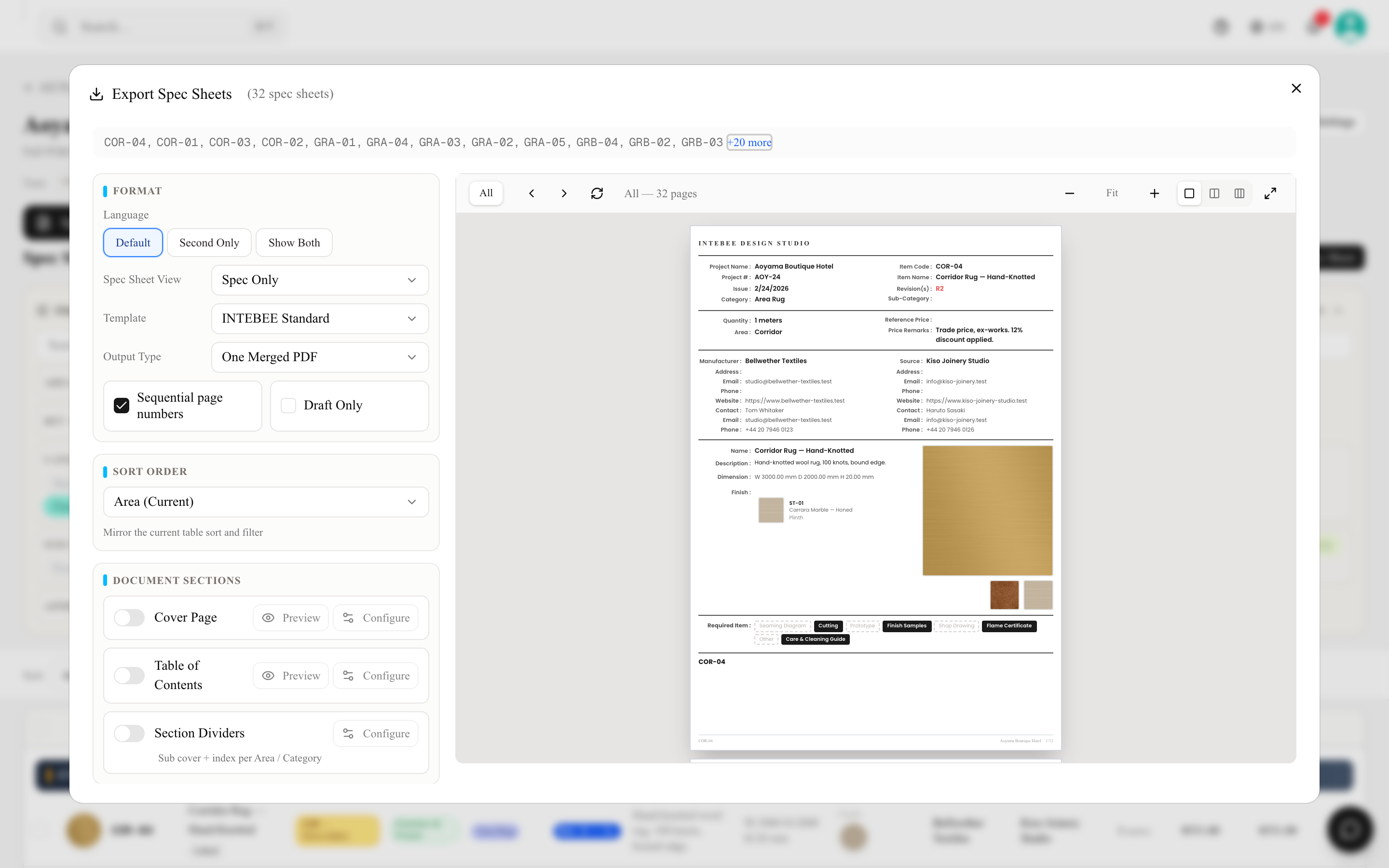
Click Export in the project header. The Export Spec Sheets dialog opens on the sheets currently listed — pick a Spec Sheet View and a Template, then click Generate PDF. INTEBEE renders a print-quality PDF you can send to clients and contractors, and it appears under Spec Sheet Export History when it's ready.
The same dialog also gives you a cover page, a table of contents, section dividers, sort order, second-language output and Word / Excel / CSV Export. See Print templates and PDF export.
That's the core loop: project → areas → spec sheets → export. Everything else in INTEBEE (floor plans, libraries, AI, collaboration) builds on it.