
Finishes, Fabrics & Leather
Specify what an item is made of — and give each finish and fabric its own spec sheet.
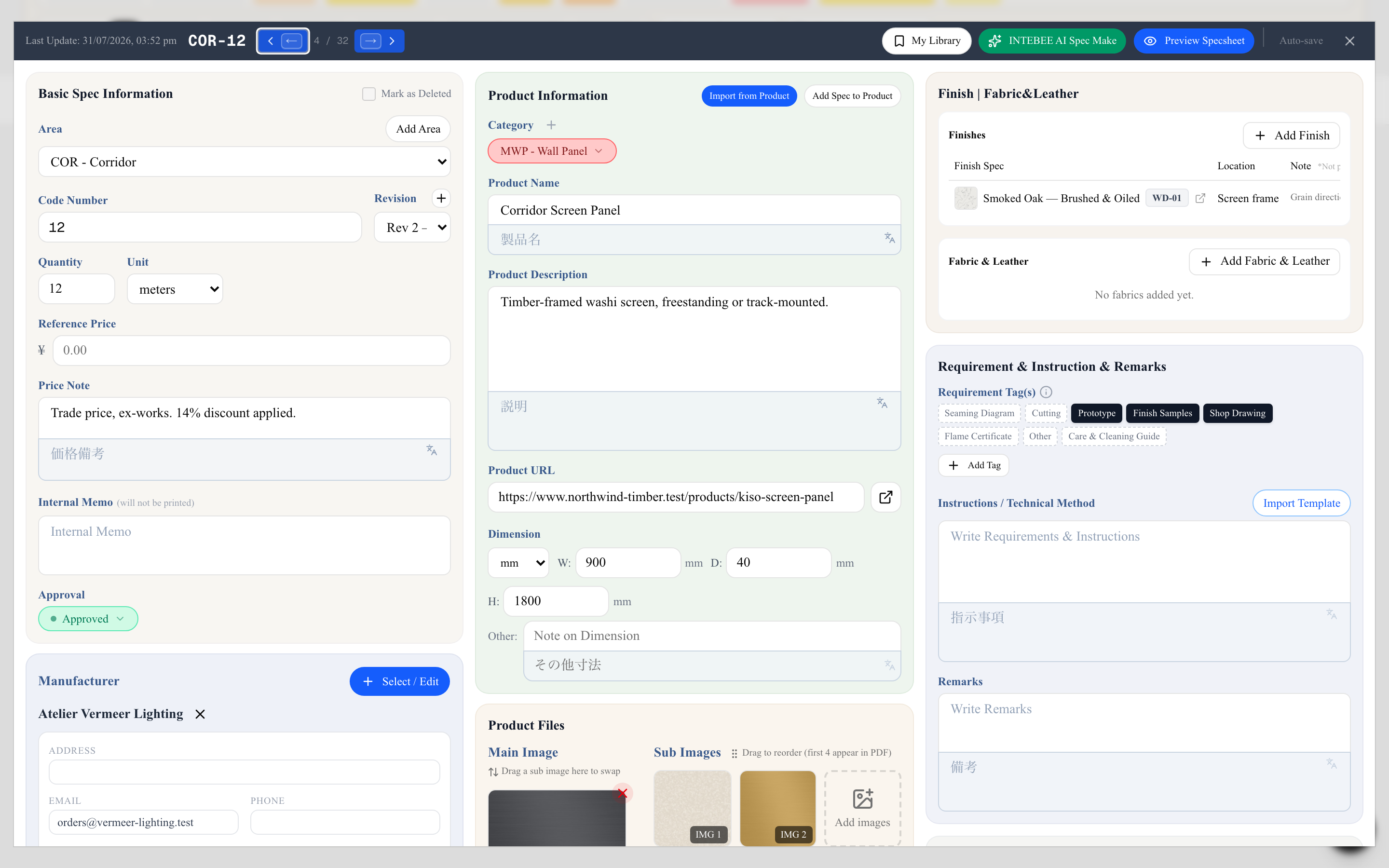
Most specified items are not one material. A lounge chair is an oak frame with a bouclé seat and a leather piping; a reception desk is smoked oak with a stone top and a patinated metal trim. The Finish | Fabric&Leather panel — the third column of the spec sheet editor — is where you record that breakdown.
The idea: a finish is a spec sheet too
An entry in this panel is a link to another spec sheet, not a free-text note. "Smoked Oak — Brushed & Oiled" is its own spec sheet, with its own item code (WD-01), image, description, manufacturer and supplier. Every item that uses that oak points at the same sheet.
That is what makes finish schedules work:
- Specify once, reference everywhere. Change the oak's supplier and every item referencing it is up to date.
- The contractor gets the full detail. The finish is not a word on a page — it is a documented sheet with a photograph and a source.
- The reference carries its own context. Where the oak goes on this particular item, and how much fabric this particular item needs, live on the link, not on the finish sheet.
Finish and Fabric & Leather specs live in the project alongside your other sheets, but they carry no area — their item code is the category code plus a number (WD-01, FB-02), because a material is not tied to one room.
The two lists
The panel holds two independent lists:
- Finishes — hard materials: wood, stone, metal, paint, glass, solid surface.
- Fabric & Leather — soft materials: upholstery fabric, leather, wall covering. These additionally track how much you need.
Which list a spec can join is decided by its category. The available sub-categories are:
| Main category | Sub-categories |
|---|---|
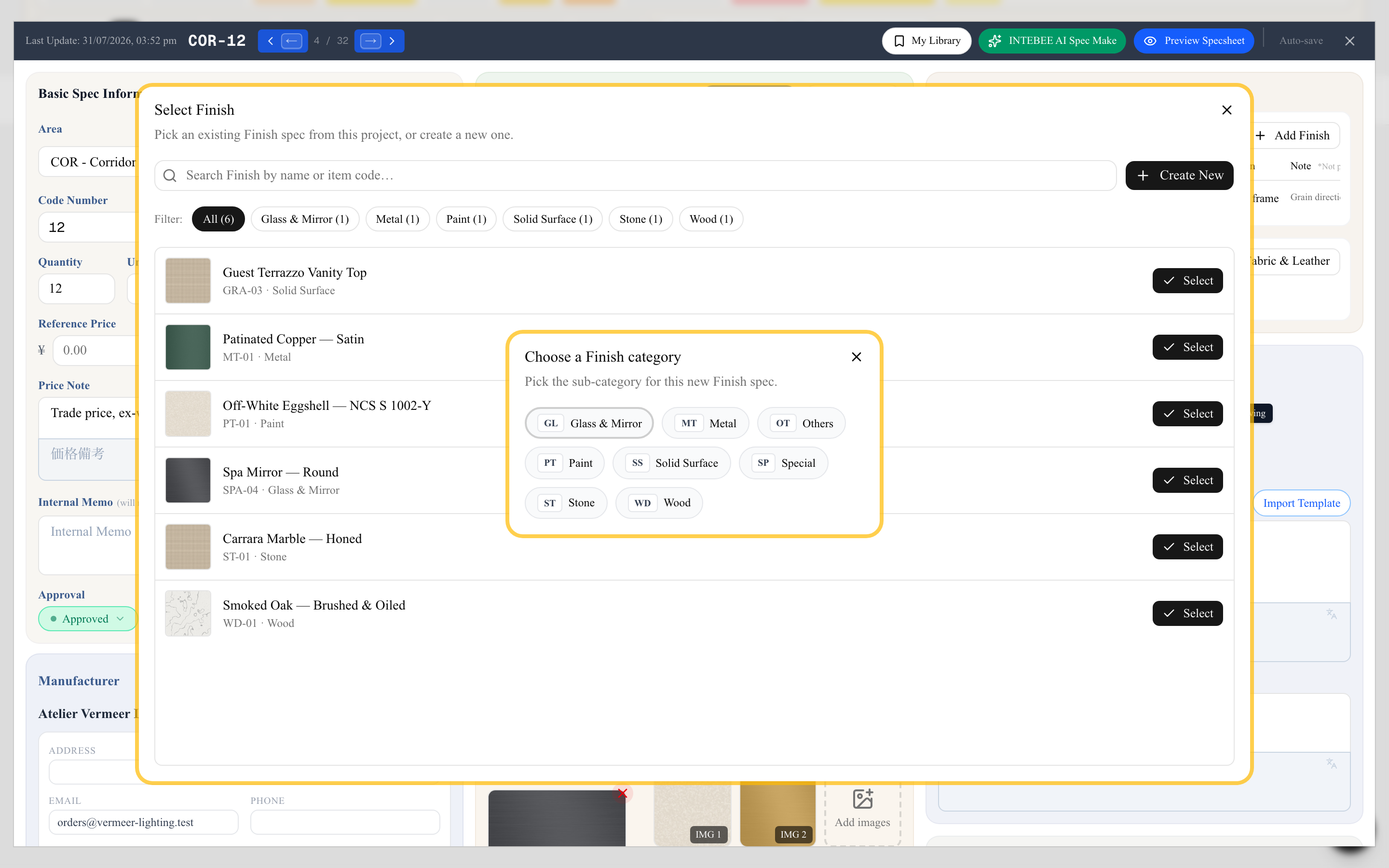
| Finish | Wood, Stone, Metal, Paint, Glass & Mirror, Solid Surface, Special, Others |
| Fabric & Leather | Fabric, Leather, Wall Covering |
Adding a finish or a fabric
Click Add Finish or Add Fabric & Leather. A selector opens listing every Finish (or Fabric & Leather) spec that already exists in this project, with search and sub-category filter chips.
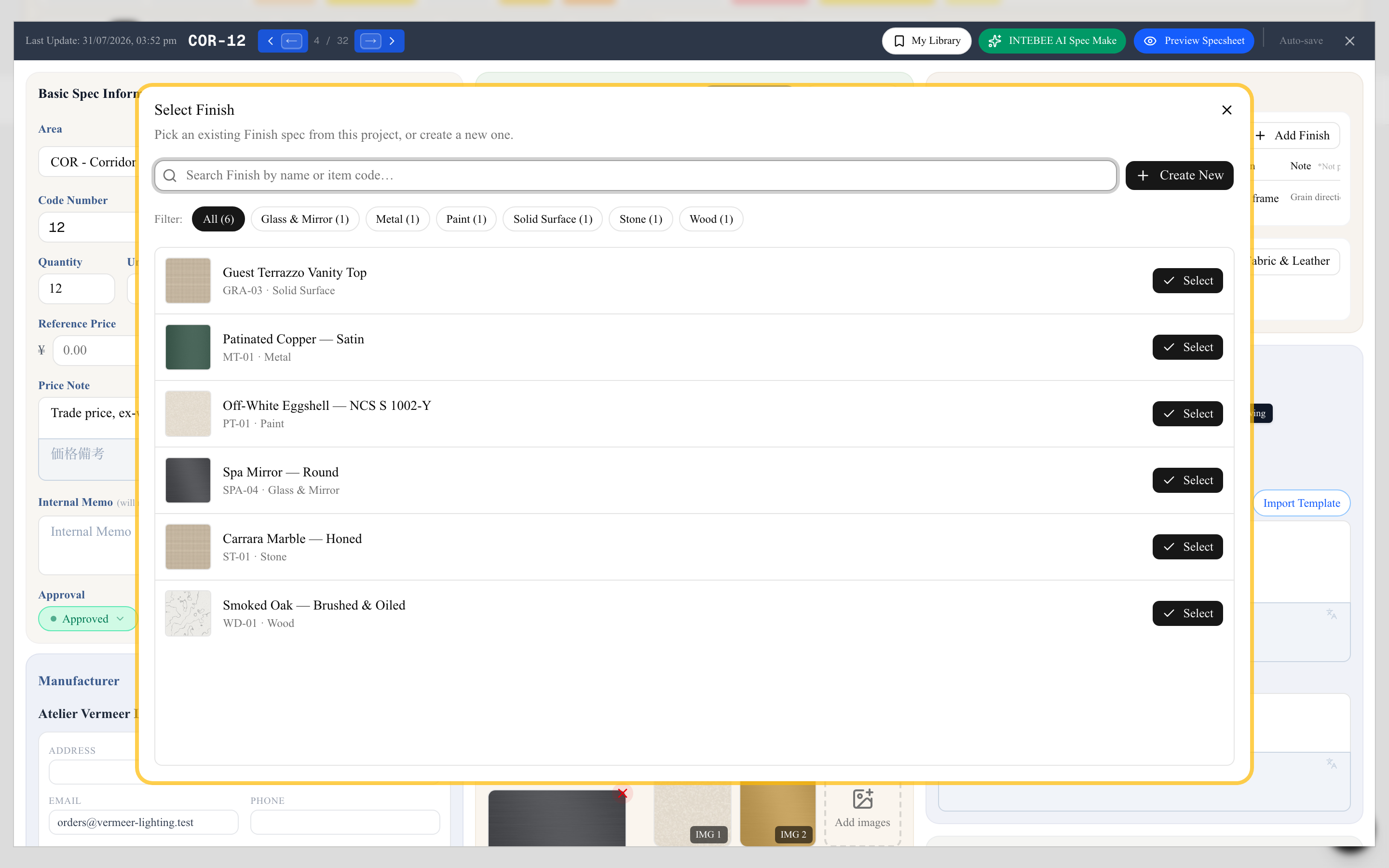
To reuse an existing one, click its row. This is the normal path once a project has its material palette established.
To specify something new, click Create New. INTEBEE asks which sub-category it belongs to first — the choice determines the item code prefix — and then opens a fresh spec sheet editor on top of the one you were in.
Fill it in like any other spec sheet: name, image, description, manufacturer, supplier. When you close it, the new sheet is created and linked back automatically. If you close it without entering anything, the empty draft is discarded rather than left behind.
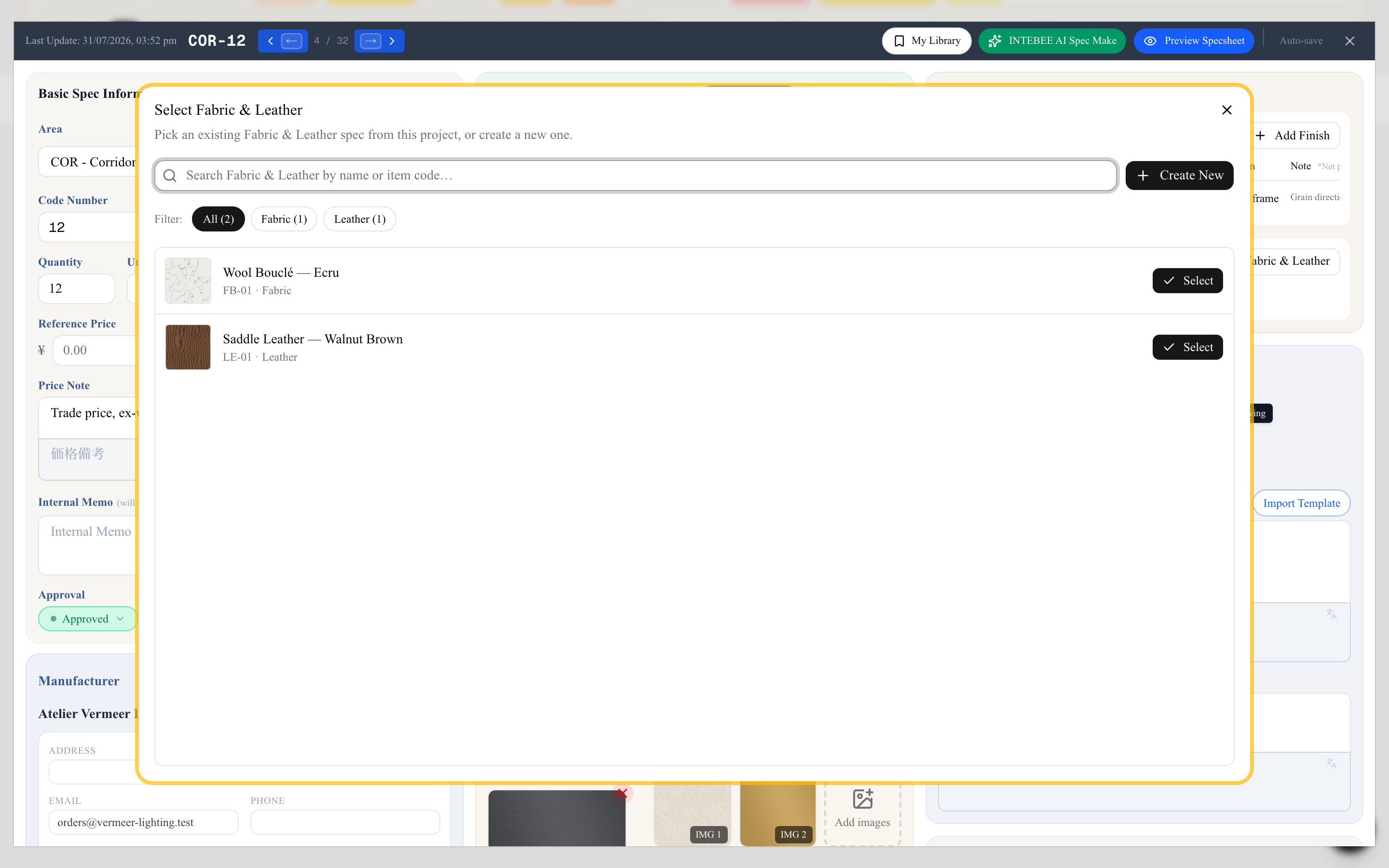
The Fabric & Leather flow is identical, filtered to fabric categories.
The fields on a link
Click any row in the panel to edit the reference itself. These fields describe this item's use of the material — they do not change the finish spec sheet.
Finishes
- Location — where the finish is applied on this item: "Frame — legs and arms", "Base trim", "Drawer fronts". This prints on the document.
- Note — an internal reminder ("Match the approved sample board, ref. AOY-FIN-04"). Marked *Not printed in the editor: it stays inside your team and never reaches the contractor's PDF.
Fabric & Leather — the same Location and Note, plus quantities:
- Amt. — the amount needed for one unit of the item.
- Unit — m, ft, yd, sqm, sqf, pcs or roll. A fabric has one unit, shared with its own spec sheet — see The fabric's own Quantity and Unit below.
- Total Amt. — calculated automatically as Amt. × the spec sheet's quantity (an empty Quantity counts as 1), and recalculated when you change that quantity. Override it by typing directly if the real cutting plan differs from the arithmetic. Clearing Amt. clears a calculated total too; a total you typed yourself stays.
So a sofa with a quantity of 6 needing 4.5 m each shows a total of 27 m — the number you hand to the textile supplier.
To open the linked finish sheet itself — to change its image, its supplier, or its description — click the pencil or the arrow icon on the row. It opens as a nested editor; closing it returns you to the item you were specifying.
The fabric's own Quantity and Unit
Finish and Fabric & Leather spec sheets have Quantity and Unit in Basic Spec Information, like every other sheet. On a fabric you rarely type the Quantity yourself:
- Automatic Quantity — when other spec sheets list the fabric in their Fabric & Leather section with an Amt., the fabric's own spec sheet gets its Quantity filled in: the sum, over every spec sheet that uses it, of Amt. × that spec sheet's Quantity. An empty Quantity counts as 1.
- Always up to date — the Quantity is recalculated when an Amt. changes, when a spec sheet's Quantity changes, or when the fabric is added to or removed from a list.
- Read-only while automatic — the fabric's Quantity field cannot be typed into and is marked (Auto).
- Manual otherwise — if no spec sheet has entered an Amt. for the fabric, its Quantity is a normal field: type a value, or leave it empty.
A sofa with a Quantity of 3 needing 4.5 m each and an armchair with a Quantity of 2 needing 2 m each give the fabric a Quantity of 17.5 — the amount to order for the whole project.
One unit per fabric. Set it in Unit on the fabric's own spec sheet, or in the Fabric & Leather row of a spec sheet that uses it — changing either changes both.
Quantity is optional on every spec sheet. A sheet with an empty Quantity prints without the Quantity field — see Print templates and PDF export.
How it prints
Finishes and fabrics reach the PDF in two ways.
On the item's own sheet, each linked material prints as a small block with its swatch image, item code, name, and the Location you entered. Fabric entries also print the required amount, with the fabric's unit (no unit is printed when none is set). The multi-item List layouts have no room for swatches, so they print the linked material's item codes on an Upholstery line instead. The blocks sit side by side by default; to stack them one under another, set Finish & upholstery layout to Vertical under Config next to Template in the Export dialog. The Materials group of Printed fields in the same place can leave either list off the sheet. See Print templates and PDF export.
Note the wording change: the editor's panel says Fabric & Leather, but the printed sheet labels that block Upholstery — the term the workshop expects. You can change the printed label yourself, in the Upholstery field of the Product group on Settings → Labels — see Language settings.
As full pages, when you export with a view that includes finishes. In the Export Spec Sheets dialog, choose Spec + Finish or Spec + Finish + Document, and each linked finish and fabric spec is appended as a complete spec sheet page after the item's own page — so the contractor receives the oak specification, the marble specification and the bouclé specification along with the chair.
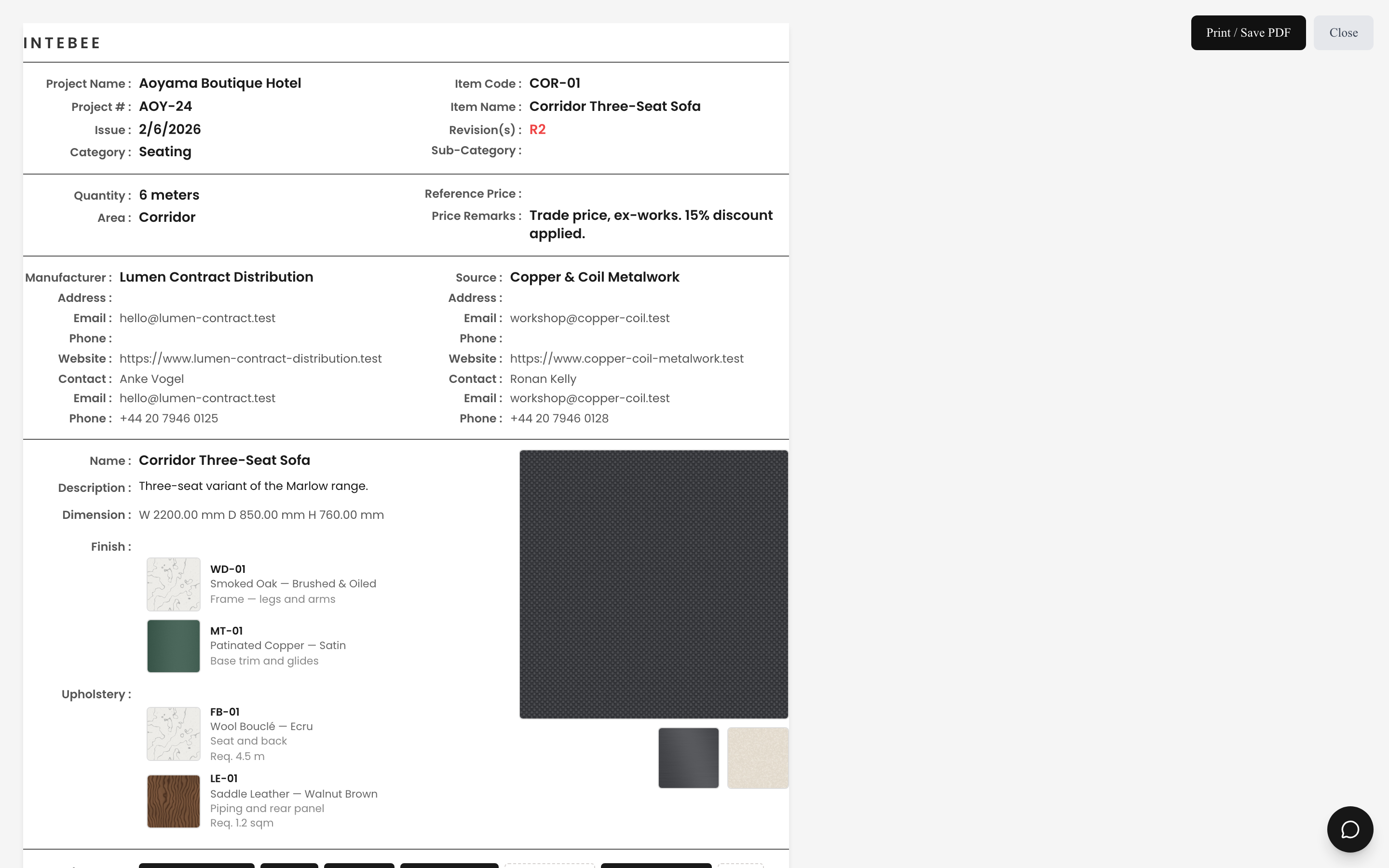
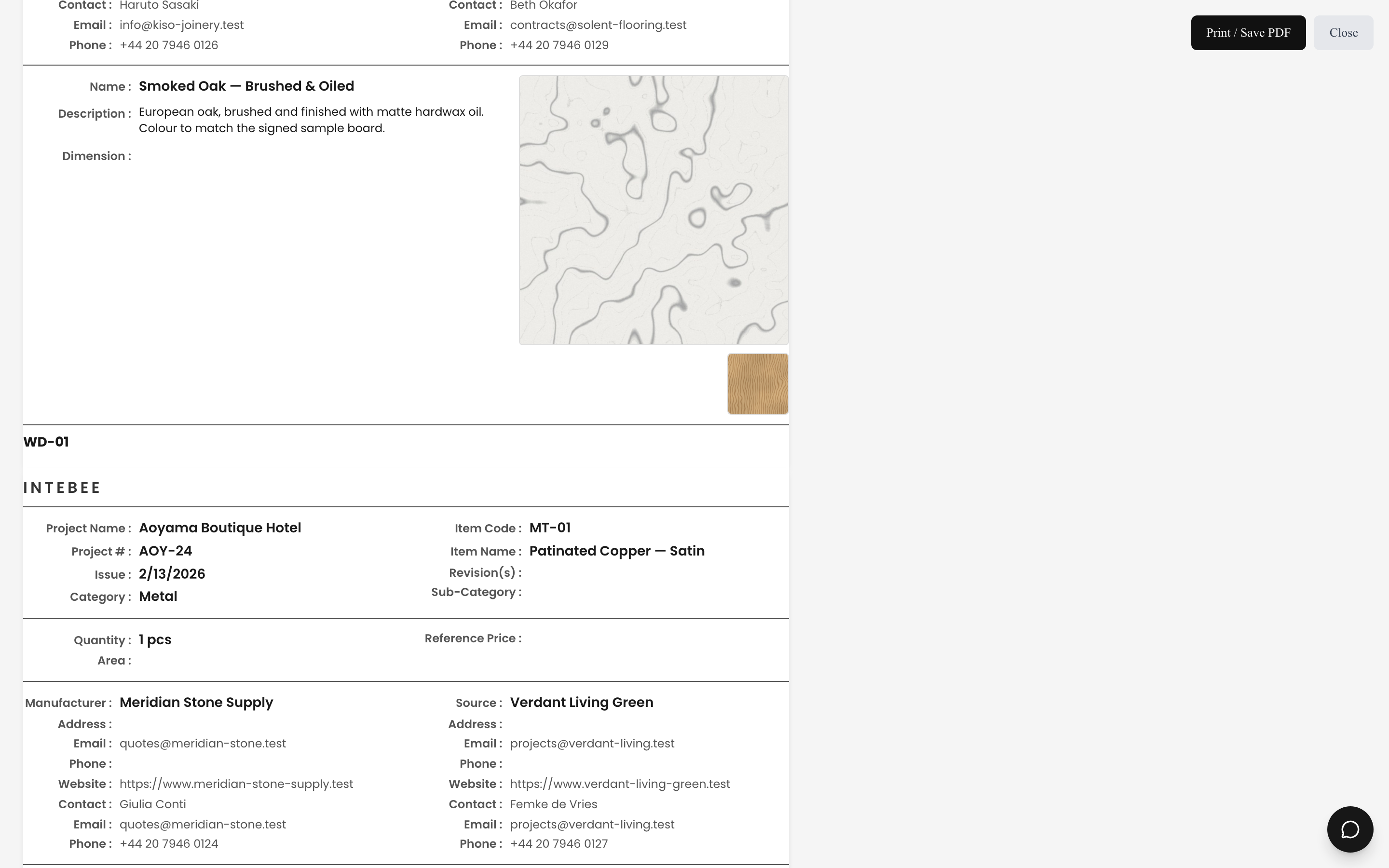
Choose Spec Only or Spec + Document and the linked sheets are left out — useful for an internal issue where the material palette is already agreed. See Print templates and PDF export.
Notes and limits
- The panel does not appear on a spec sheet that is itself a Finish or Fabric & Leather spec. Materials do not nest inside materials.
- The selector only lists finish and fabric specs from the current project. To carry a material palette into a new project, keep the materials in Team Products or My Library and bring them in with Import from Product.
- Deleting a link removes the reference only. The finish spec sheet stays in the project and any other item using it is unaffected.
- Each Finish and Fabric & Leather spec counts towards the project's spec sheet allowance, like any other sheet. See Subscription plans.
- Deleting a finish or fabric spec sheet itself (from the list's ▼ menu or Delete Selected) removes it from the Finish / Fabric & Leather lists of every item that uses it. The confirmation names those items first, and restoring the sheet from the Trash does not bring the links back. Mark as Deleted keeps the links.
- A sheet in the Trash can't be added as a Finish or Fabric & Leather. If the picker was opened before the sheet was deleted (in another tab, for example), choosing it shows This spec sheet is in the Trash, so it can't be added. Restore it first, or pick another one. and nothing is linked. Duplicate does not copy links to sheets in the Trash.
- A material deleted before this behaviour still shows on its items with a Deleted badge in this panel, and prints as "(deleted)" until you remove the link.
- Adding or removing a finish or fabric on an item is recorded on that item in the project's Log.
- Show related specs in the row menu lists the items that use a material, or the materials an item uses. See Spec sheet basics.
- When a material gets a newer revision with the same item code, INTEBEE offers to switch the items that list the older one. See Revisions and approval.