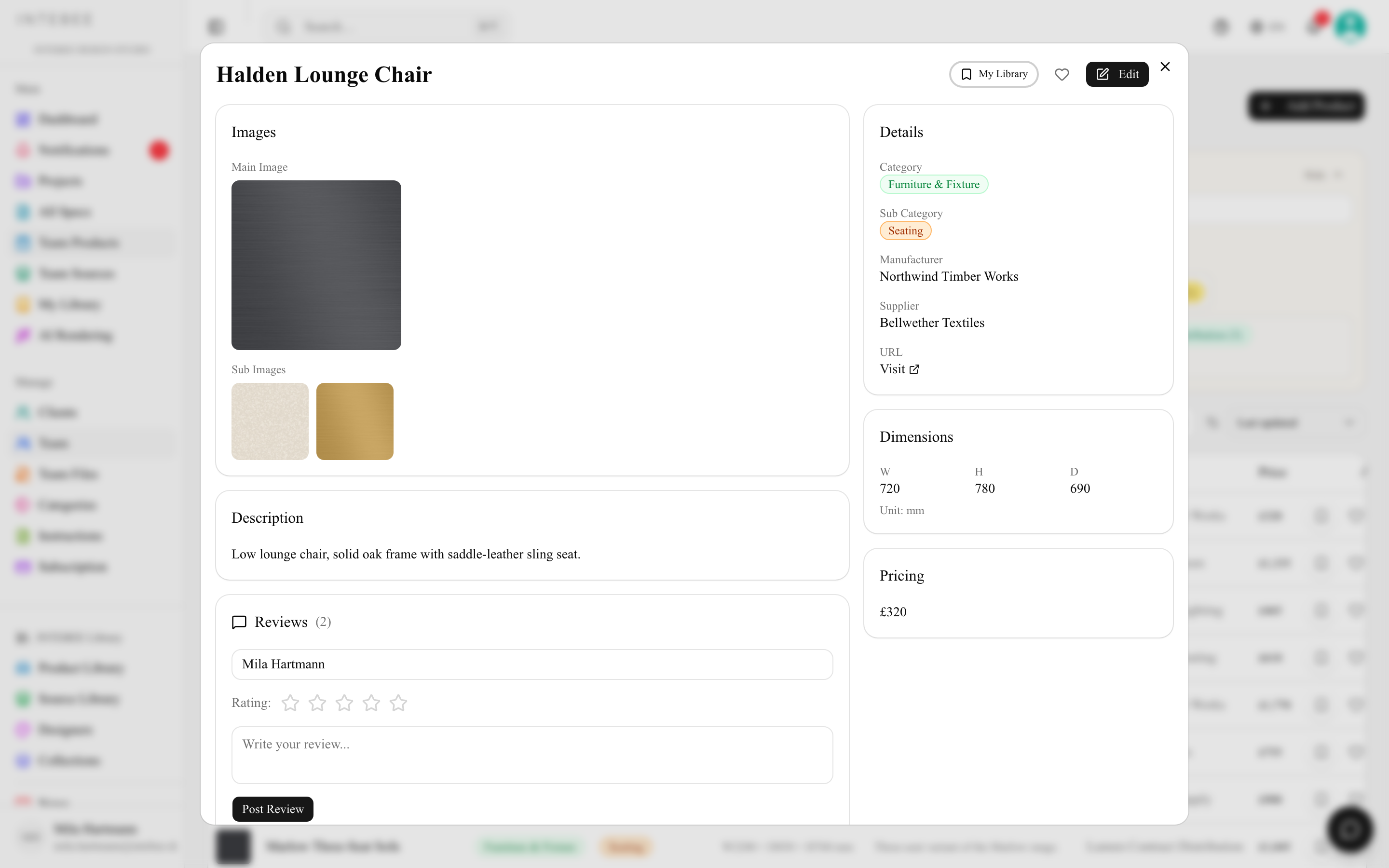
Team Products
Your workspace's shared product catalog, reusable across every project.
Team Products is your workspace's shared catalog — the furniture, lighting, and materials your team specifies repeatedly. Build it once, reuse it in every project.
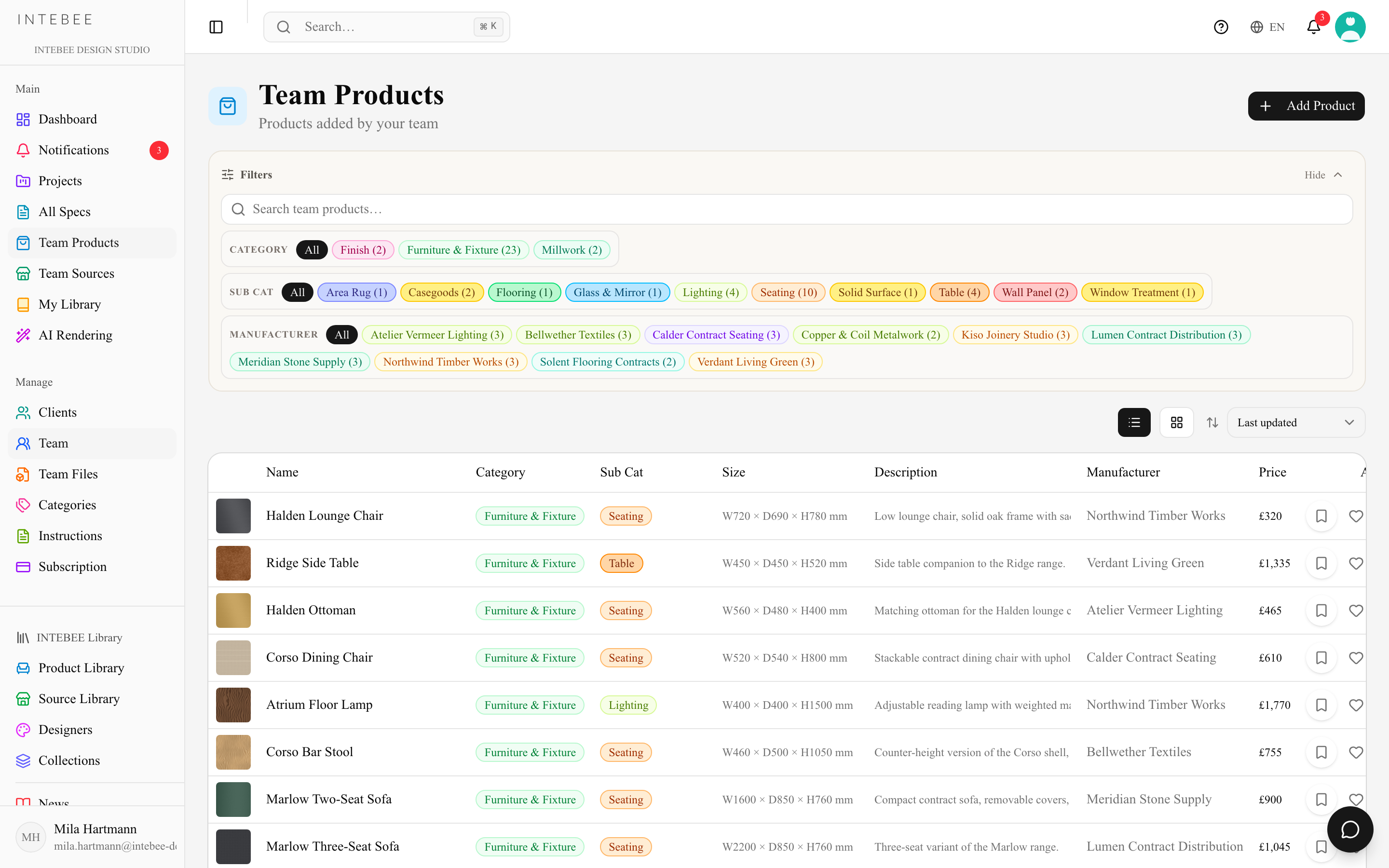
Adding products
- Manually — click Add Product and fill in the New Product form: name (the only required field), description, Category, Manufacturer, Seller / Source, Designer, Collection, product URL, price reference, product story, remarks and dimensions. Images and materials are not on this form — add them after the product exists, by editing it. Large photos are resized to 2,560 px on the long side and compressed before they upload, and the catalog loads a small preview instead of the full photo.
- The same checks apply on the New Product form and when you edit a product: a name of spaces only is refused (Name is required); dimensions must be zero or more — a negative value is refused with a message instead of being dropped; the product URL is saved as a web link — "example.com/chair" becomes "https://example.com/chair", and anything that is not an http:// or https:// link is refused.
- From a spec sheet — items you specify can be saved back to Team Products with Add Spec to Product, so the next project starts from real data.
- From My Library — push privately-saved research to the team with Push to Team (see My Library).
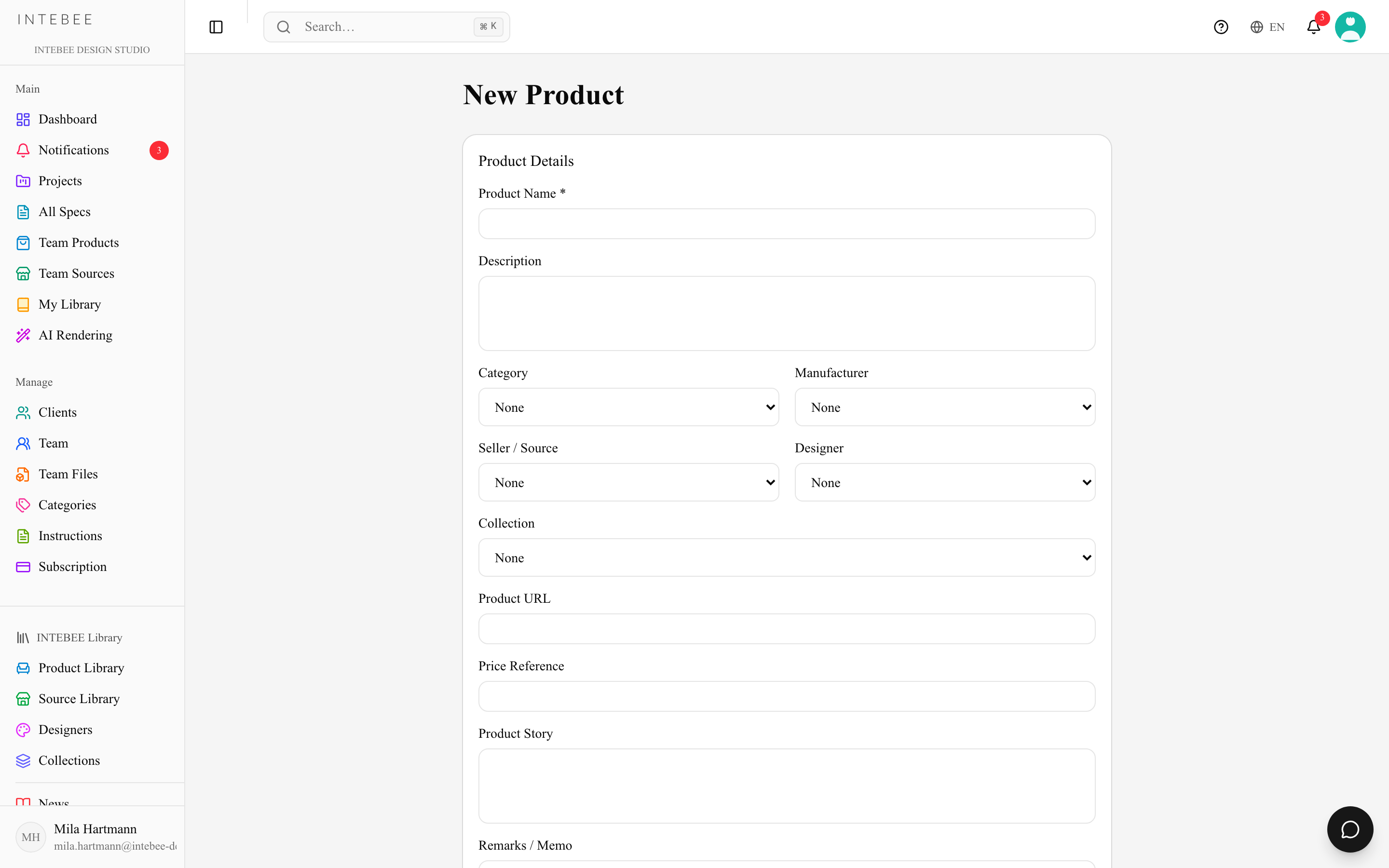
Organizing the catalog
- Categories — products are organized into your team's category tree (Settings → Categories). Large categories and sub-categories keep hundreds of products navigable.
- Filters & search — chip filters for Category, Sub Cat and Manufacturer, a text box that searches team products, and a sort by Last updated or Name. Products also appear in ⌘K global search.
- Views — a card grid or a table, and clicking any product opens its detail panel.
- Favorites — the heart on a product card marks it as yours to find again, and shows how many colleagues have done the same.
- Delete — the trash icon on a product card or table row deletes the product after you confirm, the same as Delete Product on its edit page. It leaves Team Products, search and every import picker; spec sheets that copied its details keep them and are only unlinked.
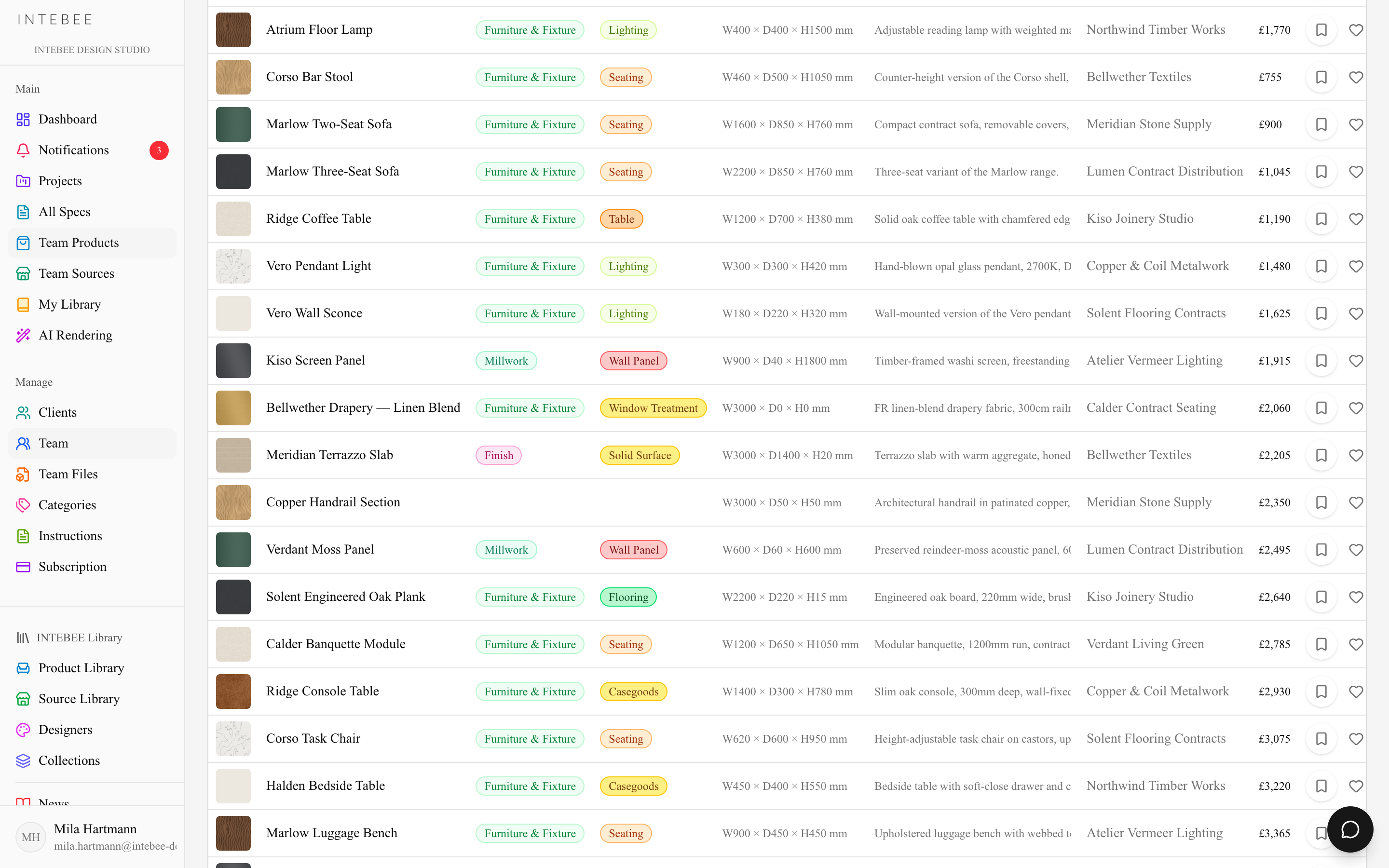
The delete confirmation also says how many spec sheets are linked to the product ("2 spec sheet(s) are linked to this product. They keep their details and lose only the link."), or that none are.
Using products in a project
In a spec sheet, choose Import from Product and select from Team Products. Fields are copied in, and the sheet keeps a link to the product — so you can trace where each product has been used. Only the fields the product has filled in are copied: a field left empty on the product never clears what the sheet already has, and Re-import works the same way. If the product is in another category, the sheet moves to that category and its Item Code is renumbered for it (a locked item code stays as it is).
Add Spec to Product works once per spec sheet: the sheet is then linked to the new product, and pressing it again returns that product instead of creating a copy. If a linked product is deleted from Team Products, the sheets that used it are unlinked automatically — they keep every value they copied, and Update Product and Re-import are no longer offered for it. The spec sheet's description is copied as plain text, because product descriptions have no formatting: bold and links become plain text, and each list item keeps its own line.
Comments
Products support comments, so sourcing discussions ("lead time is 12 weeks", "discontinued — use the successor") live on the product itself and are visible to everyone specifying it.