
AI Spec Make
Fill a spec sheet automatically from a product name or URL — one AI credit per search.
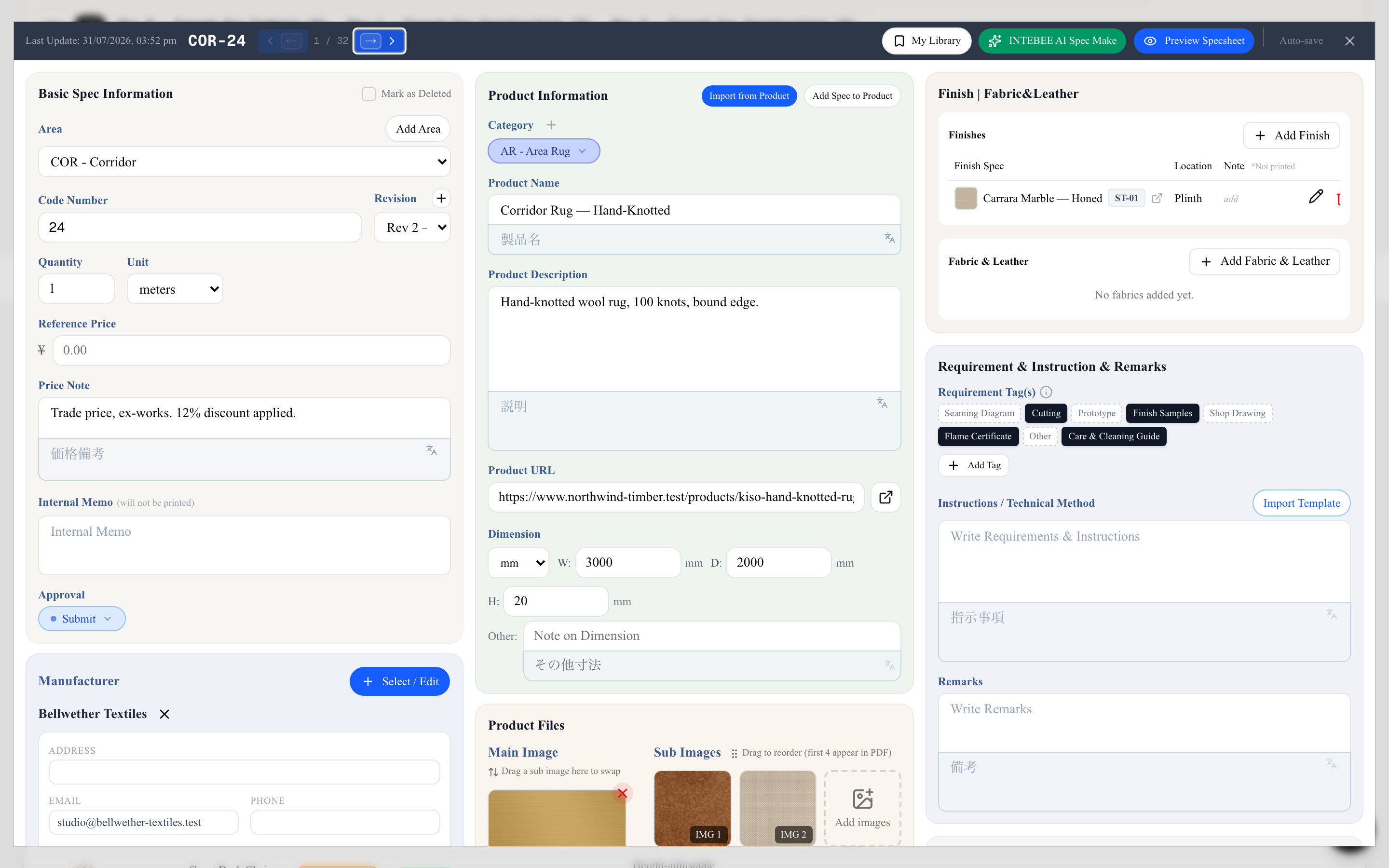
INTEBEE AI Spec Make researches a product for you and fills the spec sheet: name, dimensions, materials, manufacturer, product URL, and image candidates. What takes 15 minutes of copy-pasting becomes one search.
It is one of three ways to fill a sheet — typing the fields yourself is still the normal route, and Import from Product is the route for anything already in your catalog. Use AI Spec Make when you are specifying something new and would otherwise be copy-pasting from a manufacturer's website. See Spec sheet basics.

How to use it
- Open a spec sheet, or click INTEBEE AI Spec Make in the project's Spec Sheets tab to start a new one.
- Choose what you're looking for: Search Product for a finished item, or Search Material for a finish or fabric.
- Type the query — a product name ("Eames Lounge Chair"), a model number, or a product page URL.
- Click Request AI. It searches the web and returns up to 3 candidates with their specifications.
- Review the candidates and pick the right one. You can adjust any field before applying.
- Choose image candidates — AI finds product images and filters them for relevance; only the ones you select are saved to the sheet.
- Apply the result, choosing whether to overwrite this spec sheet or create a new one. Fields the AI found nothing for are left as they are — applying never clears the sheet's existing dimensions, description or product URL.
Manufacturer matching
AI Spec Make matches the found manufacturer against your Team Sources. Where there is an existing match you can select it; where there is none, choose the option to use the AI result and add it as new to the team database — the source is created for you, so your catalog stays consistent instead of collecting near-duplicates.
Credits
Each search consumes 1 AI credit from your workspace's monthly allowance (shared by the whole team). The remaining count is shown in the dialog. If an operation fails on our side, the credit is refunded automatically. See AI credits explained. Closing the dialog while the search is still running asks you to confirm first: the search is stopped, but the credit may not be refunded.

Tips for better results
- Include the brand in the query: "Fritz Hansen Series 7 chair" beats "black chair".
- Pasting the manufacturer's product page URL gives the most accurate specs.
- Always review dimensions and materials before issuing the document — AI output is a draft, not a guarantee.
- Tick Also save this result to My Library on the confirmation screen to keep the researched product for future projects.
- Searching for a finish or a fabric? Use Search Material, then link the result from the item's Finish | Fabric&Leather panel.
- When a result is plainly wrong, use the Send feedback link under the dialog. It reaches us tagged with the feature it came from — see Help, tours and feedback.