
Revisions, Statuses & Client Approval
Track where every item stands, and record each issue of the document.
A spec book is a living document. INTEBEE tracks two things so nobody works from stale information: the Status of each sheet, and the revisions of the document itself.
Status
Each sheet carries one Status, in the right-hand column of the editor beside the internal memo. Click the coloured pill and pick from the thirteen values:
Not set, Draft, Submit, Pending, Approved, Rejected, Revision Requested, Pricing, Ordered, Production, Ready, Transporting, Delivered.
They run from the drawing stage through the client's decision and on into procurement and delivery, so one field answers both "has this been signed off?" and "where is it?". Each value has its own colour, so a list of sheets reads at a glance.
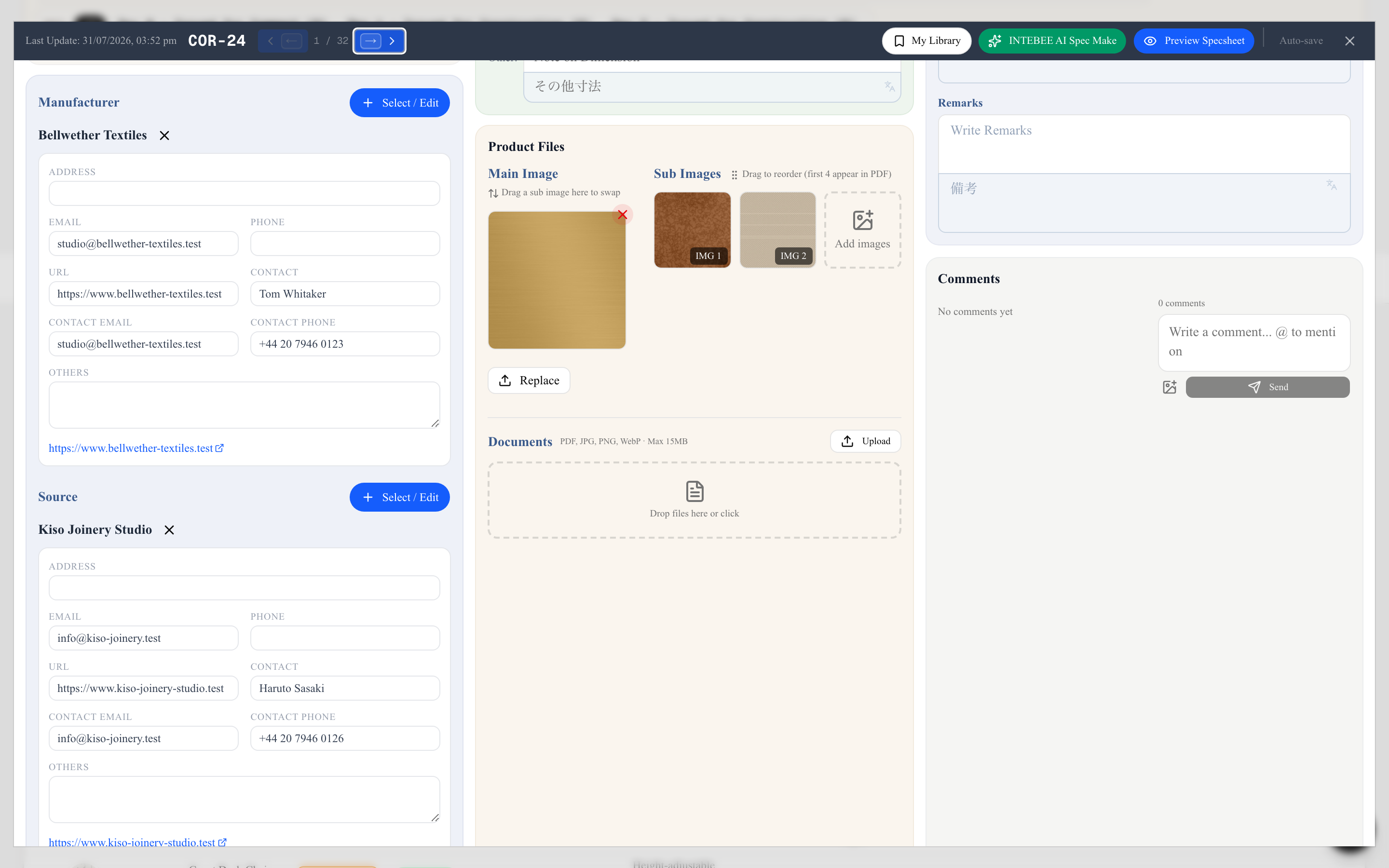
- + Status Note adds a free-text line under the pill — "Note for purchasing — order state, ETA, follow-ups…". Use it for the detail a status word cannot carry: the PO number, the promised week, who is chasing it.
- The Spec Sheets tab filters by status, so you can pull up everything still Pending before a review, or everything Approved before you order.
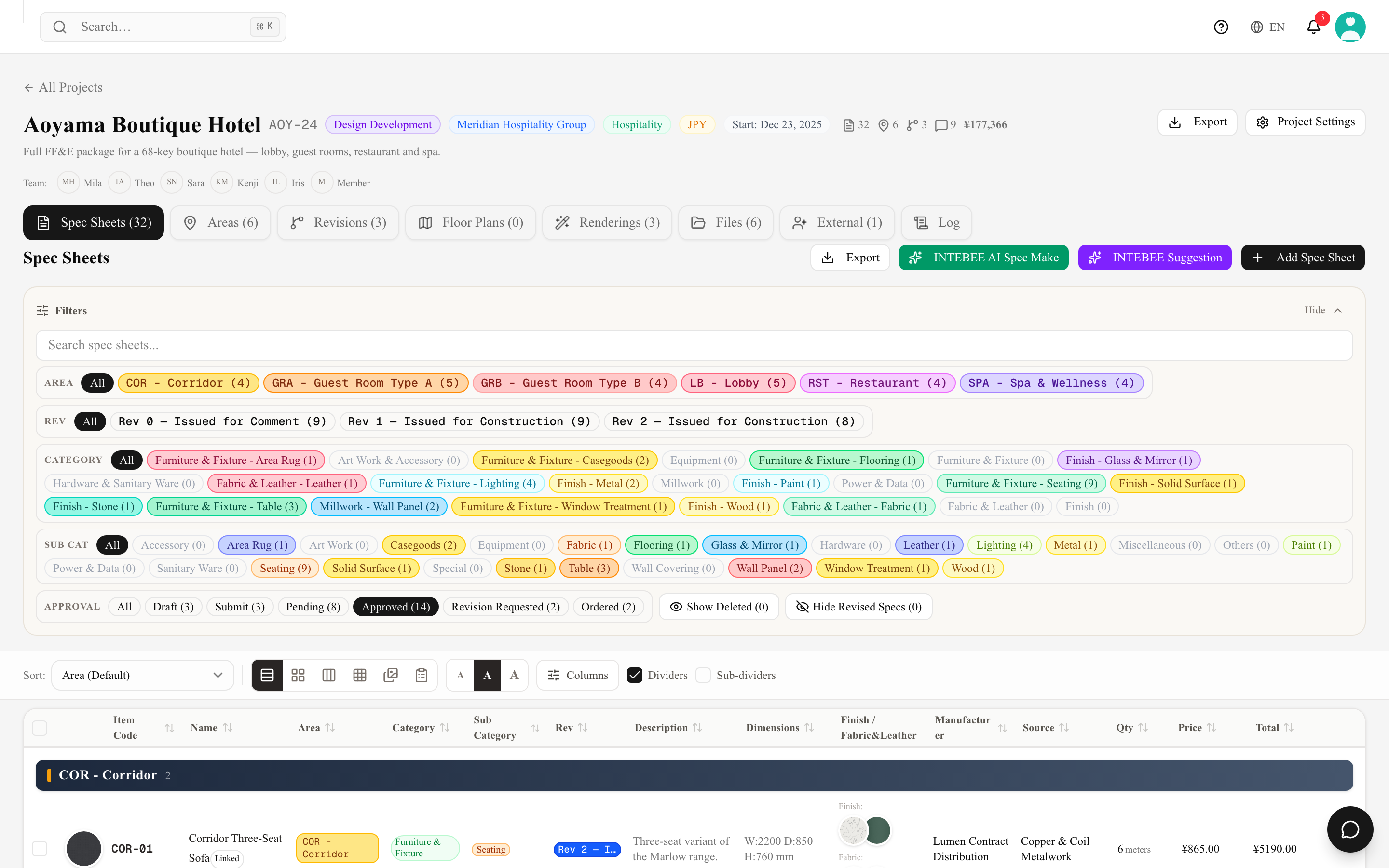
A practical review loop:
- Issue the document and share it (export, or invite the client as an external collaborator).
- Set each item's status to Approved, Rejected or Revision Requested as the client decides.
- Filter the list by status to see exactly what still blocks procurement.
Revisions
When an issued item changes — a fabric is discontinued, dimensions shift, the client swaps a finish — record a revision on the project's Revisions tab:
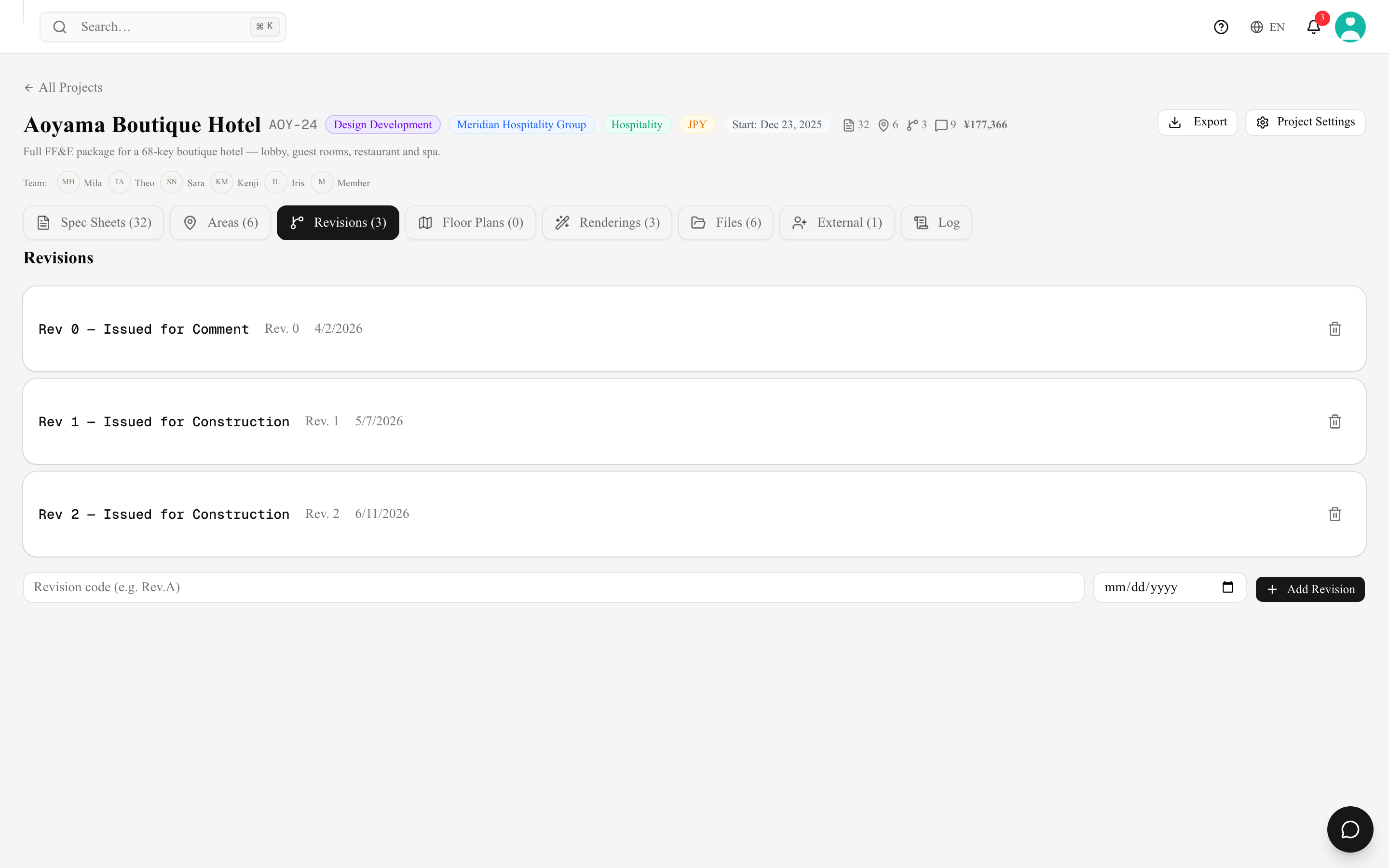
- A revision has a Code (
Rev.1,A,IFC— whatever your office uses), an Issue date, and an optional Name for your own reference ("Client review issue"). The newest one is badged Latest. Left blank, a new revision is codedR1,R2,R3… — the same convention as revisions brought over from the previous system. Issue dates are shown in the same style as other dates in the app (in English: 1 Oct 2026). A revision that has neither a code nor an order (this can come with imported data) is shown as - in the Rev filter and in the revision lists. - Assign sheets to a revision from the sheet itself, or select several rows in the Spec Sheets tab and use Change Revision.
- When a sheet becomes the newer revision of an item (a later revision given with Change Revision, for one row or many, or in the sheet's Revision field, or an item code that now matches an older sheet's) and other items list the older revision as a Finish or Fabric & Leather, a Switch to the new revision? dialog lists those items with the revision each one uses. All are ticked: Switch selected points the ticked ones at the new revision (location, note and amount stay), and Keep current links leaves them as they are. Each switch is recorded on the item in the Log. Several sheets changed at once give one dialog.
- Deleting a revision asks first and tells you how many spec sheets carry it; those sheets lose the revision and the revision is removed permanently. Edits to a revision's code, name or issue date, and deletions, appear in the project's Log.
- The revision code and its Issue date print on the sheet, so a contractor holding Rev 2 knows Rev 1 is obsolete. A revision without an issue date prints its code only. The revision's name stays inside your team.
- The Spec Sheets tab filters by revision, and Hide Revised Specs takes the superseded ones out of the list so you only see what is current.
- Combined with the project activity log, you have a full audit trail: what changed, who changed it, and when.
INTEBEE does not compare two revisions field by field. The record of what changed is the issued PDF plus the activity log — so archive every export you issue.
Comments close the loop
Discussion about a change belongs on the sheet itself — comments support images and notify the team, so decisions and their reasoning stay attached to the item they concern.