
Help, Tours & Feedback
The guided tour, the in-app assistant, and how to tell us when something is wrong.
There are four ways to get unstuck in INTEBEE, and one way to tell us something is broken.
The guided tour
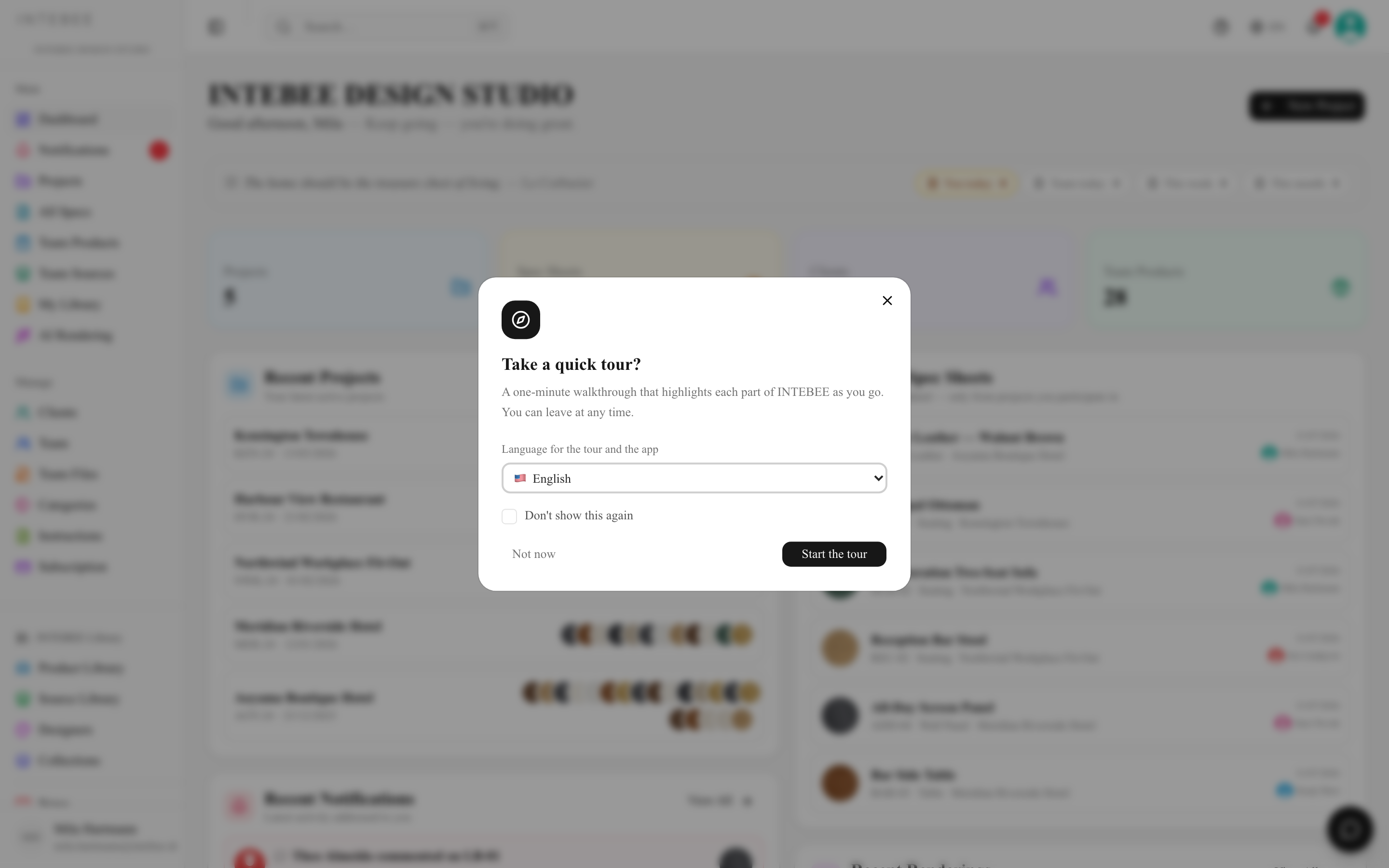
The first time you sign in, INTEBEE asks Take a quick tour? The dialog also offers Language for the tour and the app — pick your language there and the whole interface switches with it, so the tour that follows is already in the right language.
- Start the tour — about fifty stops that spotlight each part of the app in place, grouped into nine chapters: Getting around, Projects, Your plan, A sample project, The spec sheet, Libraries, Export, Floor plans & renderings and Wrapping up.
- Not now dismisses it for this session. Don't show this again stops it coming back.
- Next and Back move through it (the first step offers Skip instead of Back), and Enter is Next. The card's header names the chapter you are in and counts within it (2 / 7), with a bar underneath showing how many chapters are left; the End tour button in its corner leaves at any point.
- The first three chapters walk the app itself. At the end of them the tour offers See it on a sample project: it installs a small fictional project and the remaining six chapters run inside it, on real sheets, real floor plans and a real export. On the very last step you choose Keep it — to experiment with — or Remove the sample; My Account carries the same buttons for later. Removing it deletes only what nothing else uses: anything your team added inside the sample project, or uses from it elsewhere (its client or a source, say), is kept, and the sample project then stays as an ordinary project. Replaying the tour walks the sample already in place rather than replacing it. Remove the sample in My Account or on the sample bar first asks you to confirm and lists what goes; the tour's last step removes it directly, since choosing it there is the confirmation.
You can always run it again: My Account → Guided tour → Replay the tour, and the same card's Offer the tour when I sign in puts the sign-in prompt back.
The INTEBEE Assistant
The chat bubble in the bottom corner opens the INTEBEE Assistant — answers drawn from these guides, in your interface language. It's available on the marketing site, the sign-in pages and everywhere inside the app.
- Type into Ask about INTEBEE…, or click one of the suggested questions ("How do I create a spec sheet?", "How do AI credits work?").
- Answers cite the guide they came from, so you can open the full article.
- Two tabs: Ask and Feedback.
- Questions can be up to 1,200 characters. Signed out (on the marketing site or the sign-in pages) you can ask a few questions a minute and about twenty a day; signed in, the allowance is larger.
Send feedback
The Assistant's Feedback tab goes straight to the INTEBEE team with your email address, so we can write back. Tell us what is wrong, missing or slow, and press Send feedback.
There is also a Send feedback link right beside the three features whose output can be wrong, so a report arrives attached to the thing being reported:
- AI Spec Make — under the dialog, with the reminder that AI can make mistakes — check the result before you use it.
- AI Rendering — same place, same caveat.
- The floor plan editor — on the canvas.
Demo workspaces have no feedback channel, so neither the tab nor the links appear there.
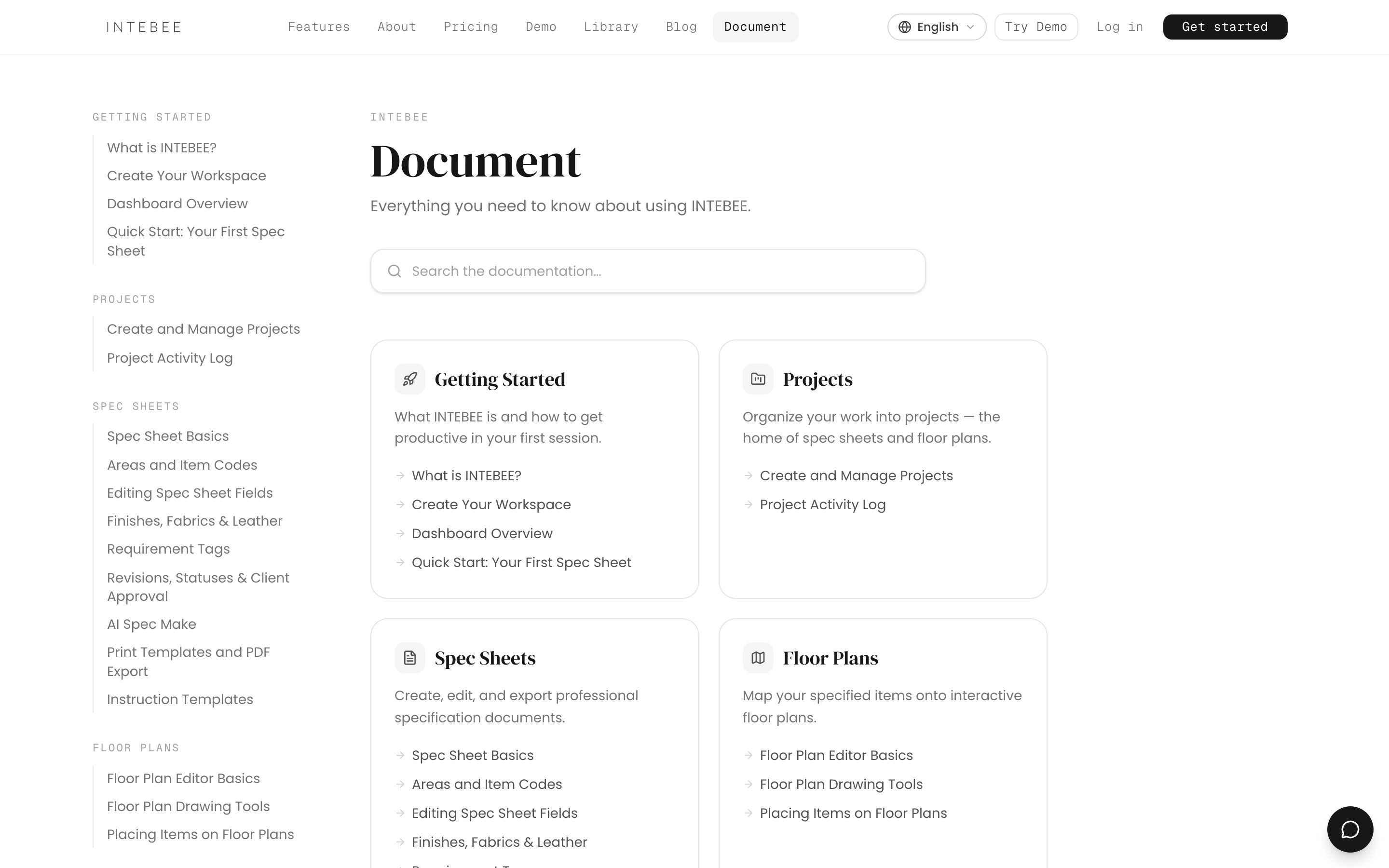
This Help Center
The Document link in the header (and in the sidebar) opens these guides in a new tab, in your interface language when a translation exists. ⌘K searches them too, under the Document group — see Search tips. It opens the guide for the screen you are on — Settings → Categories opens Managing categories, a project's Floor Plans tab opens the floor plan guide — and the help home when a screen has no guide of its own.
Still stuck? Email support@intebee.com — include the project name, and for document problems the export you're looking at. See Troubleshooting & FAQ.