
External Collaborators
Give clients and partners read access to one project — nothing else.
External collaborators are people outside your workspace — clients, contractors, consultants — who need to see a project's latest documents without joining your team.
What externals can and can't do
- ✓ View the latest shared spec sheets, floor plans and project files of the one project they're invited to.
- ✓ See prices on those spec sheets.
- ✓ See who wrote each comment on those spec sheets.
- ✗ Internal Memo stays hidden — not in the spec sheet editor, not in exports, not in the project log. Internal Memo changes are logged as Members only entries that external collaborators never see. It is for workspace members only.
- ✗ No access to other projects, your catalog, team files, settings, or billing.
- ✗ No editing — externals are readers.
When an external collaborator opens a spec sheet, it shows a View only banner: the fields, uploads, AI buttons and comments are disabled, because only members of the team can edit or comment.
Export offers externals the PDF only; CSV, Excel and Word exports are for workspace members. An external can generate PDFs of the project they were invited to, download them from Spec Sheet Export History, and remove their own exports from it — exports made by team members stay for the team to manage. Printed and previewed sheets carry the logo of the team that owns the project, not the external's own company. A manufacturer or supplier on a sheet is shown by name only — its contact details stay with the team.
Inviting an external user
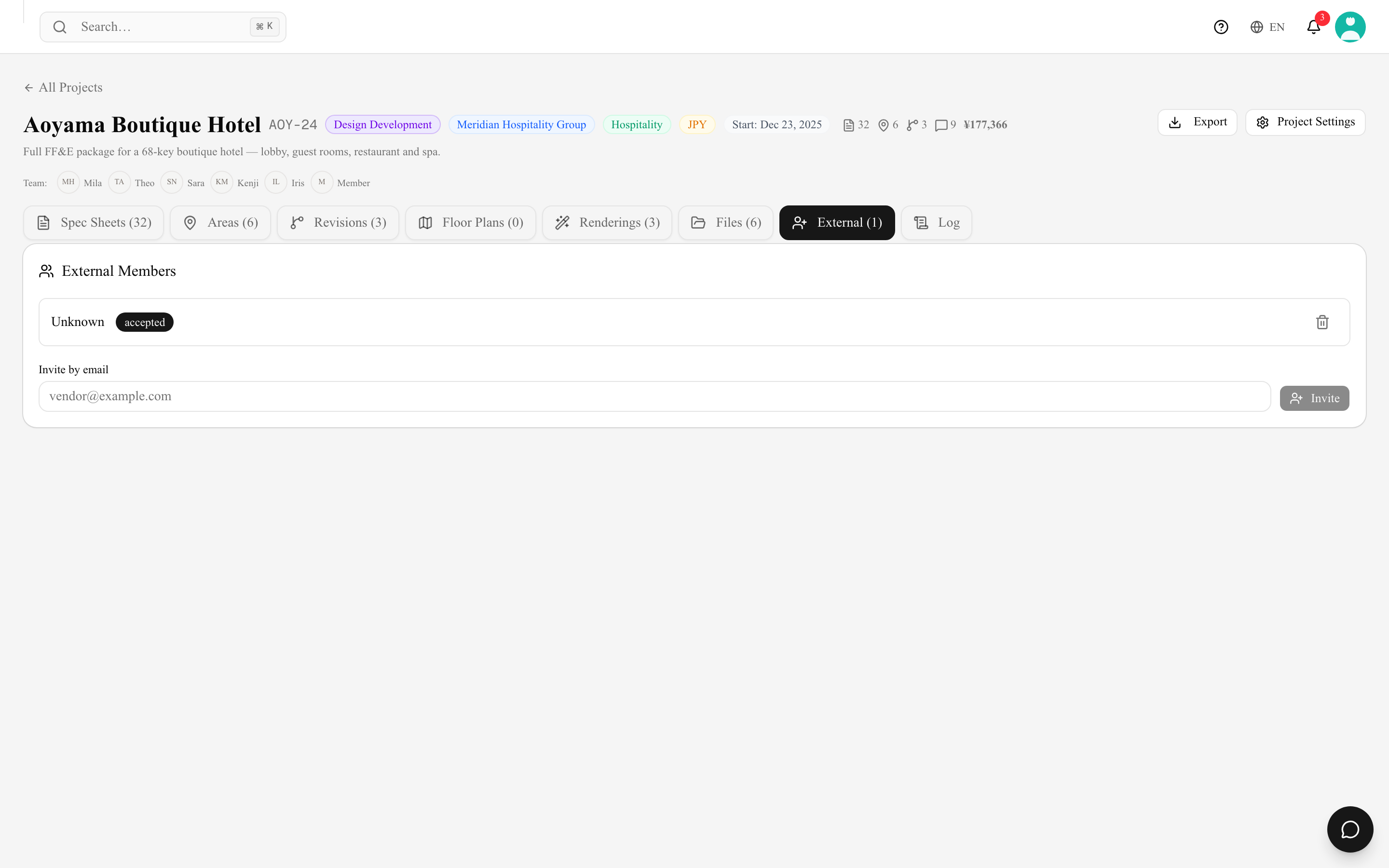
- Open the project → External tab.
- In the External Members panel, enter their address under Invite by email and click Invite.
- They receive an invitation email. The link asks them to sign in with the invited address — if they don't have an INTEBEE account yet, they can create one whenever registration is open — then Accept Invitation opens the project. You can also copy the invite link and send it yourself; each link works once, and the invitation shows as Pending until it is accepted.
Where externals find shared projects
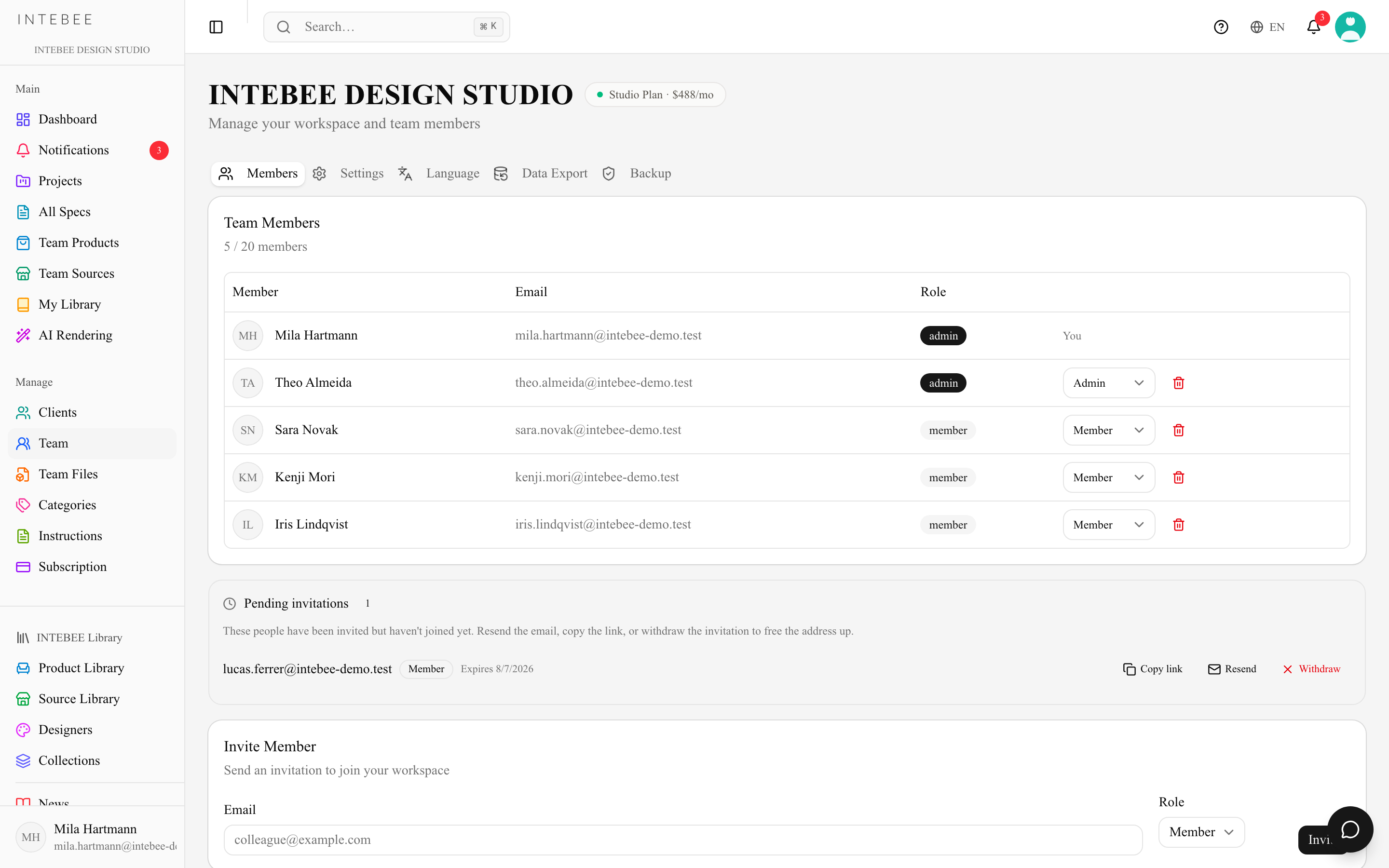
Projects shared with someone appear on their Projects page under Shared with me (N), with the name of the team that invited them, and global search finds those projects and their spec sheets too. Inside such a project they see no Add Spec Sheet, AI buttons or Project Settings, and the Areas, Revisions, Floor Plans and External tabs are read-only. Someone who belongs to no team of their own sees only Notifications and Projects in the sidebar.
Plan limits
External users are counted per project:
| Plan | External users / project |
|---|---|
| Free / Personal | — |
| Atelier | 1 |
| Studio | 5 |
Good practices
- Invite the client as an external once the first revision is issued — they always see the current state instead of email attachments going stale.
- Remove externals from the project when the engagement ends; access stops immediately. The trash icon next to an external asks for confirmation first ("Remove {name} from this project?"); a pending invitation's link stops working at the same moment.