
AI Suggestion
Let AI research the web and propose products that fit your project.
AI Suggestion searches the web for products matching your project's needs and returns five researched candidates — useful when your own libraries don't have the answer yet.
How to use it
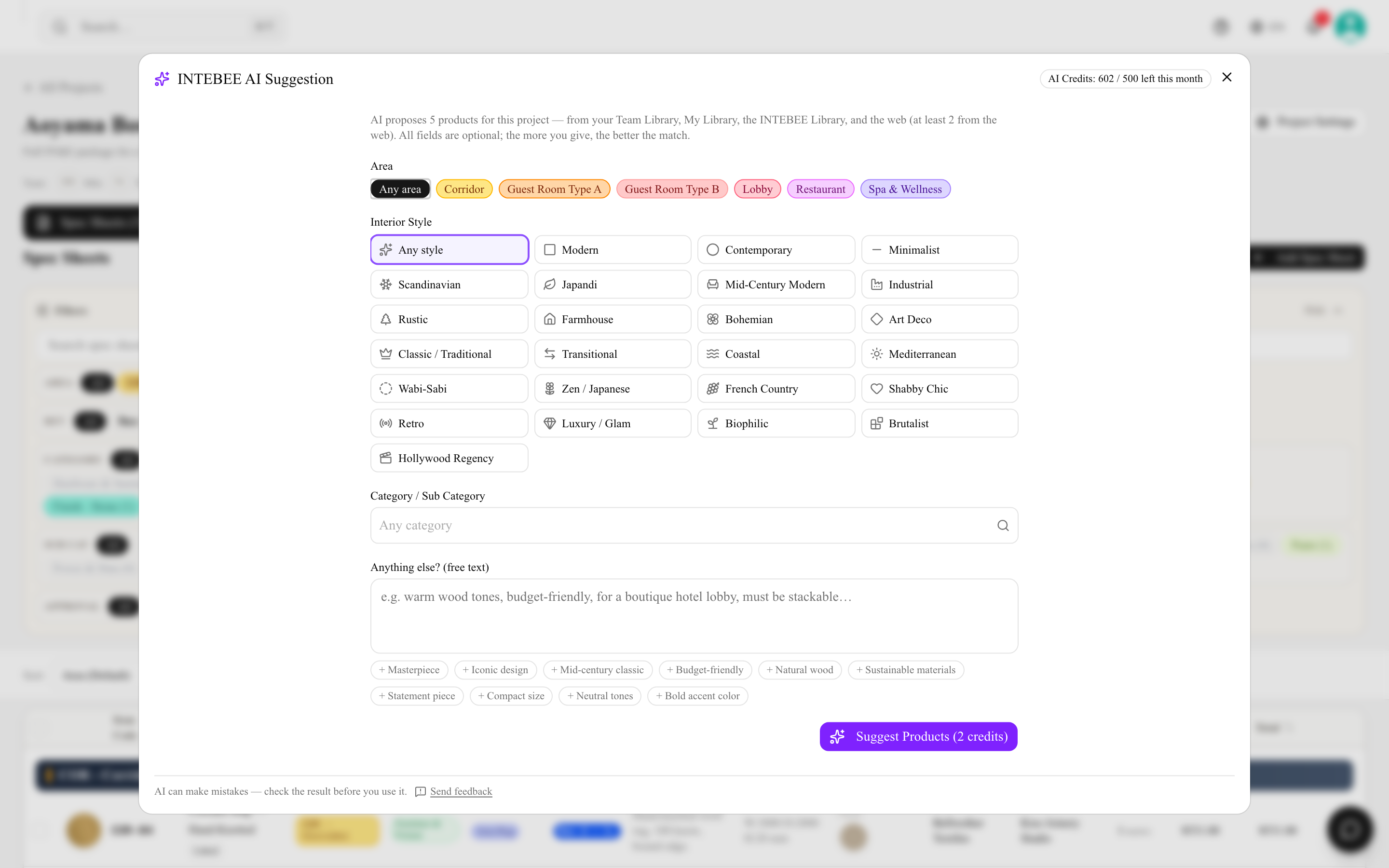
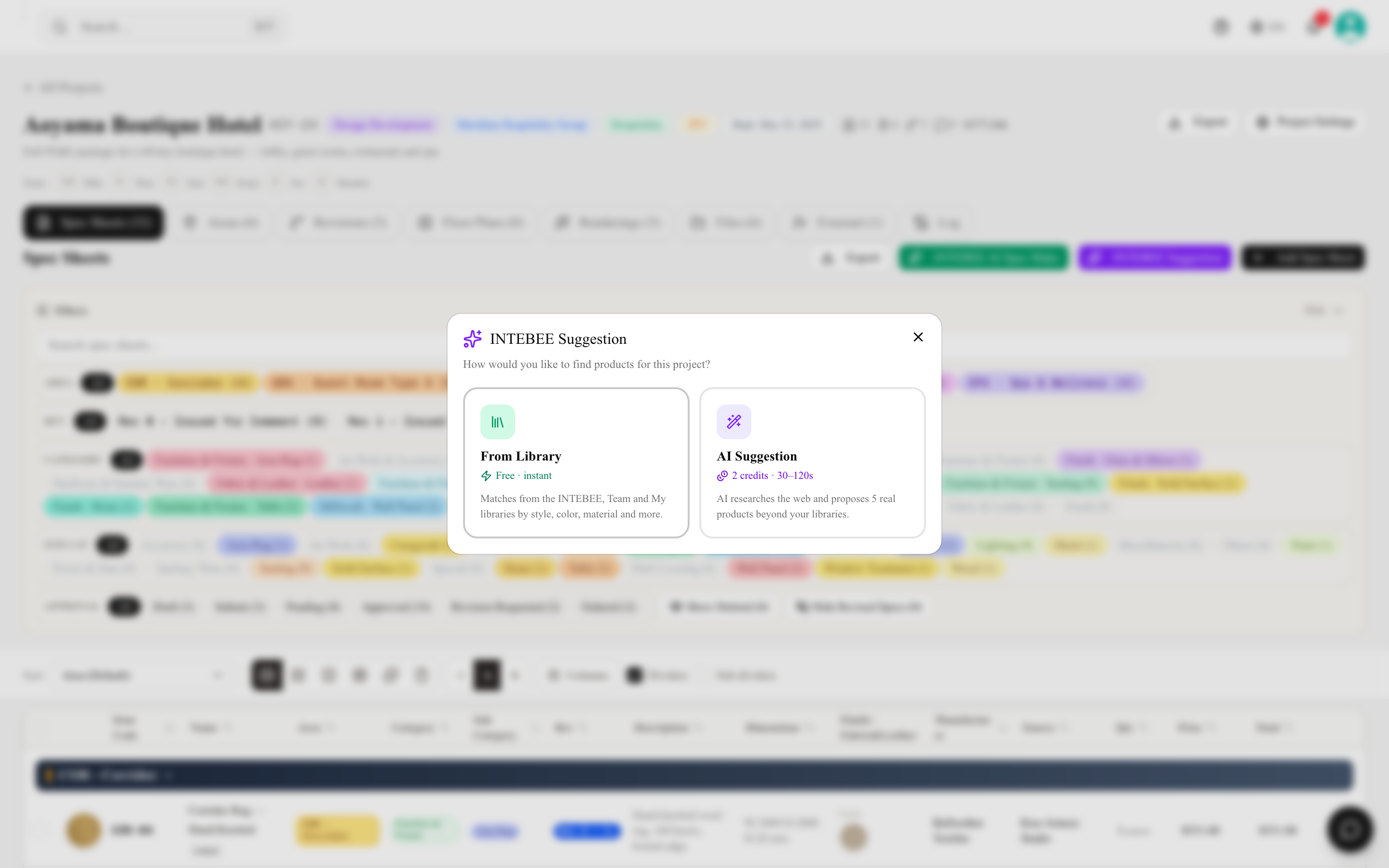
- Open a project's Spec Sheets tab, click INTEBEE Suggestion, and choose AI Suggestion (2 credits · 30–120s) in the chooser.
- Describe what you need — the item type plus any constraints that matter (style, size, budget range, material).
- AI searches the web and returns 5 candidates, each with the product name, maker, key specs, and a link to the source page.
- Pick a candidate to start a spec sheet from it, then refine the details in the editor.
Credits
One AI Suggestion run consumes 2 AI credits from the workspace pool (it performs a deeper, multi-step web research than a single AI Spec Make search). Failed runs are refunded automatically. See AI credits explained. Closing the dialog while the research is still running asks you to confirm first: the run is stopped, but the credits may not be refunded.
Getting better suggestions
- Constraints beat adjectives: "lounge chair, oak + bouclé, under €1,500, EU supplier" outperforms "nice chair".
- Mention the project context (hotel lobby vs. residence) — durability and contract-grade requirements change the answer.
- Web data can be wrong or stale. Verify dimensions, pricing, and availability on the manufacturer's page (the candidate links take you straight there) before issuing.
When to use which tool
Check From Library first — it's instant and free. Use AI Suggestion when you need products beyond your libraries, and AI Spec Make when you already know the product and just want the sheet filled.