
Remarks Templates
Standard remarks you drop onto a sheet instead of retyping them — and the ones each category fills in for you.
Remarks is the free-text note that prints with a spec sheet: "Finish to be confirmed against an approved sample", "Price valid for 90 days", "Client to supply the artwork". Most teams write the same few remarks again and again. Remarks templates let you write them once and pull them onto any sheet.
Where Remarks sits on a spec sheet
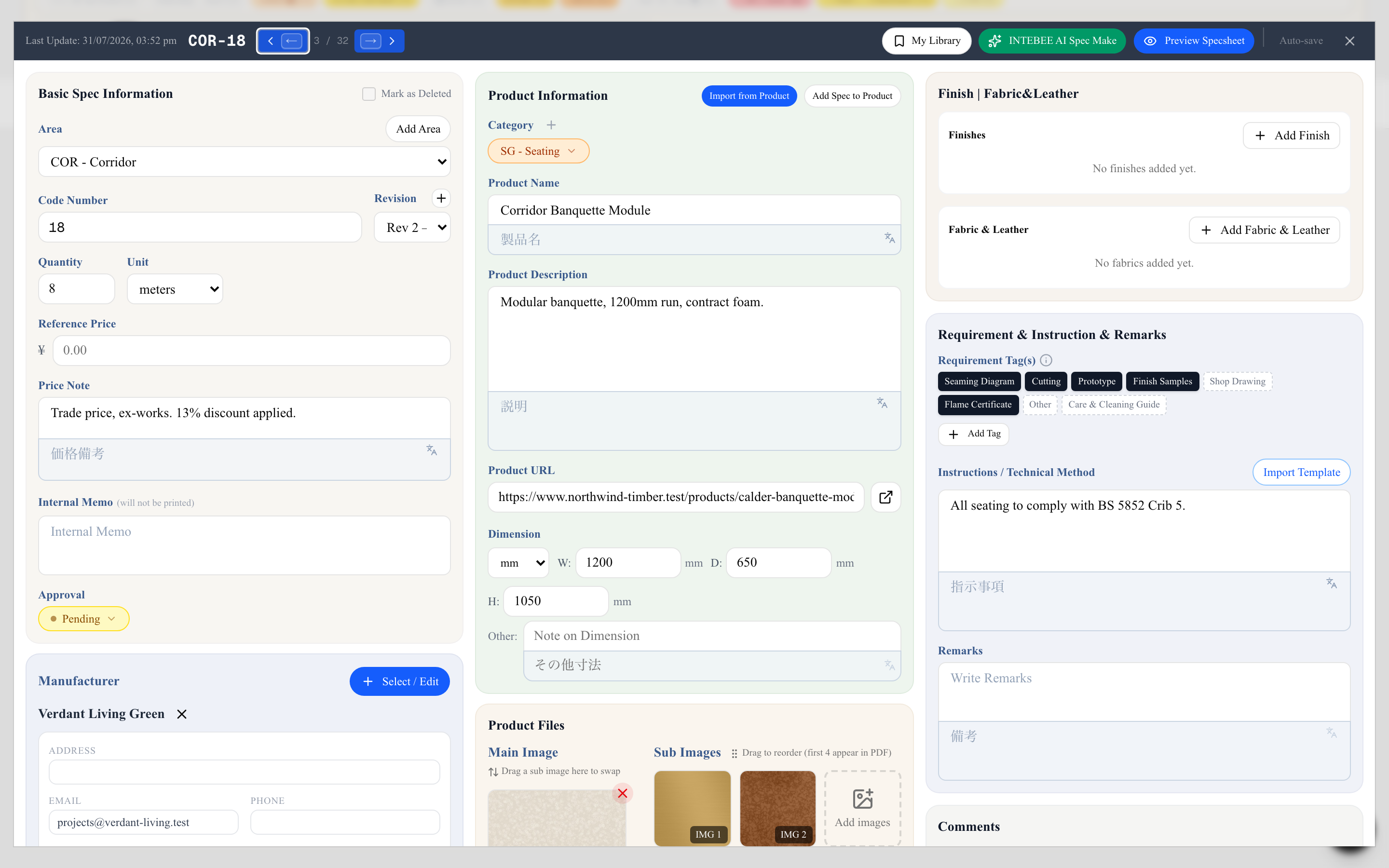
Open a sheet and look at the right-hand column. The card headed Requirement & Instruction & Remarks holds three things, top to bottom: Requirement Tag(s), Instructions / Technical Method, and Remarks.
- Remarks prints. It appears on the exported spec sheet. On the Schedule list layouts it prints only if you switch it on in the export dialog's Fields popover.
- Internal Memo does not. If a note is for your team only, put it in Internal Memo in the middle column. The editor marks that field (will not be printed).
Creating a remarks template
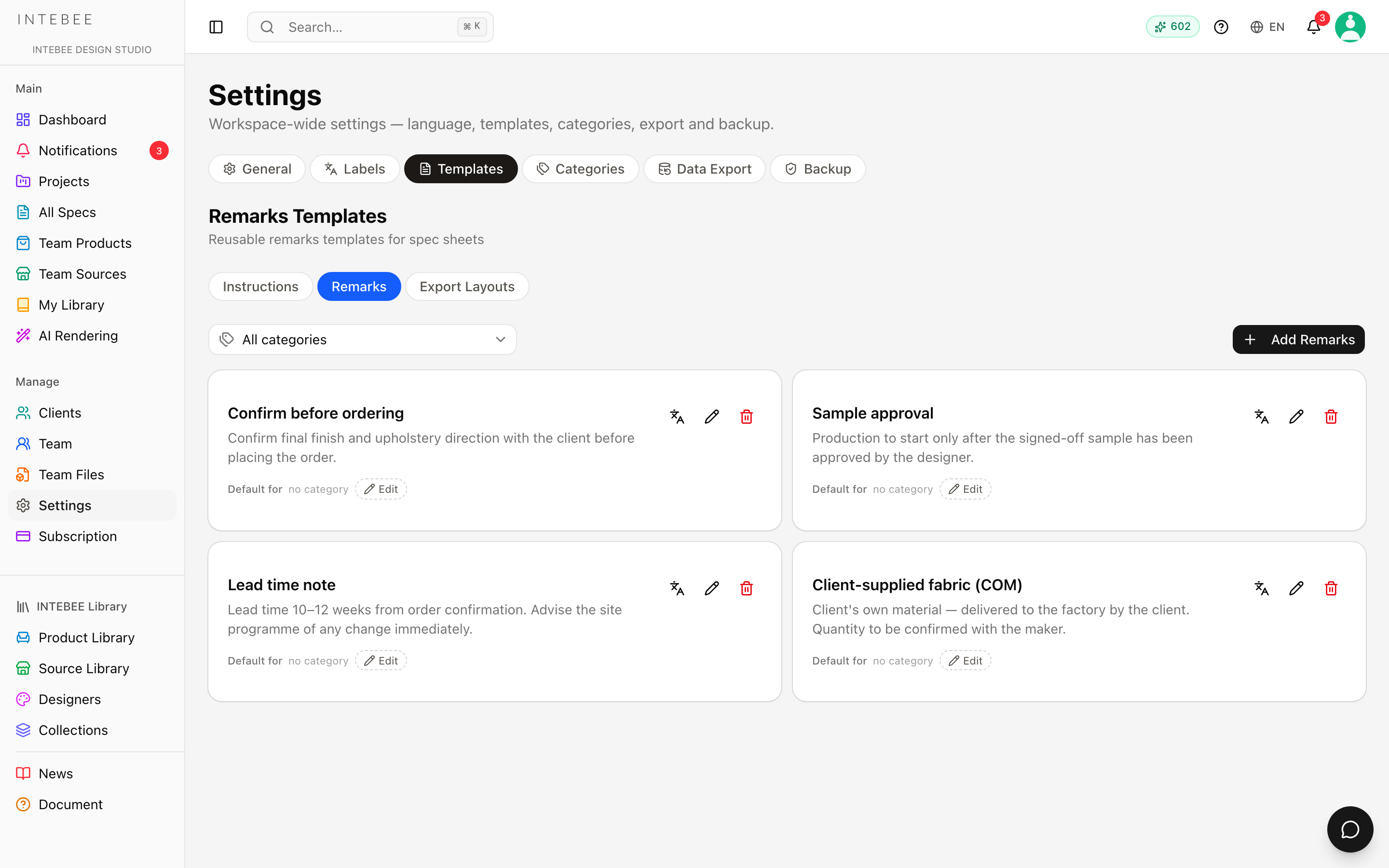
- Open Settings (sidebar → Manage) and choose Templates.
- Switch to the Remarks tab. The page title changes to Remarks Templates.
- Click Add Remarks, give the template a Template Name and write the text, then click Create. The text box in this dialog is labelled Remarks Text; it holds the remark itself.
Each template card shows its name, the first lines of its text and a Default for row. Use the pencil button on a card to edit a template and the bin to delete it. If the template is the default for any categories, the delete dialog lists them first: after deleting it, new spec sheets in those categories start without a default. Instruction templates work the same way.
Only workspace admins and managers can add, edit or delete templates on this page. Everyone else sees the list read-only.
Saving a remark you have just written
You can also make a template from inside the editor. Next to the Remarks label, the bookmark button (Save as team template) opens New Remarks Template with your text already filled in. Name it and click Save Template. Any team member can do this. The template is saved as plain text, so bold and lists are not kept.
Translations
If your workspace has second languages set up, each template card has a Translations button. Pick a language, then Add to enter the Template Name (translated) and the translated text. When a project with that second language imports the template, the translation goes into the second-language Remarks field. If the project's primary language is not English and the template has a translation in that language, the translation also fills the main field.
Using a template on a sheet
Next to the Remarks label, click Import Template. The dialog, Import Remarks from Team Template, lists your team's remarks templates. You can search it (Search templates…), and it marks the current category's default. Select one and click Assign.
Assign replaces what is in the field. It does not append. If you want to keep what you had, copy it first.
A sheet stores a copy of the text, not a link to the template. If you edit a template later, only future imports use the new wording. Sheets that already have the remark keep the wording they were issued with. To roll a correction out, re-import the template on each sheet that needs it.
Category defaults
Each category can have one default remark. A new sheet filed under that category starts with it, and picking that category on a sheet fills an empty Remarks field. Text you have already written is never overwritten. When the sheet's category has a default, a small reset button (Reset to category default) sits beside Remarks. Click it to put the default text back.
There are two places to set the default:
- Settings → Templates → Remarks. On a template card, click Edit in the Default for row, tick the categories in Default for which categories?, and click Save. A category can only have one default remark, so ticking it here takes it away from its previous template.
- Settings → Categories. Expand a category and use Pre-filled Remarks (Select, or Change if one is already set). See Managing categories.
On the Templates page, the All categories filter above the list narrows it to the template a given category uses by default.
Remarks versus Instructions
The two kinds work the same way and share the same page, but they hold different content. Keep them separate:
| Instructions / Technical Method | Remarks | |
|---|---|---|
| What goes in it | How the item must be made, installed or maintained | Conditions and notes about this item: pricing, confirmation, supply |
| Templates tab | Instructions | Remarks |
| Category default | Pre-filled Instruction | Pre-filled Remarks |
An instruction template never appears in the Remarks import list, and a remarks template never appears in the Instructions list. For the instruction side, see Instruction templates.
Tips
- Keep each template short and about one thing. Assign replaces the field, so if a sheet needs two remarks, import one and type or paste the other.
- Put anything the contractor should not see in Internal Memo, not in Remarks.