
All Specs — Every Sheet in One List
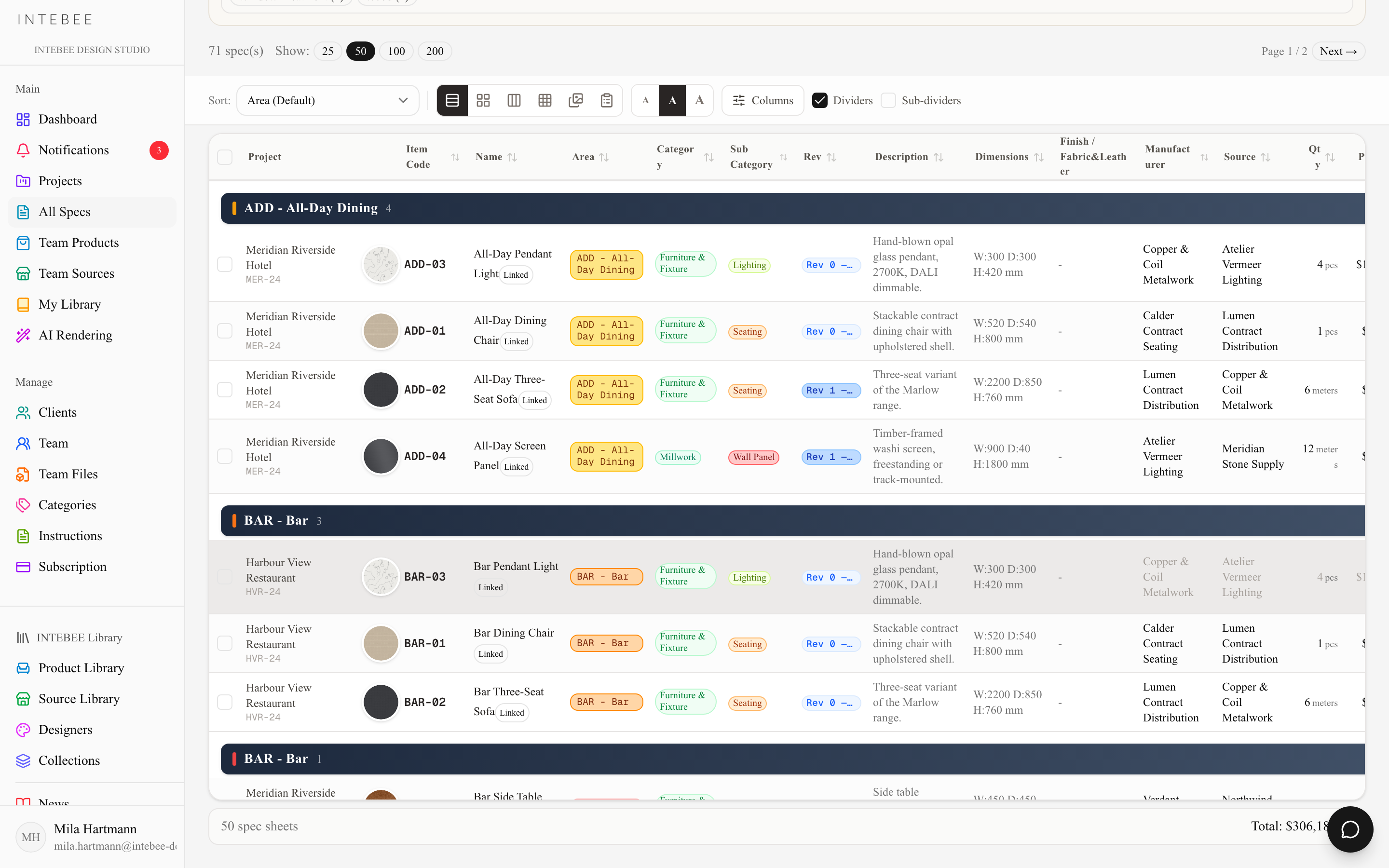
Search and filter every spec sheet in your workspace, across all projects, and open any of them without going through the project.
Each project has its own Spec Sheets tab. All Specs lists every spec sheet in the workspace on one page, whatever project it belongs to. Use it to answer questions like "where did we use this chair before?" or "which lighting have we specified this year?", and to jump straight into a sheet.
Open it from the sidebar: All Specs, in the Main group, just below Projects.

What's listed
Every spec sheet in every live project of the workspace. Deleted sheets and sheets in deleted projects are left out. The line under the title gives the workspace total.
The list opens with the most recently updated sheets first, and it is split into pages (see below). A Project column (project name and project code) is added in front of the usual columns, so you can always tell where a sheet lives.
Searching and filtering
- Search spec sheets... looks in the item code, the name and the description. Type and press Enter.
- Project narrows the list to one project. Click the same chip again, or All, to clear it. This row only appears when the workspace has more than one project.
- Category and Sub Cat filter by main category and sub-category. Each chip shows how many sheets it holds across the workspace. You can switch several on at once, and All clears the row. Chips that count 0 are hidden; to list them too, click the gear (Filter settings) at the top right of the Filters panel and switch on Show categories with no spec sheets. That switch is saved for your account and also applies to every project's Spec Sheets tab.
Search and filters combine, and they stay in the page address, so you can bookmark a filtered list or send it to a teammate.
The floating buttons at the bottom right of the screen keep Search and Filters within reach while you scroll.
Pages
Above the list, "n spec(s)" tells you how many sheets match your search and filters.
- Show sets how many sheets are on each page: 25, 50 (the default), 100 or 200.
- ← Prev and Next → step through the pages, and Page x / y shows where you are.
The Sort menu orders the whole list, not just one page: page 1 starts with the first sheet in that order and Next → carries on from there. A newly picked sort applies across pages from the next page you open (or after a reload). All Specs keeps a sort of its own: it opens in the one you last picked in the Sort menu on this page. The choice is saved for your account and is separate from the picks you make in each project's Spec Sheets tab — neither changes the other. Until you pick one, it opens by Project → Area (marked Default), which groups each project's sheets together. Project → Area exists only on this page; choosing it again clears your pick, so the page goes back to opening that way. A column-header sort is temporary and is not saved. A column-header sort reorders only the current page; to sort a large result by a column, narrow it with filters or raise Show first.
Views
All Specs has the same view controls as a project's Spec Sheets tab: Table, Card, Vertical, Grid, Moodboard and List (Schedule), plus the text size (Small, Medium, Large), Columns and Dividers.
Opening and editing a sheet
Click a row to open the sheet in the same editor you use inside a project. You can edit it here, and changes save to the sheet in its own project. There is no copy. The editor's arrows move to the next or previous sheet in the list.
Each row ends with a ▼ button. Click it, or right-click the row, for the row's actions:
- Export this spec sheet opens the Export dialog for that one sheet.
- Mark as Deleted / Unmark as Deleted sets or clears the sheet's Deleted status.
- Show related specs opens the sheet's project with the list narrowed to its linked finishes, fabrics or items.
- Delete moves the sheet to its project's Trash, after listing the items that use it if it is a linked finish or fabric.
Duplicate is not offered here, because a cross-project list can't know which project the copy should go into. Duplicate from the project's Spec Sheets tab.
Tick rows to act on several at once. Delete Selected works here. Change Area and Change Revision don't, because areas and revisions belong to one project.
Exporting many sheets
All Specs exports one sheet at a time. A spec book (a merged PDF, or Word, Excel and CSV) is always built from one project. Open the project, go to its Spec Sheets tab, filter or select the sheets you need, and click Export. See Print templates and PDF export. For a data copy of everything, see Backup and export.