
Attached Documents
Attach manufacturer PDFs, data sheets and certificates to a spec sheet, and merge them into the exported spec book.
A spec sheet describes an item, but the manufacturer's own paperwork often has to travel with it: the technical data sheet, the fire certificate, the care guide, a shop drawing. Attach these to the sheet in its Documents panel, and the PDF export can put them straight after the sheet.
Where to find it
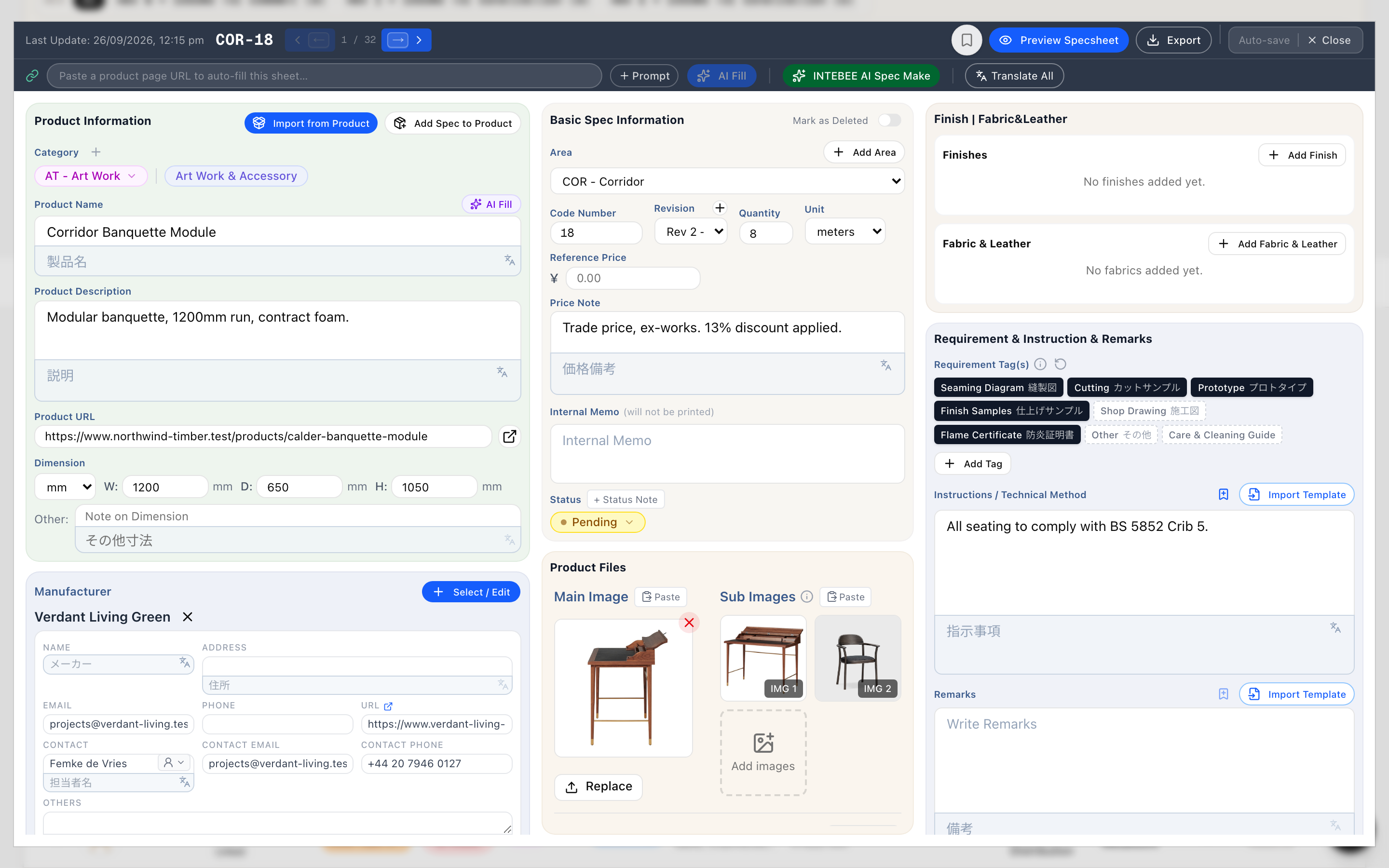
Open a spec sheet. In the middle column, below Basic Spec Information, the Product Files card holds the sheet's images at the top and, below a divider, Documents.
Adding documents
- Click Upload next to the Documents heading, or
- while the panel is empty, drop files onto the dashed box (Drop files here or click), or click it.
You can pick several files at once. Accepted types are PDF, JPG, PNG and WebP, up to 20MB per file. Anything else is rejected with a message naming the file. When the upload finishes you'll see "n document(s) uploaded."
Documents are saved to the sheet as soon as they upload. You don't need to save the sheet.
Viewing, downloading, reordering and removing
Each document shows as a small A4-shaped thumbnail with its file name underneath. Hover a thumbnail (on a phone or tablet the buttons are always showing) to see its controls:
- Click the thumbnail to open it large in a preview window. PDFs open in a viewer, images at full size.
- Download (the arrow, top right) opens or saves the original file.
- Remove (the red bin, top right) deletes the file straight away. There is no confirmation, and the file is gone from storage, so download it first if you still need it.
- Reorder by dragging the grip handle at the top left. The new order is saved immediately, and the export follows it.
Documents in the export
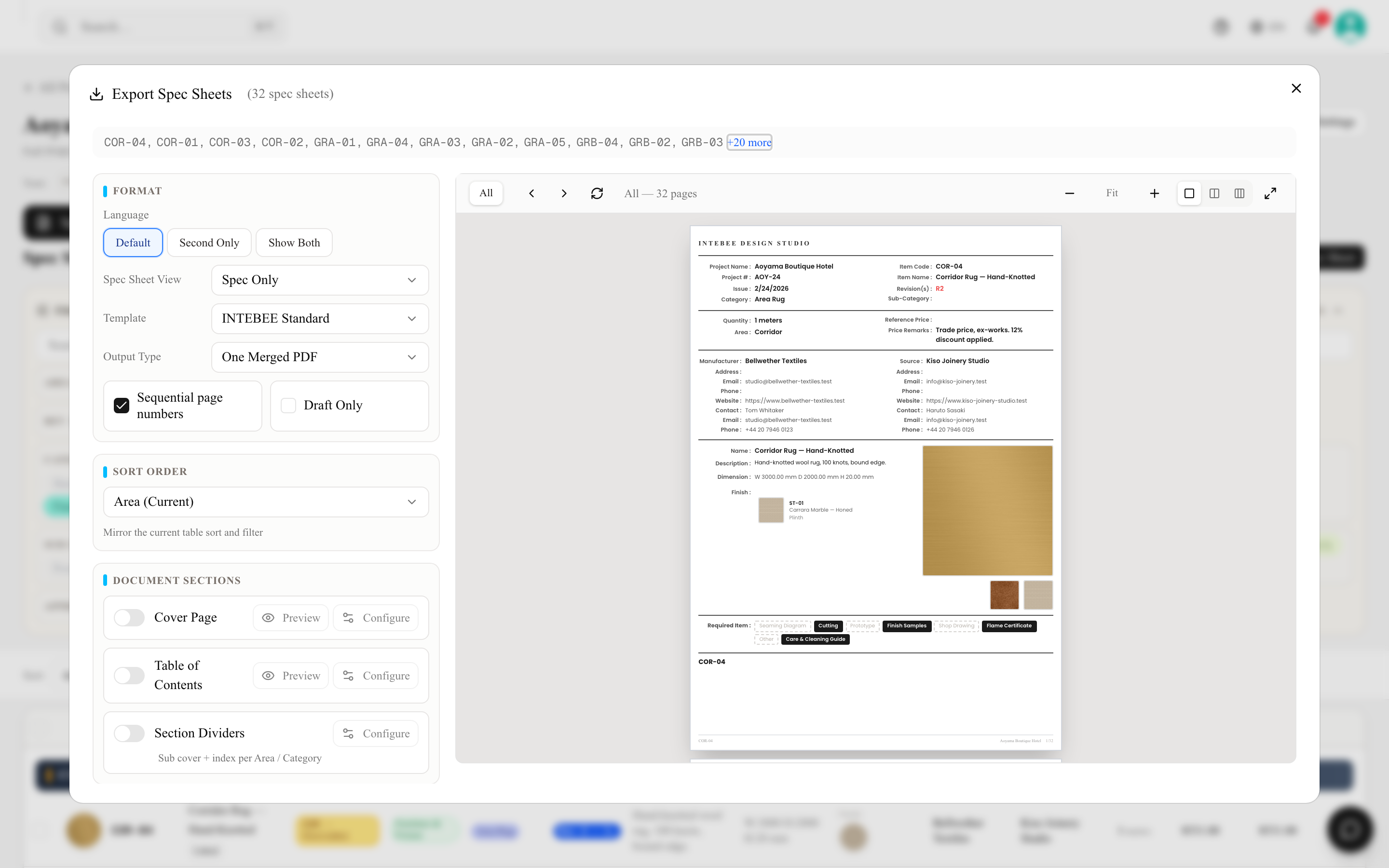
Pick a view with Document in its name under Spec Sheet View in the Export dialog:
| View | What each sheet brings into the PDF |
|---|---|
| Spec + Document | The sheet, then its attached documents |
| Spec + Finish + Document | The sheet, its linked Finish and Fabric sheets, then its attached documents |
Once you pick one of these views, the Attached Documents setting appears:
- Embed in sheet template scales each document page to fit inside the A4 sheet frame and adds the spec footer (item code on the left, project name on the right). Landscape pages shrink to fit. Use this when the documents should read as part of the spec book.
- Merge as-is adds the original pages untouched, with no footer and no page number. These pages still count toward the page numbering.
Only PDF documents are merged. Images you attach (JPG, PNG, WebP) stay on the sheet but are not added to the exported PDF. If an image needs to be in the spec book, save it as a PDF first, or add it to the sheet's images instead. A document that can't be read at export time is skipped, and the rest of the export goes ahead.
The other views (Spec Only, Spec + Finish, and the List layouts) leave attached documents out. For every other setting in the dialog, see Print templates and PDF export.
Copies, products and deletion
- Duplicate gives you a copy of the sheet without its documents. Attach them to the copy yourself if it needs them.
- Save as Product copies the document list to the new team product. Syncing a sheet to its linked product does the same.
- Deleting a sheet moves it to the project's Trash and doesn't remove its documents. If you restore the sheet, its documents come back with it.
Storage and privacy
Attached documents don't count toward your plan's files per project limit. That limit only counts the project's Files tab (see Team files & project files).
Like a sheet's images, documents are stored as direct links so the export service can read them. Only people who can edit the sheet can add or remove documents, but anyone who has a document's link can open it. Attach what you would hand over in the spec book: manufacturer literature and certificates. Keep confidential files, such as quotes, contracts and client correspondence, in the project's Files tab, which is stored privately and opens only for signed-in people with access to the project.