
Managing Clients
The client directory, and how clients connect to projects.
Clients (sidebar → Manage) is your workspace's client directory. Projects link to a client, so documents and lists show who each job is for.
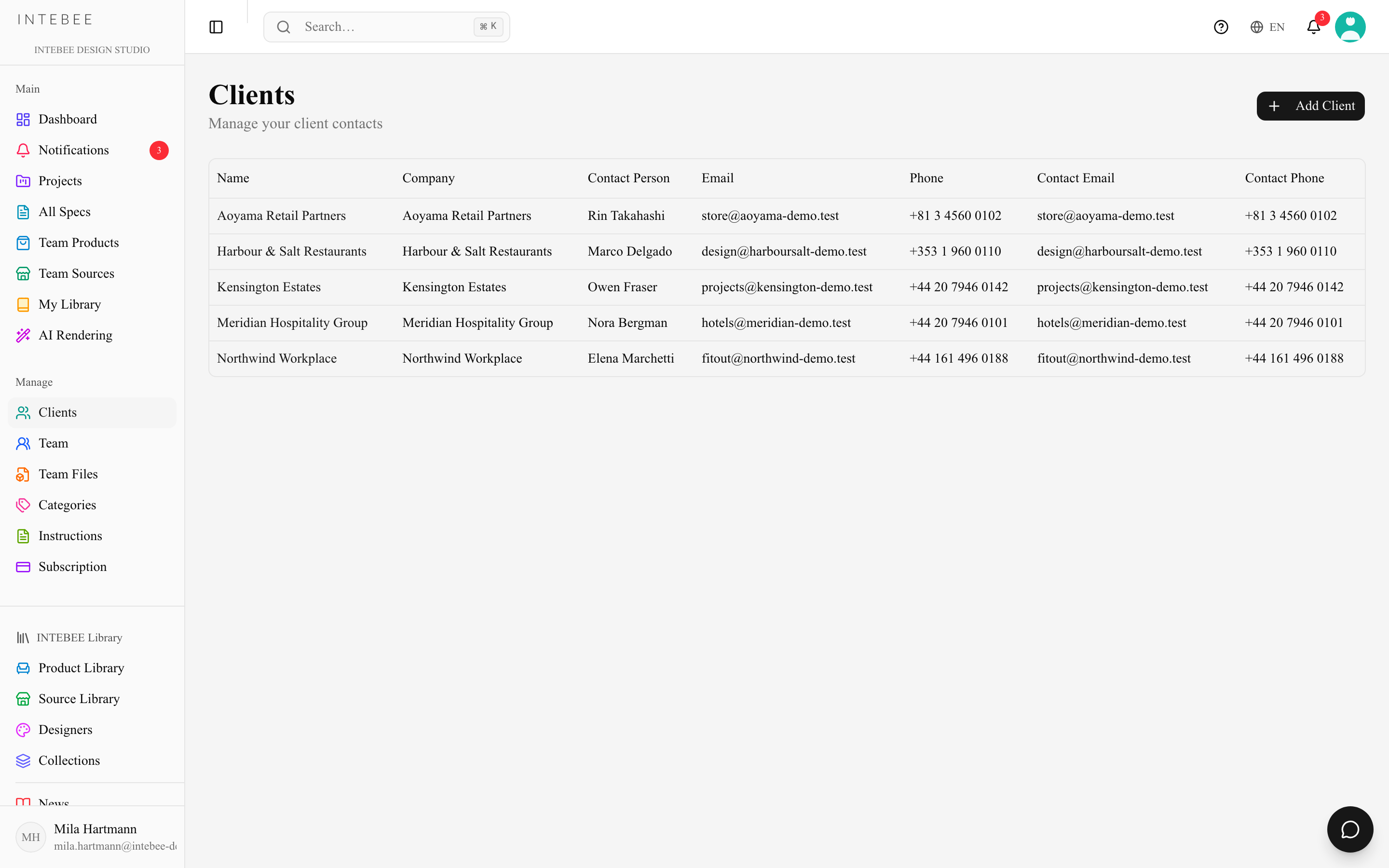
Adding a client
- Open Clients → Add Client.
- Record the company/person name and contact details.
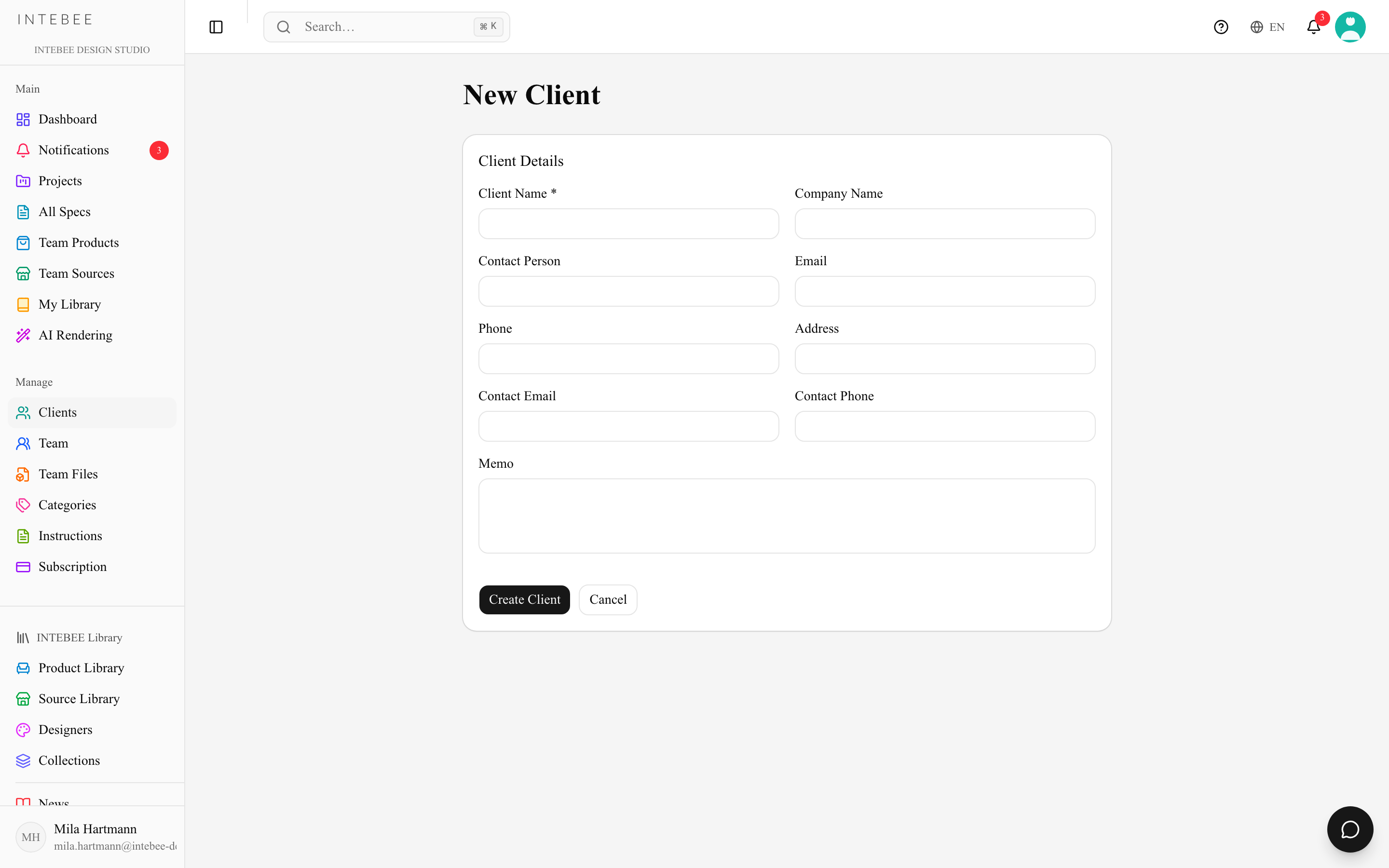
Client names are unique within the workspace. Letter case, full-width characters and extra spaces don't make a new name — ACME Interiors and ACME Interiors are the same client as Acme Interiors and are refused with "A client with this name already exists in your workspace". A name can be up to 200 characters. When you type a client's name while creating a project or in Project Settings, a name that matches an existing client in this way picks that client instead of creating a new one.
Linking to projects
Choose the client when creating a project (or later in project settings). The client then appears on project lists and can be printed on document headers, and the client page shows all of their projects — a one-glance account history.
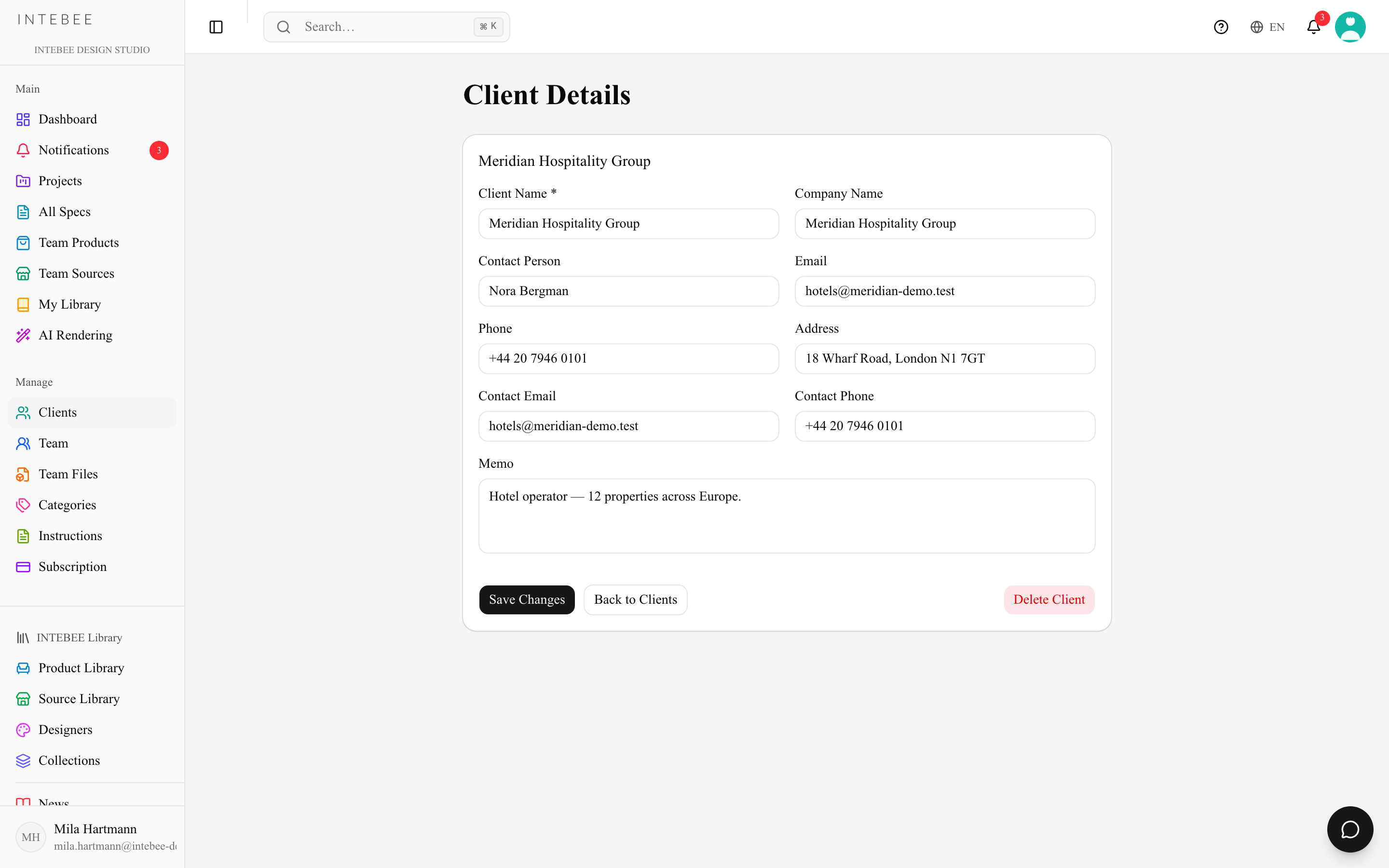
Delete Client on the client's page asks first and tells you how many projects use the client. The client then leaves your client list and the client pickers; the record itself is kept (nothing else is erased).
Clients vs. external collaborators
- The client record is your internal directory entry — the client themselves has no login and sees nothing.
- If the client should view the project, additionally invite them as an external collaborator.
Client management availability follows your plan (included from Personal upwards).