Areas and Item Codes
How locations and automatic numbering keep a big spec book navigable.
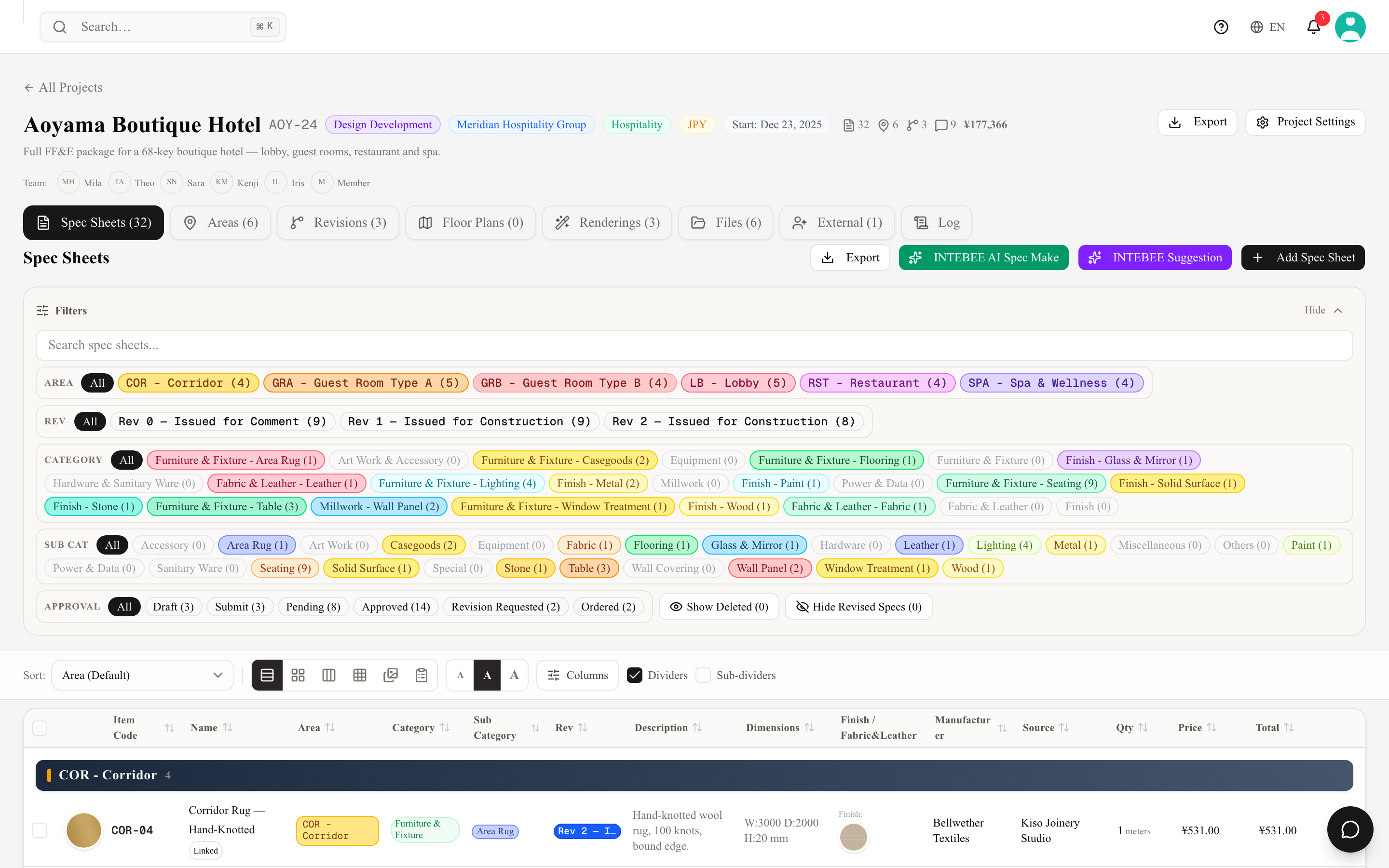
Item codes are how everyone — designers, contractors, clients — refers to an item without ambiguity. INTEBEE generates them from areas, so set areas up first and the numbering takes care of itself.
Areas
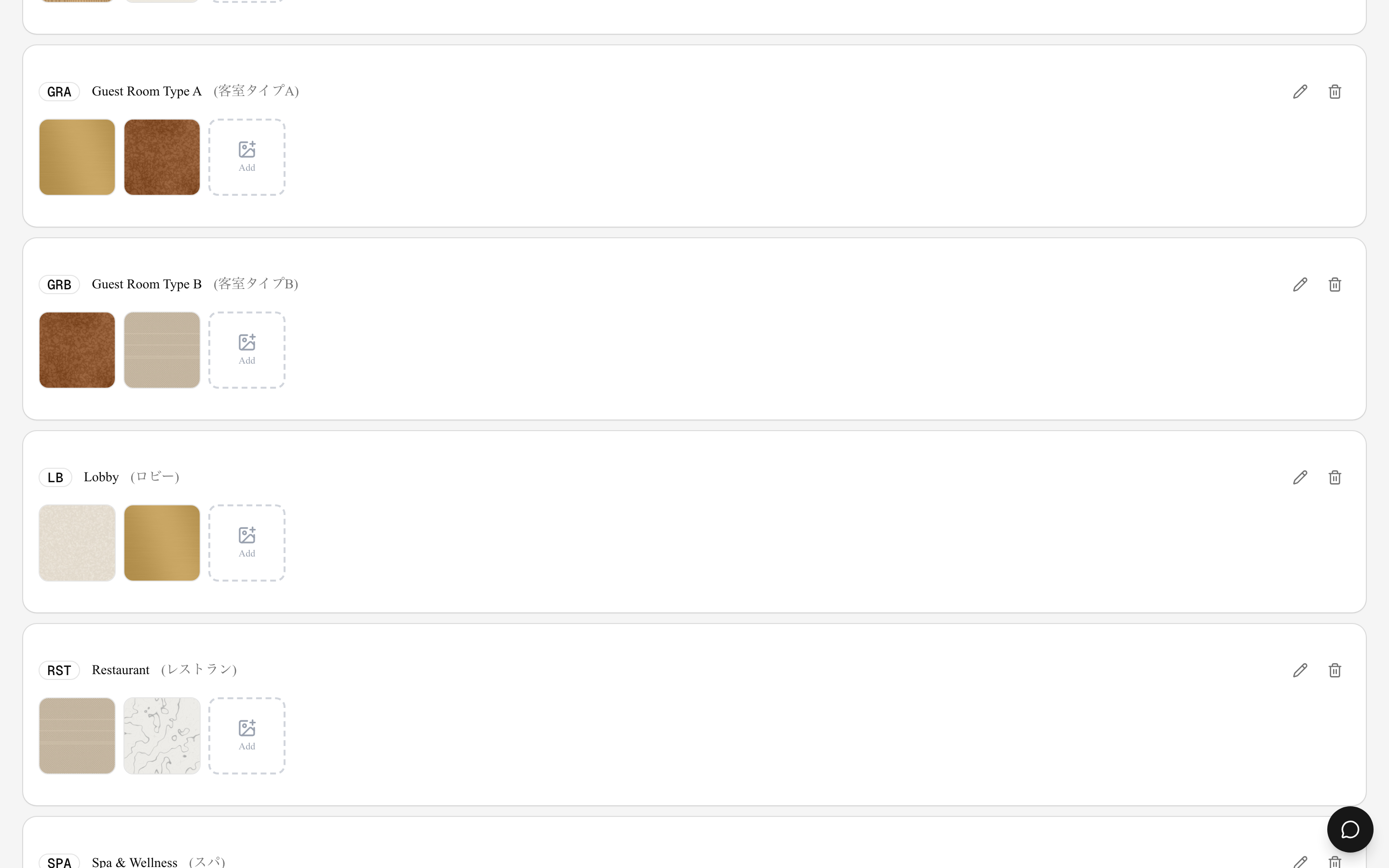
An area is a location inside the project: Lobby, Guest Room 101, Corridor, Terrace. Manage them in the project's Areas tab:
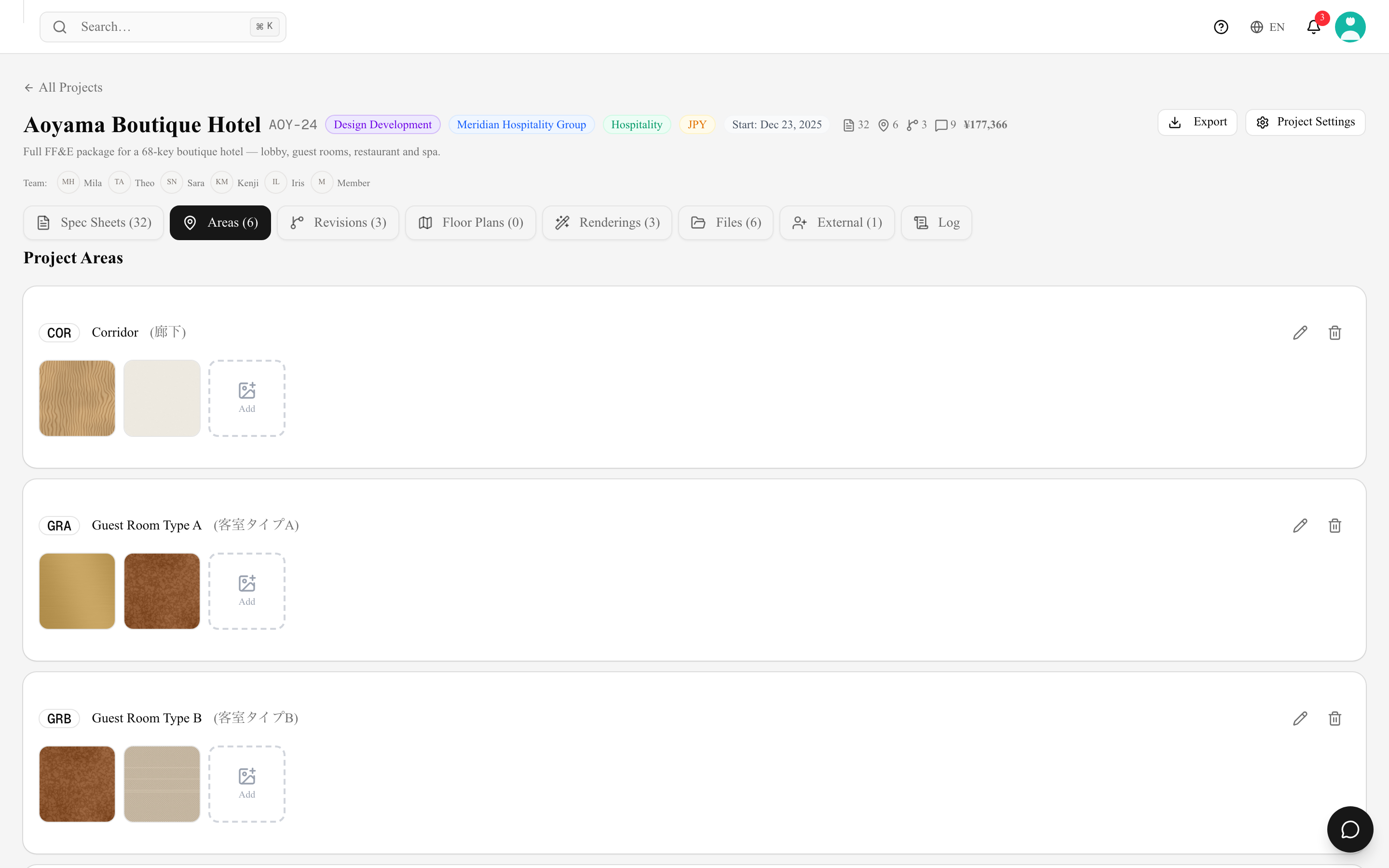
- Each area has a name and an area code (e.g.
LBfor Lobby). - Spec sheets belong to an area; the printed book and floor plans group by area.
- Areas can carry reference images (site photos, concept boards) for context.
- Each area code must be unique within the project:
LB,lbandLBcount as the same code. INTEBEE refuses a duplicate and names the area that already uses it, because a secondLBwould repeat item codes. Areas brought over from the previous system that already share a code keep it. - Deleting an area asks first and tells you how many spec sheets are assigned to it. They move to No Area and their item codes are regenerated without the area code (protected item codes stay as they are); the area and its images are removed permanently. Spec sheets in the Trash that belong to the area are updated the same way, so they come back from the Trash without the deleted area's code.
How item codes are generated
When you create a spec sheet in an area, INTEBEE proposes the next code automatically:
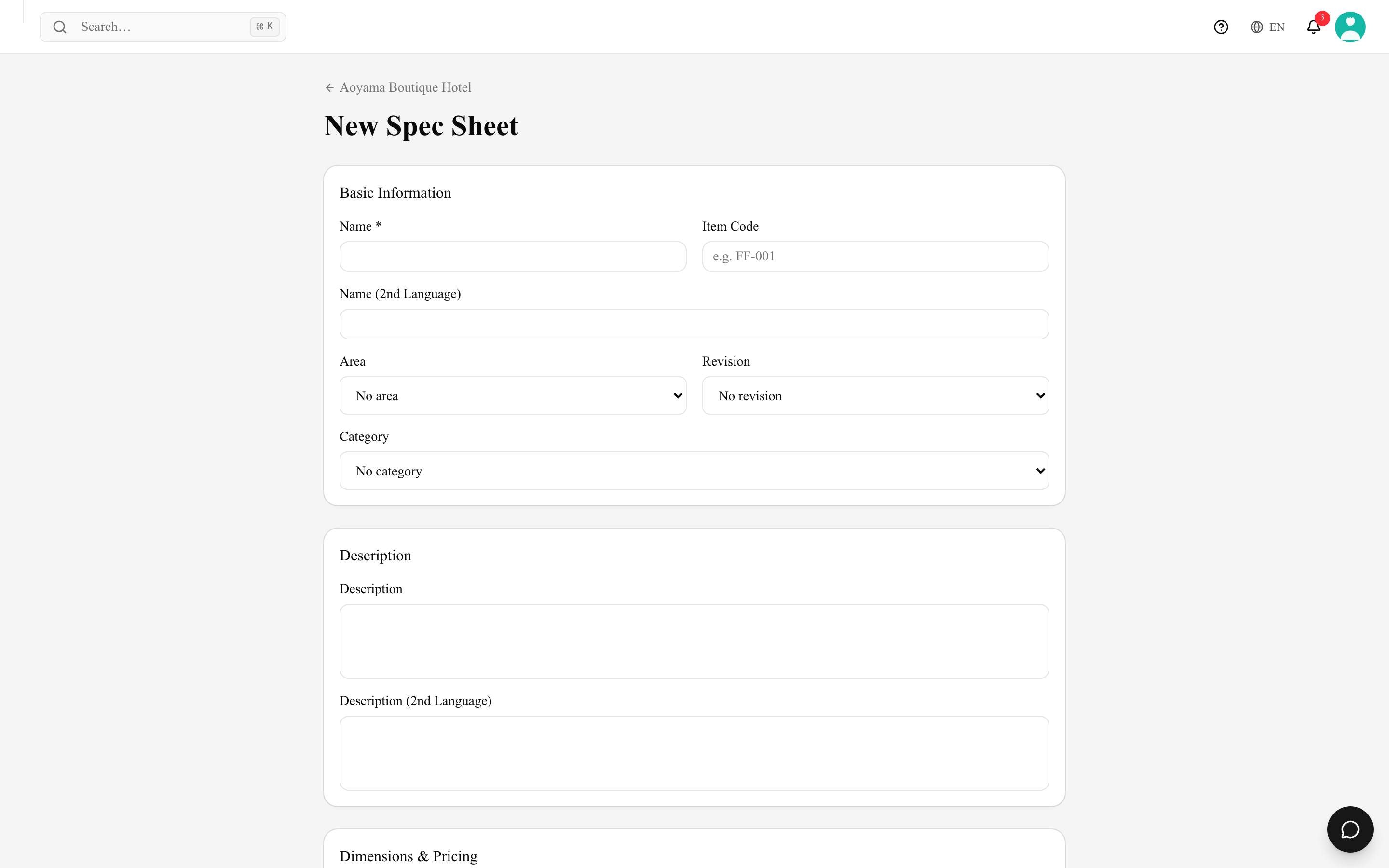
LB-001, LB-002, LB-003 …
- The prefix comes from the area code, the number from the next free sequence.
- Zero padding — on by default, with 3 digits (
LB-001). New projects take the team default from Settings → General → Item Codes (Auto zero-fill spec codes and its Number of digits); each project can change it in Project Settings → Code Settings. Turn it off forLB-1. Projects brought over from the previous system keep the setting they had there. - Manual override — you can always type a code by hand; the generator simply skips taken codes.
- Letters in the number — the code number may contain letters, dots and dashes (
1009A,003.1,302-A). A purely numeric value is zero-filled and continues the sequence; a value with letters is used exactly as typed, is never padded or auto-incremented, and the duplicate warning compares the text. - The item code logic (how prefixes and sequences combine) is configurable per workspace and per project, so it can match the convention your office already uses.
Renumbering
Prefer stable codes once a document has been issued — contractors bookmark them. If you must renumber (e.g. an area was split), do it before issuing a revision, and use the project log to see what changed.
Changing Auto zero-fill spec codes, the Zero-fill digit count or the Item Code Logic in Project Settings → Code Settings, or clicking Regenerate All Item Codes, first shows how many of the project's item codes will change, with a few examples — nothing is rewritten until you confirm, and Cancel puts the setting back. Protected item codes are never changed. When every code already follows the settings, nothing is asked. These settings are saved per project.
Why this matters
- Floor-plan markers show item codes — plan ⇄ spec book cross-referencing works only if codes are consistent.
- Global search (⌘K) finds sheets by code instantly, which becomes the fastest way to navigate large projects.